Assistive Technology Blog: Apple's New Features For People With Disabilities:
Just yesterday, Apple announced several new features that will bring in lots of additional functionality and convenience across all products in this coming fall. However, what are some of the features that can be used by people with disabilities?
It seems like a lot of new features will enable people who have visual impairment, impaired motor skills, muscular dystrophies/atrophy, and other similar disabilities to interact with the devices just with their voice and get desired results very quickly and efficiently. Using the new features with an additional eye tracking device for those who need it can definitely enhance their experience as well.
iOS
iOS for iPhone and iPad get the most features in the upcoming release. By just talking to Siri, a user would be order a ride, send money to someone, order food, and do similar activities.
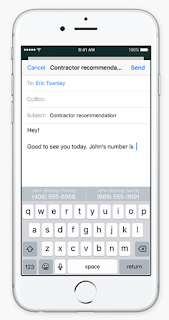
Contextual prediction is being introduced which means that iOS will predict what a person is trying to type by making suggestions in various contexts. For example, if someone is typing "I am available today at", the free time on their calendar will pop up as an option. Similarly, when typing "John's phone number is", John's phone number will be pulled from the address book and displayed as an option.
Search has been enhanced to use artificial intelligence. iOS can detect objects in photos, and a user can now search for just the photos that were taken at the beach, for example.
Apple Pay is coming to various shopping websites so no need to type in a credit card number and other information every time a user goes to a shopping website. Purchases can now be made with just a click of a button in a secure manner.
WatchOS
In the upcoming release, apps will load much faster. A user would also be able to add minutes to a parking meter, order their food, and make other similar purchases using Apple Pay on their watch.
The fitness aspect of the watch has included a wider audience now - wheelchair users! Wheelchair users will be able to track their physical activity through various pushing techniques for various speeds and terrains. Wheelchair specific workouts have now been included, and notifications will be sent every hour for "time to roll" when a person has been sitting and not moving for a long time, to encourage them to be active.
Pressing the side button initiates a call with local emergency services anywhere in the world. It can also be used to send a quick text to a user's emergency contacts.
Wearing an Apple Watch will also work as an authentication mechanism for a user's Mac. When a user wearing an Apple Watch approaches their Mac, the Mac senses their presence and logs them in automatically. No need to type the password for unlocking the computer.
The new "Home" app will also let users control connected (Internet of Things) devices around the house using their phone, tablet, watch or TV. Location based automation can also be set up using the Home app - if a user is approaching the house, turn on the lights, pull up the blinds, and set the thermostat to 68 degrees.
MacOS (formerly OS X)
Siri is now coming to Mac. Siri can locate files for a user ("Show the pdfs in my Downloads folder", "Show my photos from yesterday"), add and modify events ("Add Laura to my 10 AM meeting"), search for images from the internet ("Show me images of Lake Tahoe"), play music, check weather, and do lots of other things.
These are some of the features that people with disabilities can use that will make things easier for them. We should hopefully see a full list of accessibility features from Apple in the near future.
Source: Appleacross all pro...


