iPhone & iPad Apps for the Blind &VisuallyImpaired

Showing posts with label iPad Air. Show all posts

Friday, September 1, 2017

How do I clean my AirPods?


Protect your investment with regular cleanings and good aural hygiene. Dropping $160 on a pair of wireless earbuds in a dental-floss-sized case is no small decision. If you decided to spring for a pair of AirPods, you're going to want to take good care of them so they'll last you a couple rounds of iPhone upgrades. After all, these ones don't come bundled in the box. Here's how you clean your AirPods and keep 'em clean! With dirt, dust, lint, grime, ear wax, and more constantly finding its way onto your glossy white AirPods, you're definitely gonna want to clean them from time to time. Consistency is your friend, friend: The best way to ward off long-lasting grime is by preventing it from building up. Clean and clean regularly.


Carry a microfiber cloth


Get a little microfiber cloth and keep it on your person or store it wherever you charge your AirPods. Give your AirPods (and the case if you want) a quick buff every couple days.
If you happen to spot an offending smudge, go ahead and wipe it away.
You can pick up a six pack of microfiber cleaning cloths from Amazon and be set for life … or at least the life of your AirPods! Do not use hand sanitizer on your AirPods. You risk damaging the polish — or worse, the electronics. Instead, a little bit of water (purified is better than tap) on a cloth can help you wipe away the grease and grime.


As much as I wish Apple's AirPods were a seamless piece of plastic, they're not. And the tiny, tiny little cracks and crevices start to fill up with dust, grime, etc. When a cloth-polish just won't do, you've gotta get up close and personal.
I find a cotton swab is great for a thorough cleaning of your AirPods. Whether you've got ear wax clinging to the speaker grilles or dirt in the seams, a cotton swab will usually do the trick.
Lastly, if you've got a particularly stubborn smudge that won't wipe away from the surface of your AirPods, you might try giving it a quick swipe or four with a rubber eraser. The rubber will pull the mark from the surface of your AirPods.

A word of warning, though: Don't get lazy! Check on your little Pod Pals from time to time to make sure they're not collecting grime.

https://youtu.be/arw-OUhx9Rw

Saturday, August 12, 2017

Here is my review of my new BumpKase by NutKase.com


Hello my name is Chelsea and I want to tell you about my New iPad case called BumpKase
 by NutKase.com


Being a visually impaired person I have had a few issues with judging exactly if I have placed an item on a bed, counter or dresser. I have had a few times where I have missed the mark. And was extremely concerned if I have damaged what I have dropped. 

  I have been looking for a durable case for my iPad and  I have found the one that will give me that protection I want.

I have been using his case for about one week and it is the best drop proof case ever to protect my iPad! It's excellent quality with sleek design & it's made of rugged TPU and has double protected corners so if it drops it is safe! Plus it has a unique hand strap which allows me to hold it in one hand, & it comes in great colours! You will love it! Connecting headphones & plugging it in to charge is super easy, the ports are clearly delineated and very easy to use. It has a magnetic cover for sleep wake mode, and folds nicely into standing position & landscape mode. 
Another nice feature is that there is a clear pocket for a card with your name/phone number/address and email address. This will be beneficial for people knowing who the device belongs to.

 I know at times that money is extremely tight. And when you purchase an item you don't always plan on purchasing accessories and a mediately. But when you purchase a expensive I am such as an iPad it is extremely important to consider purchasing a case to protect your investment.  

So if you have an iPad or considering getting one I would extremely recommend checking out this company. They also have a case for laptops.


Friday, August 4, 2017

Have you heard of a company called NutKase.com ? They make a very interesting looking iPad case.

I was contacted by a nice lady by the name of Amy Lentini she is a owner of a family owned business called NutKase.com.  


They are a small family run business . who have designed a interesting iPad case which protects your product if it is dropped as well as having a unique elasticated strap on the back which is used to hold your iPad conveniently without the fear of dropping it. This looks like a very intriguing product. !

 I will be receiving it in the mail soon. After I tried out for a little while I will do a  in depth review.

 I am going to provide a link to their website here. And some photos. Can't wait to try this out as a visually impaired person . So stay tune for my review of NutKase.com.

 you can also find them at.
 Instagra nutkase_tech


Labeling your Photos or Videos on an iOS Device using Voice Over


Labeling your Photos or Videos on an iOS Device using Voice Over In this tutorial, I show you how to label your photos on your iOS device. This is a hidden feature that is very 

handy. Feel free to comment below for any questions you may have.

Saturday, December 24, 2016

Keep your notes secure with password-protection

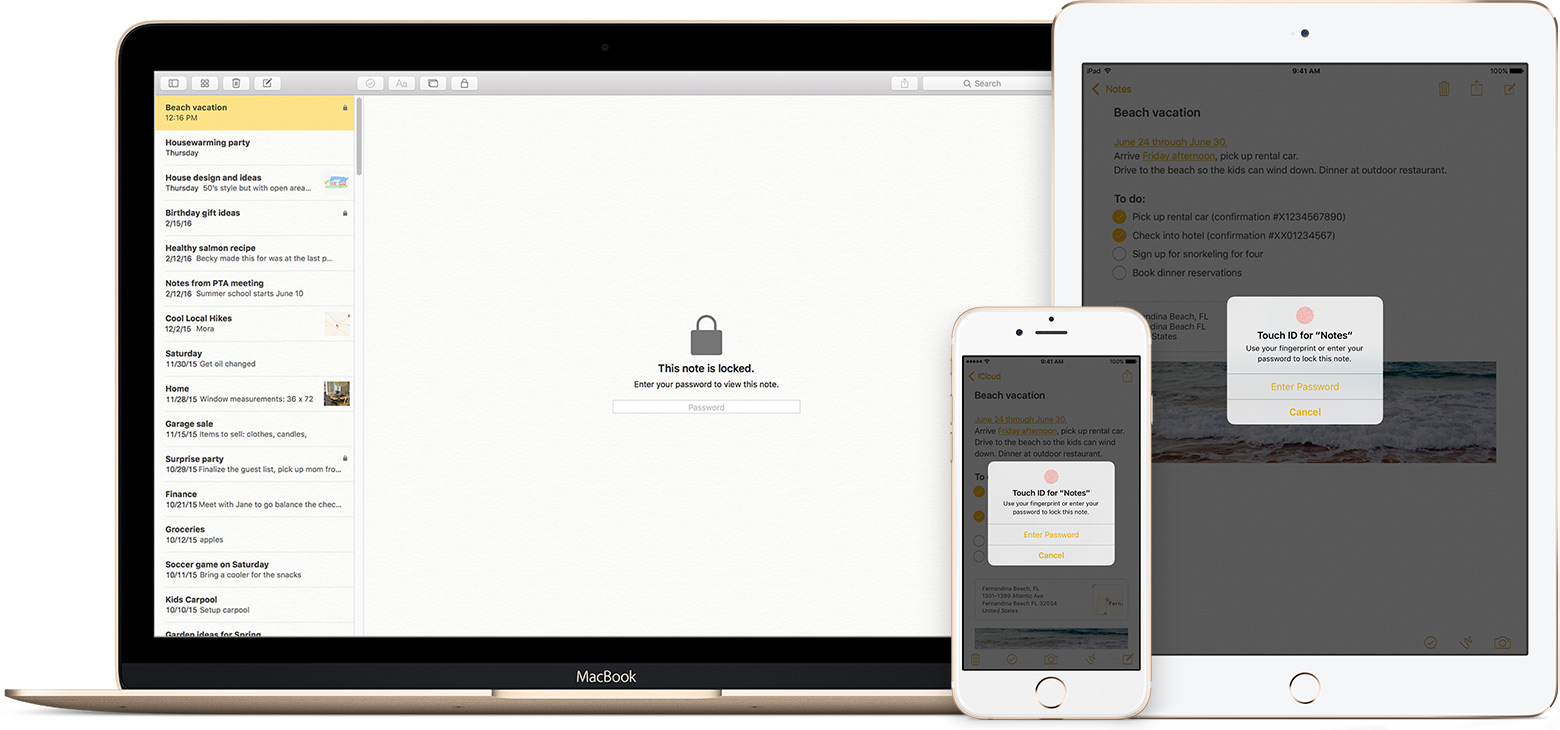
You can secure the notes that contain your most personal data—such as financial details, medical info, or website logins—with a password or fingerprint.

The Notes app lets you lock any note that you want to keep private from anyone else that might use your device. Notes uses a single password for all of the notes that you want to protect, on all of your devices. And if you have an iPhone or iPad with Touch ID, you can use your fingerprint to open your locked notes.

Before you begin

Set up your notes password

Before you can lock your notes, create a password that you can easily remember. If you're concerned about forgetting your password, make sure that you give yourself a password hint and that you set up Touch ID. If you forget your password, Apple can't help you reset it.
If you access your iCloud notes on more than one Apple device, you'll use the same notes password to lock and unlock all of them.

On your iPhone, iPad, or iPod touch

You can create a password in your device Settings or directly in the Notes app. Then you can turn on Use Touch ID on your iPhone or iPad, so that you can use your fingerprint to unlock your protected notes.

Create a password in Settings

  1. Go to Settings > Notes.
  2. Tap Password.
  3. Enter a password, then give yourself a password hint.
  4. Tap Done.

Create a password in Notes

  1. Open a note that you want to lock.
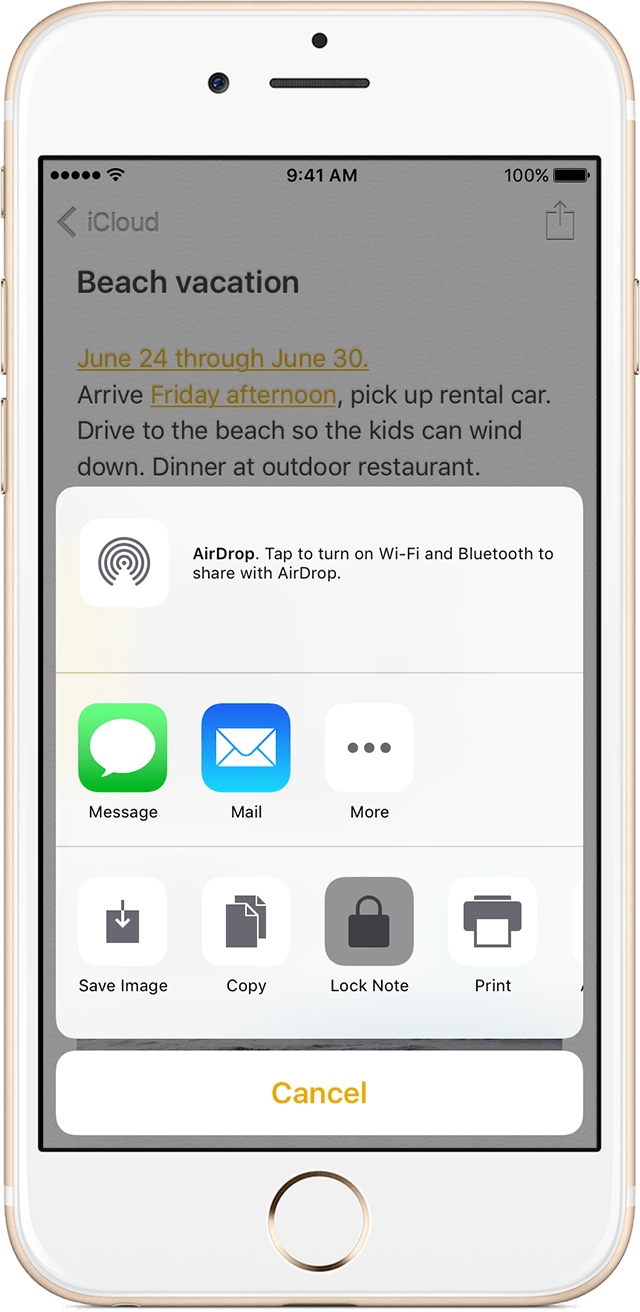
  2. Tap Share icon > Lock Note.
  3. Enter a password, then give yourself a password hint.
  4. Tap Done.

On your Mac

You can create a password on your Mac directly in the Notes app. In the menu bar, click Notes > Set Password. Enter a password, then give yourself a password hint and click Done.

Use Notes password-protection

Whether your note has an image, sketch, map, URL, or list of important information, it's simple to keep it safe with password-protection. And when you need to access your secure notes, you can tell which ones are locked directly from the Notes list. Just look for the  next to the note. Until you enter your password or use Touch ID, you only see the title and the last date that it was edited.
You can't password-protect notes that you share with someone else. If you want to stop sharing a note, open , then tap or click Stop Sharing.
     

Lock a note

On your iPhone, iPad, or iPod touch:
  1. Open the note that you want to lock.
  2. Tap Share icon .
  3. Choose Lock Note.
After you lock your note, it stays open and you'll see unlocked notes icon at the top of the screen. You can hide the note's contents when you tap .
On your Mac:
  1. Open the note that you want to lock.
  2. Click lock notes icon.
  3. Choose Lock Note.
You can only lock notes on your device and notes in iCloud. You can't lock notes that have PDFs, audio, video, Keynote, Pages, Numbers documents, or notes that use IMAP to sync (like Yahoo!, Gmail, and Hotmail).
     

Open a locked note

On your iPhone, iPad, or iPod touch:
  1. Tap the locked note.
  2. Tap View Note.
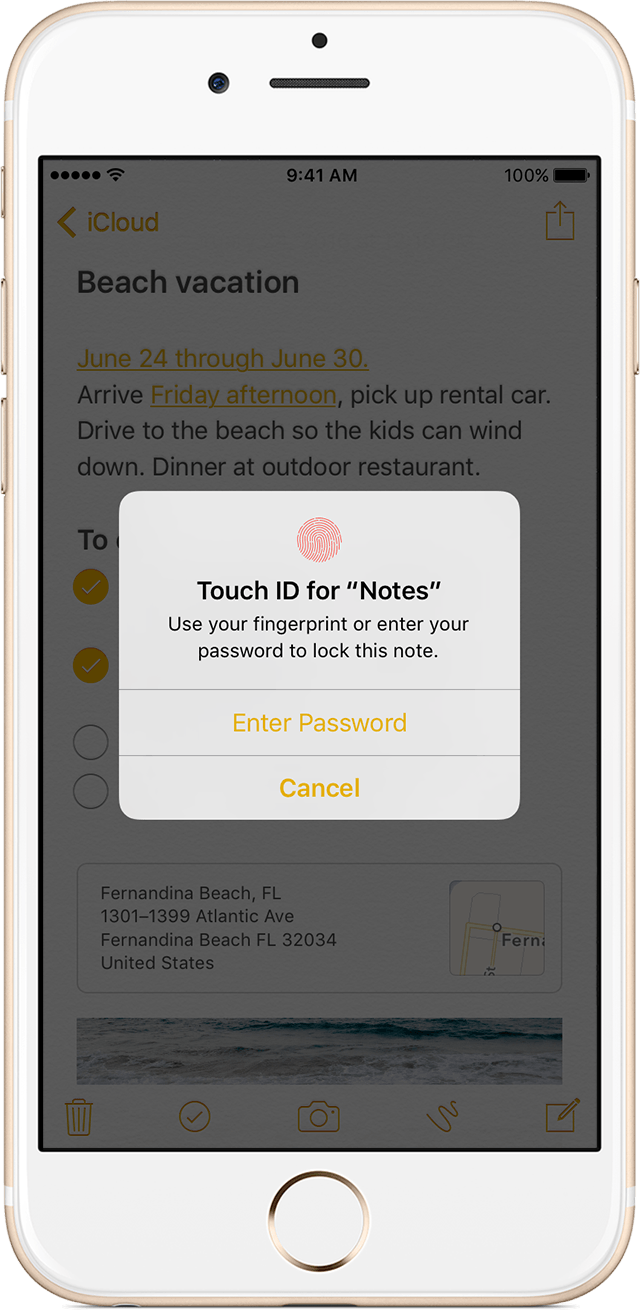
  3. Enter your password or use Touch ID.
On your Mac and iCloud.com:
  1. Click the locked note.
  2. Enter your password.
Your locked notes stay open for up to three minutes, making it easy for you to jump to another note, copy and paste information from other apps, and more. If you close the Notes app or your device goes to sleep, the note locks again.
     

Remove a lock

On your iPhone, iPad, or iPod touch:
  1. Tap the locked note.
  2. Enter your password or use Touch ID.
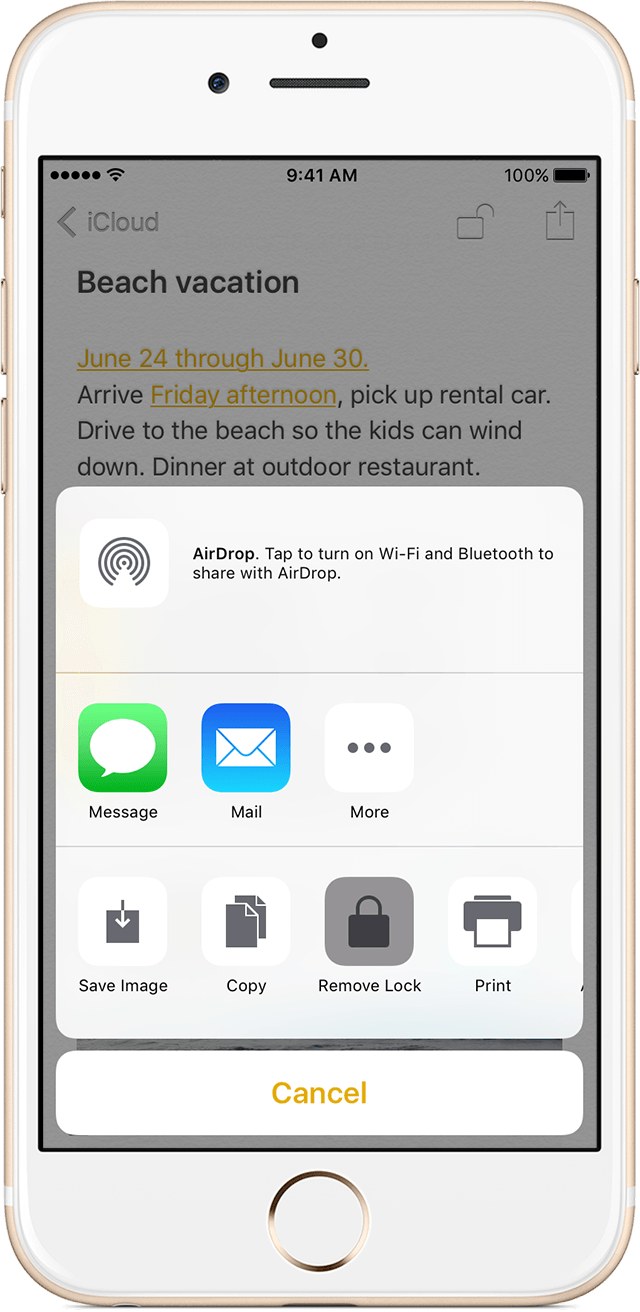
  3. Tap Share icon.   
  4. Choose Remove Lock.
On your Mac:
  1. Click the locked note.
  2. Enter your password.
  3. Click .   
  4. Choose Remove Lock.
When you remove a lock from a note, it's removed on all of the devices that you're signed in to with the same Apple ID.

Change your password

On your iPhone, iPad, or iPod touch:
  1. Go to Settings > Notes > Password.
  2. Tap Change Password.
  3. Enter your old password, then enter a new password and password hint.
On your Mac:
  1. Open Notes.
  2. In the menu bar, choose Notes > Change Password.
  3. Enter your old password, then enter a new password and password hint.
  4. Click Change Password.

If you forgot your notes password

You can unlock a note only when you enter the password that it's locked with. If you forgot your password, Apple can't help you regain access to your locked notes.
You can reset your password, but this won’t give you access to your old notes. It will, however, let you password protect any notes that you create from that point forward with the new password. This could lead to you having multiple notes with different passwords.
If you have multiple passwords, you can't tell which password you should use when you look at your notes in the Notes list. When you open a note locked by your old password but enter your current password, you'll see an alert that you entered the wrong password with a hint for your old one. If you then enter the correct old password, you get the option to update that note's password to your current one.

Reset your notes password

When you reset your Notes password, it doesn't delete or change the password of your notes that are already locked. If you have a note that uses an old password, you can update it to the new password when you enter the old password, remove the old password, then apply your new password to the note.
On your iPhone, iPad, or iPod touch:
  1. Go to Settings > Notes > Password.
  2. Tap Reset Notes Password.
  3. Enter your Apple ID password.
  4. Tap Reset Notes Password again.
  5. Enter your new password and password hint.
On your Mac:
  1. Open Notes.
  2. In the menu bar, click Notes > Reset Password > OK.
  3. Enter your Apple ID password.
  4. Click Reset Password.
  5. Enter your new password and password hint.

Wednesday, November 23, 2016

Chelsea Ann Stark: Hotmail And iPhone4s Frenzy


Chelsea Ann Stark: Hotmail And iPhone4s Frenzy
If you have a Hotmail email account you probably went through this Tuesday, November 22, 2016.
To read this post please go to http://chelseaannstark.blogspot.com/2016/08/hotmail-and-iphone4s-frenzy.html