iPhone & iPad Apps for the Blind &VisuallyImpaired

Showing posts with label iPhone 6. Show all posts

Friday, September 1, 2017

How do I clean my AirPods?


Protect your investment with regular cleanings and good aural hygiene. Dropping $160 on a pair of wireless earbuds in a dental-floss-sized case is no small decision. If you decided to spring for a pair of AirPods, you're going to want to take good care of them so they'll last you a couple rounds of iPhone upgrades. After all, these ones don't come bundled in the box. Here's how you clean your AirPods and keep 'em clean! With dirt, dust, lint, grime, ear wax, and more constantly finding its way onto your glossy white AirPods, you're definitely gonna want to clean them from time to time. Consistency is your friend, friend: The best way to ward off long-lasting grime is by preventing it from building up. Clean and clean regularly.


Carry a microfiber cloth


Get a little microfiber cloth and keep it on your person or store it wherever you charge your AirPods. Give your AirPods (and the case if you want) a quick buff every couple days.
If you happen to spot an offending smudge, go ahead and wipe it away.
You can pick up a six pack of microfiber cleaning cloths from Amazon and be set for life … or at least the life of your AirPods! Do not use hand sanitizer on your AirPods. You risk damaging the polish — or worse, the electronics. Instead, a little bit of water (purified is better than tap) on a cloth can help you wipe away the grease and grime.


As much as I wish Apple's AirPods were a seamless piece of plastic, they're not. And the tiny, tiny little cracks and crevices start to fill up with dust, grime, etc. When a cloth-polish just won't do, you've gotta get up close and personal.
I find a cotton swab is great for a thorough cleaning of your AirPods. Whether you've got ear wax clinging to the speaker grilles or dirt in the seams, a cotton swab will usually do the trick.
Lastly, if you've got a particularly stubborn smudge that won't wipe away from the surface of your AirPods, you might try giving it a quick swipe or four with a rubber eraser. The rubber will pull the mark from the surface of your AirPods.

A word of warning, though: Don't get lazy! Check on your little Pod Pals from time to time to make sure they're not collecting grime.

https://youtu.be/arw-OUhx9Rw

Saturday, December 24, 2016

Keep your notes secure with password-protection

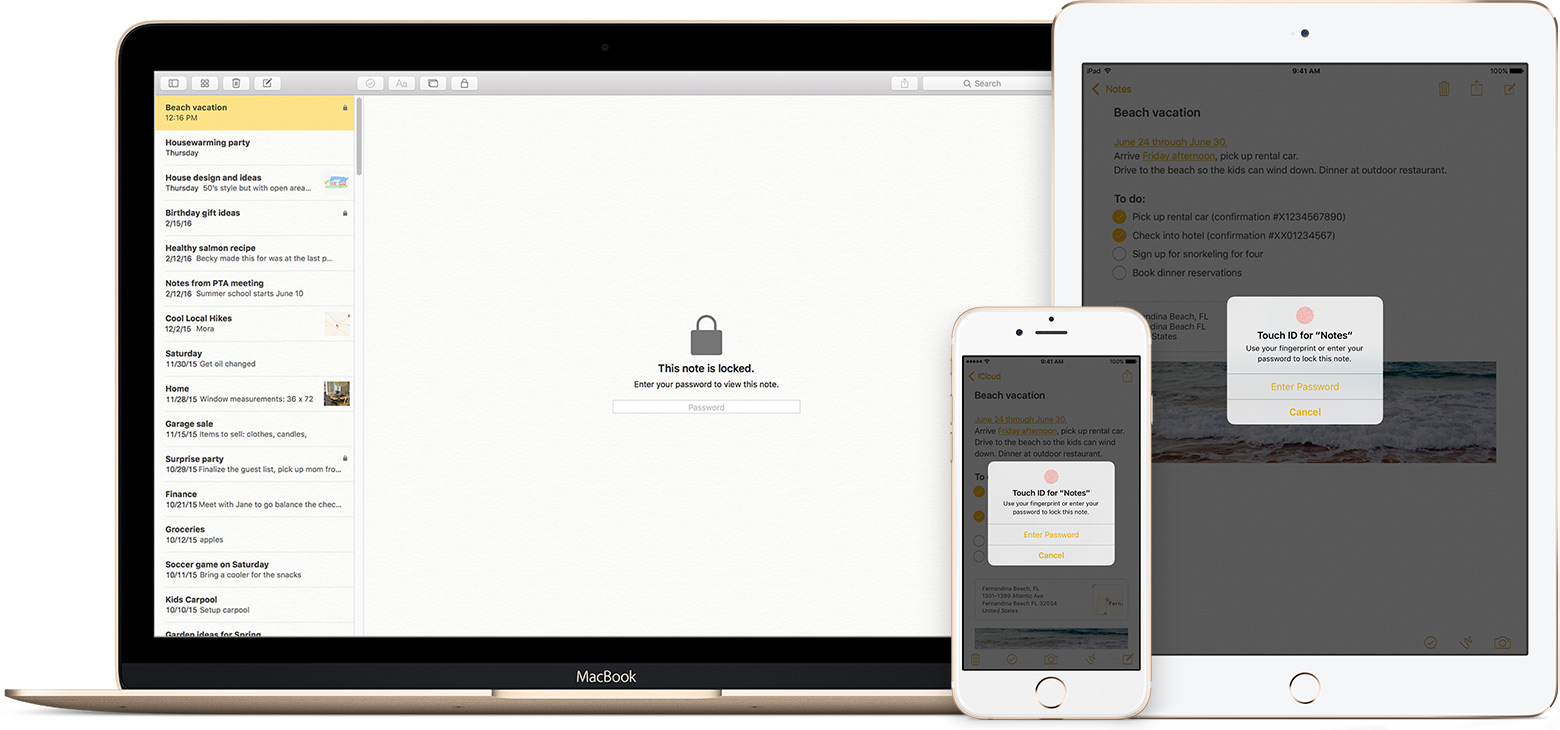
You can secure the notes that contain your most personal data—such as financial details, medical info, or website logins—with a password or fingerprint.

The Notes app lets you lock any note that you want to keep private from anyone else that might use your device. Notes uses a single password for all of the notes that you want to protect, on all of your devices. And if you have an iPhone or iPad with Touch ID, you can use your fingerprint to open your locked notes.

Before you begin

Set up your notes password

Before you can lock your notes, create a password that you can easily remember. If you're concerned about forgetting your password, make sure that you give yourself a password hint and that you set up Touch ID. If you forget your password, Apple can't help you reset it.
If you access your iCloud notes on more than one Apple device, you'll use the same notes password to lock and unlock all of them.

On your iPhone, iPad, or iPod touch

You can create a password in your device Settings or directly in the Notes app. Then you can turn on Use Touch ID on your iPhone or iPad, so that you can use your fingerprint to unlock your protected notes.

Create a password in Settings

  1. Go to Settings > Notes.
  2. Tap Password.
  3. Enter a password, then give yourself a password hint.
  4. Tap Done.

Create a password in Notes

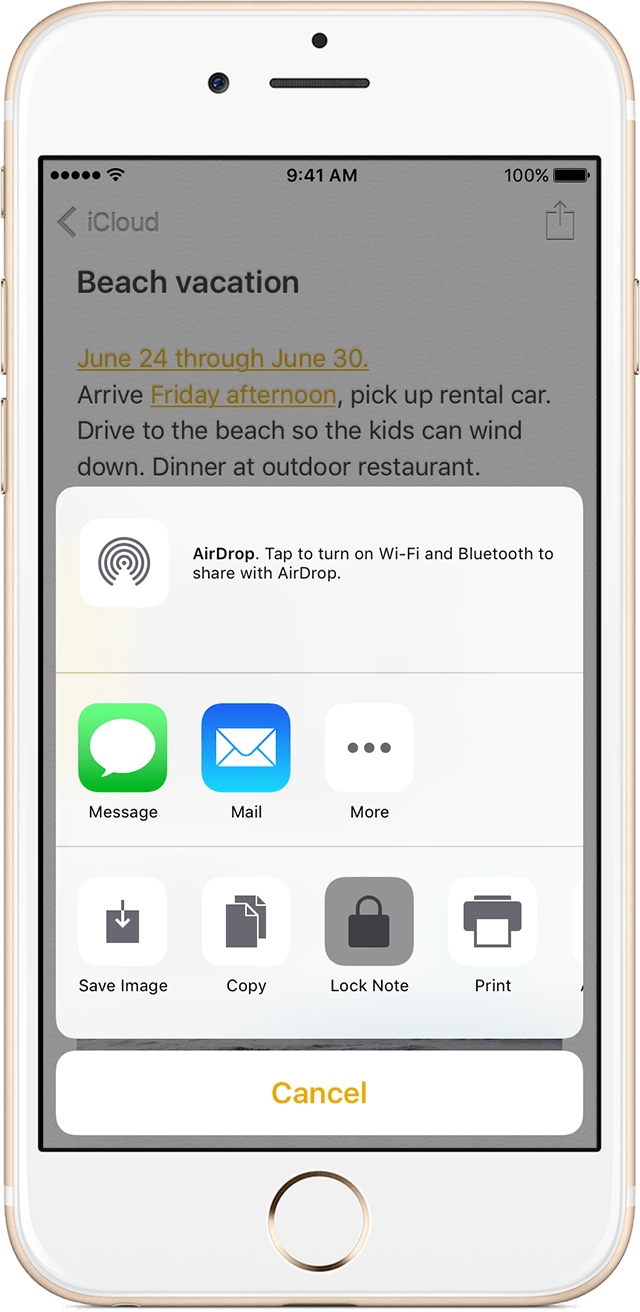
  1. Open a note that you want to lock.
  2. Tap Share icon > Lock Note.
  3. Enter a password, then give yourself a password hint.
  4. Tap Done.

On your Mac

You can create a password on your Mac directly in the Notes app. In the menu bar, click Notes > Set Password. Enter a password, then give yourself a password hint and click Done.

Use Notes password-protection

Whether your note has an image, sketch, map, URL, or list of important information, it's simple to keep it safe with password-protection. And when you need to access your secure notes, you can tell which ones are locked directly from the Notes list. Just look for the  next to the note. Until you enter your password or use Touch ID, you only see the title and the last date that it was edited.
You can't password-protect notes that you share with someone else. If you want to stop sharing a note, open , then tap or click Stop Sharing.
     

Lock a note

On your iPhone, iPad, or iPod touch:
  1. Open the note that you want to lock.
  2. Tap Share icon .
  3. Choose Lock Note.
After you lock your note, it stays open and you'll see unlocked notes icon at the top of the screen. You can hide the note's contents when you tap .
On your Mac:
  1. Open the note that you want to lock.
  2. Click lock notes icon.
  3. Choose Lock Note.
You can only lock notes on your device and notes in iCloud. You can't lock notes that have PDFs, audio, video, Keynote, Pages, Numbers documents, or notes that use IMAP to sync (like Yahoo!, Gmail, and Hotmail).
     

Open a locked note

On your iPhone, iPad, or iPod touch:
  1. Tap the locked note.
  2. Tap View Note.
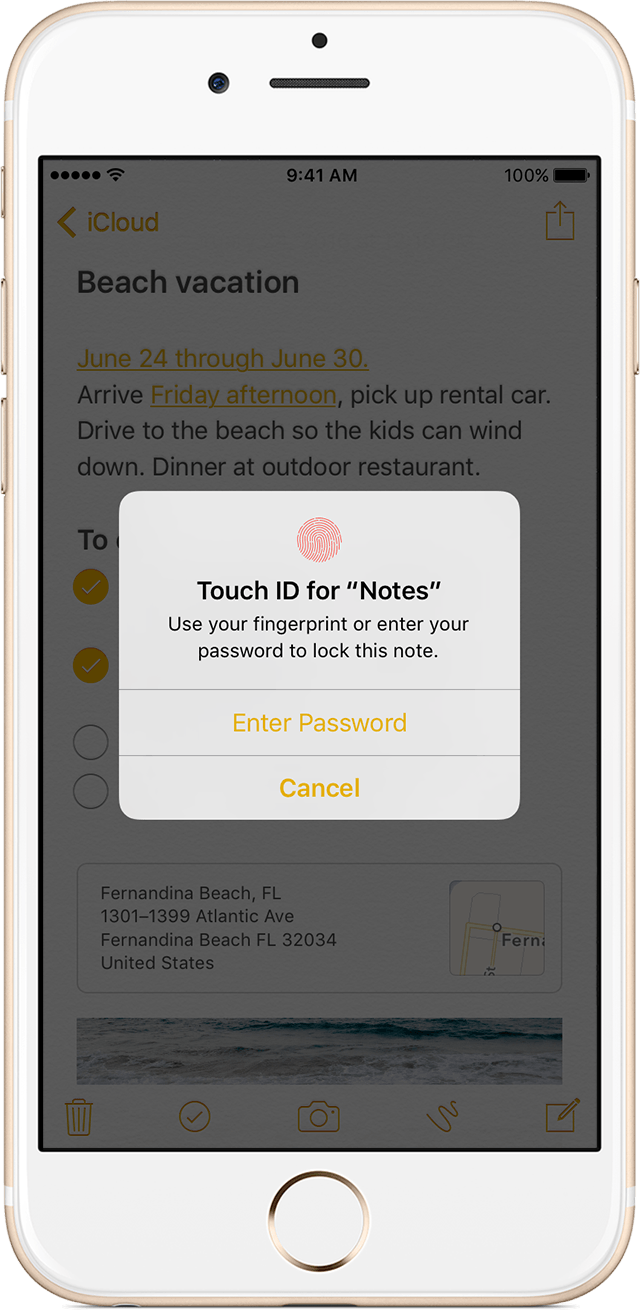
  3. Enter your password or use Touch ID.
On your Mac and iCloud.com:
  1. Click the locked note.
  2. Enter your password.
Your locked notes stay open for up to three minutes, making it easy for you to jump to another note, copy and paste information from other apps, and more. If you close the Notes app or your device goes to sleep, the note locks again.
     

Remove a lock

On your iPhone, iPad, or iPod touch:
  1. Tap the locked note.
  2. Enter your password or use Touch ID.
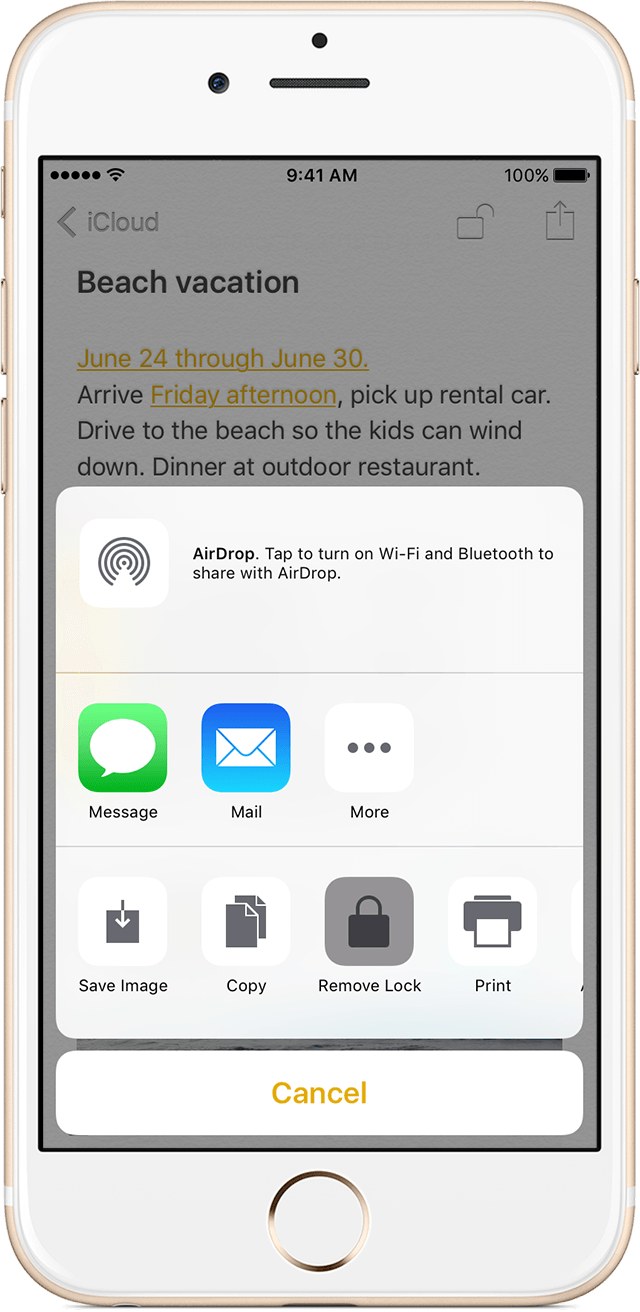
  3. Tap Share icon.   
  4. Choose Remove Lock.
On your Mac:
  1. Click the locked note.
  2. Enter your password.
  3. Click .   
  4. Choose Remove Lock.
When you remove a lock from a note, it's removed on all of the devices that you're signed in to with the same Apple ID.

Change your password

On your iPhone, iPad, or iPod touch:
  1. Go to Settings > Notes > Password.
  2. Tap Change Password.
  3. Enter your old password, then enter a new password and password hint.
On your Mac:
  1. Open Notes.
  2. In the menu bar, choose Notes > Change Password.
  3. Enter your old password, then enter a new password and password hint.
  4. Click Change Password.

If you forgot your notes password

You can unlock a note only when you enter the password that it's locked with. If you forgot your password, Apple can't help you regain access to your locked notes.
You can reset your password, but this won’t give you access to your old notes. It will, however, let you password protect any notes that you create from that point forward with the new password. This could lead to you having multiple notes with different passwords.
If you have multiple passwords, you can't tell which password you should use when you look at your notes in the Notes list. When you open a note locked by your old password but enter your current password, you'll see an alert that you entered the wrong password with a hint for your old one. If you then enter the correct old password, you get the option to update that note's password to your current one.

Reset your notes password

When you reset your Notes password, it doesn't delete or change the password of your notes that are already locked. If you have a note that uses an old password, you can update it to the new password when you enter the old password, remove the old password, then apply your new password to the note.
On your iPhone, iPad, or iPod touch:
  1. Go to Settings > Notes > Password.
  2. Tap Reset Notes Password.
  3. Enter your Apple ID password.
  4. Tap Reset Notes Password again.
  5. Enter your new password and password hint.
On your Mac:
  1. Open Notes.
  2. In the menu bar, click Notes > Reset Password > OK.
  3. Enter your Apple ID password.
  4. Click Reset Password.
  5. Enter your new password and password hint.

Saturday, November 5, 2016

Be My Eyes - helping blind see app

Be My Eyes is an app that connects blind and visually impaired with sighted helpers from around the world via live video 

Monday, July 25, 2016

The History of Apple iPhones: How to fix iPhone battery life in the age of Snapc...

How to fix iPhone battery life in the age of Snapchat and Pokémon Go

As more users spend their days in battery-demanding apps, Apple needs to consider evolving battery life to meet that demand.
 
So, how can Apple and the iPhone evolve to handle them?

Saturday, July 9, 2016

Assistive Technology Blog: Apple's New Features For People With Disabilities

Assistive Technology Blog: Apple's New Features For People With Disabilitiesphoto of a macbook

Just yesterday, Apple announced several new features that will bring in lots of additional functionality and convenience across all products in this coming fall. However, what are some of the features that can be used by people with disabilities?

It seems like a lot of new features will enable people who have visual impairment, impaired motor skills, muscular dystrophies/atrophy, and other similar disabilities to interact with the devices just with their voice and get desired results very quickly and efficiently. Using the new features with an additional eye tracking device for those who need it can definitely enhance their experience as well.

iOS

iOS for iPhone and iPad get the most features in the upcoming release. By just talking to Siri, a user would be order a ride, send money to someone, order food, and do similar activities.

iphoen screen showing image of someone composing an email. It displayes " john's number is" and also john's phone number pulled from the address book as an option.Contextual prediction is being introduced which means that iOS will predict what a person is trying to type by making suggestions in various contexts. For example, if someone is typing "I am available today at", the free time on their calendar will pop up as an option. Similarly, when typing "John's phone number is", John's phone number will be pulled from the address book and displayed as an option.

Search has been enhanced to use  artificial intelligence. iOS can detect objects in photos, and a user can now search for just the photos that were taken at the beach, for example.

Apple Pay is coming to various shopping websites so no need to type in a credit card number and other information every time a user goes to a shopping website. Purchases can now be made with just a click of a button in a secure manner.

WatchOS

In the upcoming release, apps will load much faster. A user would also be able to add minutes to a parking meter, order their food, and make other similar purchases using Apple Pay on their watch. 

The fitness aspect of the watch has included a wider audience now - wheelchair users! Wheelchair users will be able to track their physical activity through various pushing techniques for various speeds and terrains. Wheelchair specific workouts have now been included, and notifications will be sent every hour for "time to roll" when a person has been sitting and not moving for a long time, to encourage them to be active.

Pressing the side button initiates a call with local emergency services anywhere in the world. It can also be used to send a quick text to a user's emergency contacts.

photo of apple watch with the notification "time to roll" displayed for wheelchair users.
Wearing an Apple Watch will also work as an authentication mechanism for a user's Mac. When a user wearing an Apple Watch approaches their Mac, the Mac senses their presence and logs them in automatically. No need to type the password for  unlocking the computer.

The new "Home" app will also let users control connected (Internet of Things) devices around the house using their phone, tablet, watch or TV. Location based automation can also be set up using the Home app - if a user is approaching the house, turn on the lights, pull up the blinds, and set the thermostat to 68 degrees.

MacOS (formerly OS X)

Siri is now coming to Mac. Siri can locate files for a user ("Show the pdfs in my Downloads folder", "Show my photos from yesterday"), add and modify events ("Add Laura to my 10 AM meeting"), search for images from the internet ("Show me images of Lake Tahoe"), play music, check weather, and do lots of other things.

These are some of the features that people with disabilities can use that will make things easier for them. We should hopefully see a full list of accessibility features from Apple in the near future.

Source: Apple
Image Sources: Appleacross all pro...

Monday, June 13, 2016

Here is my latest experience with my iPhone 6 and Apple..


 I woke up on  Thursday morning and noticed my iPhone 6's battery wasn't working right. 
So I grabbed a cable and a wallplug and started charging my phone.  I put the phone to charge at 8:00 AM this morning.  By noon, my phones battery only charged to 2%. 
I have tried five different cables, and six different wall plugs. I'm now on cable number five. 
I've tried charging it with the phone off and also tried charging it in airplane mode.  
But the battery stayed at 2%. 
So I decided to call Apple and see if there's something they can do for me. 
The lady on the phone walked me through some diagnostic steps. 
But since the fact that my phone was now 1% charge, it would not do anything other then turn on. Occasionally, it will turn off and back on. 
So she tried to book me a appointment same-day to get my phone looked at.
 She looked if there was any openings in any of the stores near me. 
But apparently there were no openings until Sunday. 
But she said that my phone would probably not make it till then. 


So she called the Apple store that is closest to me and told them that I was blind and needed my phone. Since it was my lifeline and how I do day-to-day things. Somehow, she managed to get them to give me an appointment in one hour. Robert took me to the Apple Store in Townsquare, and I only had to wait one hour before someone was able to help me. 
We went through all the diagnostics. 
Which took 10 minutes. They said it looks like I need a new battery.
 They said come back in two hours and your phone should be ready. It will cost you $85.
 If the new battery does not solve the problem, they will give me a new phone for the same amount. 
So I left and went back two hours later. Apparently, the new battery did the trick. 
My phone is now running great. I am now at 100%. I'm extremely happy with the service I got from the Apple Store in Townsquare. 
I've heard a lot of people complaints about apples service. But are no complaints here for me.  

It cost me $85 to get a new battery installed in my phone that I probably had for a year and six months. But it is the cheapest fix and I don't need to worry about loading all my stuff on a new phone. If I had to get a new phone, I probably would've paid a little extra and  got a iPhone 6+. 
I was extremely happy that my original phone is now running excellent. Thank you to the awesome people at the Apple Store in Town Square in Las Vegas.