iPhone and iPad Apps for the Blind And Visually Impaired

iPhone & iPad Apps for the Blind &VisuallyImpaired

iPhone & iPad Apps for the Blind &VisuallyImpaired
Showing posts with label iphone1g. Show all posts

Thursday, December 31, 2015

Voiceover for iOS let voiceover be your guide

iPad paired with a Braille display in the Notes app.Braille Displays


iOS devices are fully compatible with many refreshable braille displays. You can connect a Bluetooth wireless braille display to read VoiceOver output, including contracted and uncontracted braille and equations using Nemeth Code. And braille displays with input keys can be used to control your iOS device when VoiceOver is turned on.
Learn more about braille displays

VoiceOver is a gesture-based screen reader that lets you enjoy the fun and simplicity of iOS even if you can’t see the screen. With VoiceOver enabled, just triple-click the Home button to access it wherever you are in iOS. Hear a description of everything happening on your screen, from battery level to who’s calling to which app your finger’s on. You can adjust the speaking rate and pitch to suit you.


iPhone showing VoiceOver speech output from It's Nice That web site in Safari: 'The intimidating landscapes of the Tour de France captured beautifully by Mark Leary.'
VoiceOver navigating the iPad mini home screen: 'Mail. One new item. Double-tap to open.'

Navigation

With VoiceOver, you’ll use a simple set of gestures to control your iOS device. For example, touch or drag your finger around the screen and VoiceOver tells you what’s there. Tap a button to hear a description; double-tap to activate. Swipe up or down to adjust a slider. Flick left and right to move from one app to the next. When you interact with an element on the screen, a black rectangle appears around it, so sighted users can follow along. When you prefer privacy, you can activate a screen curtain to turn off the display so no one can see it, even as you’re controlling it. And when VoiceOver is talking, the volume of any background audio from music or video automatically lowers, “ducking” under the voice, so you can hear VoiceOver clearly.

Text Input

Whether you’re composing an email or jotting a note, VoiceOver echoes each character on the keyboard as you touch it, and again when you enter it. Have VoiceOver speak each completed word. A flick up or down moves the cursor so you can edit precisely. To help you type more quickly and accurately, iOS supports multiple character inputmethods — including handwriting — and corrects misspelled words. Enable Speak Auto-text and you hear a sound effect and the suggested word spoken. Keep typing to ignore it, or tap the space bar to have your iOS device type it for you. Pair up an Apple Bluetooth keyboard, and VoiceOver talks you through inputting text in the same way.
iPhone showing the VoiceOver rotor set to move by headings in a Elle Decor web page.

The Rotor

iPhone showing VoiceOver working with autocorrection in the Messages app.
VoiceOver features a virtual control called the rotor. Turning the rotor — by rotating two fingers on the screen as if you were turning an actual dial — changes the way VoiceOver moves through a web page or document based on the setting you choose. When you’re on a web page, turn the rotor to hear settings like “headings,” “links,” and “images.” Then flick to choose how you navigate the page — for example, you can skip from one heading to the next. Move through documents with similar ease. The rotor has settings like “word” or “character” that let you choose how to navigate your text, which comes in handy for checking spelling and grammar. You can customize the rotor elements from a variety of options, including language.


Apps

Because VoiceOver is integrated in iOS, it works with all the built-in apps, including Safari, Mail, App Store, iTunes, Music, Calendar, Reminders, and Notes. You can also create custom labels for buttons in any app — including third-party apps. So it’s even easier to get to your news, word games, or anything else you love on your iOS device. And Apple is working with the iOS developer community to make even more apps compatible with VoiceOver. 
Learn more about how third-party apps can support VoiceOver

International Voices

VoiceOver includes built-in voices that speak over 30 languages: English (U.S.), English (UK), English (Australia), English (Ireland), English (South Africa), Spanish (Mexico), Spanish (Spain), French (France), French (Canada), German, Italian, Japanese, Korean, Mandarin (Mainland China), Mandarin (Taiwan), Cantonese (Hong Kong), Arabic, Czech, Danish, Dutch, Finnish, Flemish (Belgium), Greek, Hindi, Hungarian, Indonesian, Norwegian, Polish, Portuguese, Portuguese (Brazil), Romanian, Russian, Slovak, Swedish, Thai, and Turkish.

VoiceOver for OS X

Once you learn how to use VoiceOver on your iOS device, you can easily use the same gestures on a Mac. In OS X, VoiceOver allows for gesture-based navigation using the trackpad and supports multiple braille displays. And it features Alex, the voice of Mac, which closely matches how people naturally talk. Learn more about VoiceOver for OS X
Posted by Unknown at 3:01 PM No comments:
Email ThisBlogThis!Share to XShare to FacebookShare to Pinterest
Labels: Accessibility, Apple, Apps, Blind, iOS, ios8, iPad, iPhon, iPhone, iphone1g, iphone6, ipod, Siri, text, voiceover

Saturday, December 19, 2015

Assistive technology is any kind of technology and/or tool that can be used to enhance the functional independence of a person with a disability.

Apple just keeps making it better for those who are blind or visually impaired. iOS 8 comes with more features to make it easier for people with low vision or no vision to get the most from their iOS devices. Following you will find misc. information about using the iDevices as assistive technology. I hope you find this guide helpful as you take this journey into the iWorld. Please note: There are new apps coming out every day. This is not a complete guide but more of a jumping off point.


Built-in Accessibility/Functions to explore:
Built-in accessibility features and the development of thousands of specialized apps have made Apple’s iPhone extremely popular among persons with disabilities. Assignable ringtones create an audible caller ID for the blind;  This section explores the IOS accessibility features, including VoiceOver and Zoom, and reviews blind or low vision-specific apps.

There are many built-in features on iDevices that accommodate those with low vision or no vision and help improve productivity. The iPhone and the iPad have some differences here so it is important that you get the tools that best fits your needs. Apple provides a section just on accessibility option worth exploring but also check out the details of many of those built-in accessibility options in the iOS Technology.

Here are the functions we will be covering.
Guided Access,VoiceOver,VoiceOver with Zoom,Zoom,VoiceOver with Maps,Text Completion,Siri,Siri’s ability to launch apps,White-on-Black,Hands Free,Alternate alerts,Custom vibration patterns for alerts
Word highlights in speak selection.

 Accessibility Options for the blind
You can find these functions in accessibility. 

VoiceOver,  

VoiceOver, the screen reader for blind and low-vision users, is now integrated with Maps, AssistiveTouch, and Zoom.VoiceOver is a revolutionary screen reader that lets you know what’s happening on your Multi-Touch screen — and helps you navigate it — even if you can’t see it. Touch the screen to hear what’s under your finger, then use gestures to control your device. VoiceOver works with the apps that come with your iPhone, iPad, or iPod touch. 
Learn more about VoiceOver

Siri

Siri, Apple’s intelligent assistant, helps you do the things you do every day.1 All you have to do is ask. Say something like “Tell Jay I’m running late” or “Remind me to make reservations for Saturday.” Siri can send messages, place phone calls, schedule meetings, and even turn on and off VoiceOver, Guided Access and Invert Colors. And because Siri is integrated with VoiceOver, you can ask where the nearest sushi restaurant is and hear the answer read out loud.

Speak Selection

If you have a hard time reading the text on your iOS device, use Speak Selection to read your email, iMessages, web pages, and books to you. Highlight text in any application, tap Speak, and Speak Selection reads the selected text aloud. You can adjust the voice’s dialect and speaking rate, and have words highlighted as they’re being read.

Dictation

Dictation lets you talk where you would type. Tap the microphone button on the keyboard, say what you want to write, and your iOS device converts your words (and numbers and characters) into text. So it’s easy to type an email, note, or URL — without typing at all.

Zoom

Zoom is a built-in magnifier that works wherever you are in iOS, from Mail and Safari to the Home and Lock screens. And it works with all apps from the App Store. A simpledouble-tap with three fingers instantly zooms in 200 percent, and you can adjust the magnification between 100 and 500 percent. While you’re zoomed in, you can still use all of the familiar gestures to navigate your device. And Zoom works with VoiceOver, so you can bettersee — and hear — what’s happening on your screen.

Font Adjustments

When you activate Larger Dynamic Type, the text inside Calendar, Contacts, Mail, Messages, Notes, and even some third party apps, is converted to a larger, easier-to-read size. And you can choose bold text to make the text heavier across a range of built-in applications.

Invert Colors and Grayscale

If a higher contrast helps you better see what’s on your display, iOS lets you invert the colors onscreen. Once you set your colors, the settings apply systemwide, even to video, so you get the same view no matter what you’re seeing.
Braille Displays for iOS  It’s easy to use a braille display with your iOS device. More than 40 Bluetooth wireless braille displays work right out of the box with iPhone, iPad, and iPod touch. And iOS includes braille tables for multiple languages. Learn more about iOS braille displays         

Apps for Visually Impaired:
 It is always good to do a little research on an app before purchasing it. Do a search and see if you can find some reviews or talk to others to see if they have tried it. This could save you a lot of money as some apps are just not appropriate or what you might be hoping for. Watching YouTube videos of the app in action i always worth while. 
explored and found, what I feel to be, a couple of great resources for apps for the Visually Impaired:

Apps for the Blind and Visually Impaired -  highlights some of the most innovative apps available.
Gradients of Sight has provided a listing and review of each.
 Magnification and Vision Support listing by Spectronics.com is also a good guide.
spectronics.com has a listing of apps for people who have low vision, and teachers of students who have a vision impairment.
 iPhone iPad apps for the blind and visually impaired blog highlights some of the most innovative and entertaining apps available to the vision impaired.

Not assistive technology but may be worth exploring is: Apps that can aid in Visual Skills
Voice Dream Reader app  provides text-to-speech that lets you listen to any articles, blog posts, reports, papers, and books. It reads the text using the best available text-to-speech technology. You can add it to your Book share account easily. VDR allows for many color options, the Text-To-Speech can be set for wpm, and I think you will like the reading screen feature. 
ViA is a new app from Braille Institute that fills a real need for families with children with visual impairments... it helps you find apps that are accessible and appropriate for blind users! 


Please note that many of the apps in this section would not be considered LV but more instructional.
App Writer US  is an app which is a text editor for the iPad with word prediction, text-to-speech, OCR, and a special font for people who are Dyslexic.
PaperPort allows you to import pictures, documents, items from dropbox, etc. and then either type, write or use speech recognition into text boxes. A digital note taking tool, allowing the user to combine documents, web content, audio, typed text, and handwritten notes into a single document that can be shared.
SoundNote is an iPad alternative to smart pens like LiveScribe, but without the need to purchase a special pen. (It is specific to the iPad and is not available on the iPhone.) It allows you to record audio while you hand write notes with your finger, stylus, or keyboard to take notes during classes, conferences, meetings, etc. When you are finished, simply go to the section of your notes that you want to review and you are immediately taken to that section of the audio as well. 
Voice Dream Reader app  provides text-to-speech that lets you listen to any articles, blog posts, reports, papers, and books. It reads the text using the best available text-to-speech technology. 

Reading Supports to research:
There's a lot reading supports available from resources such as-
iBooks (come with iDevices)
Audible.com
Book share
iBooks for Textbooks (This will be big!)
Learning Ally
Talking Books from the National Library Service
Apps that offer highlighting while speaking the text:  Speak It. A great reading app called Voice Dream Reader can be used with Pocket (or Instapaper). With a webpage, save it to pocket then open Voice Dream Reader which imports all webpages saved in Pocket. Voice Dream Reader ighlights the line which is being read aloud. VVoice Dream Reader uses Acapela voices.
Voice Dream Readerapp  provides text-to-speech that lets you listen to any articles, blog posts, reports, papers, and books. It reads the text using the best available text-to-speech technology. 

Apps for Organization and Productivity:
This is a huge category and there are many, many apps to provide support in these areas. This is one of the main supports I (and many others) use my iPad and iPhone for. I often wonder how I ever stayed organized before my iDevices became part of my life. 
The built in calendar with reminders is probably the most important tool you can use. You can set it to remind you of your appointments in various time increments. It will beep, give you a visual cue...remind you more than once!! It is crucial to use this wonderful tool if you are someone who has any type of life with things you need to remember!
Evernote is perfect for taking quick voice, text, and image notes to use later. The app can also sync with Evernote’s desktop and web versions. Evernote gives whole new meaning to the word “synchronized.” This software uses technology to help organize various types of information from several different sources into one, central, web-based location. The product also allows you to clip web pages and archive them for later reference, store screen shots, photos and text notes, all within a customizable storage system. Evernote will organize things for you by the date a note or other document was created.It is a must have.


Note taking Apps: 
(That sync audio and notes at the individual note level- clicking within text or a drawing, jumps to that place in recording so that the listener does not need to listen to the whole recording playback.) 
Audi olio
AudioNote
Audiotorium Notes
Notability
NoteBook for iPad
PaperDesk
PaperPortNotes
SoundNote

Here is more links.were you can find more apps and videos for the  blind and visually impaired.
My blog iPhone iPad apps for the blind and visually impaired gets updated once or twice a week. If you'd like to get updates please use the follow by e-mail feature. Or use the contact form provided and let me know if you would like to receive updates. http://iphoneandipadappsfortheblind.blogspot.com/search/label/iPad
My Pinterest pin board changes weekly so keep your eye out for more pens.https://www.pinterest.com/chelseaastark/iphone-and-ipad-apps-for-blind-and-visually-impair

Also check out The History of Apple i Phone's blog.
http://thehistoryofappleiphones.blogspot.com/
You can also join the Facebook group titled iPhone iPad Apps for the Blind VisuallyImpaired it is a fun Group to ask questions and learn new things. We are always happy to add new members.

https://www.facebook.com/groups/iPhoneiPadAppsfortheBlindVisuallyImpaired/

Posted by Unknown at 7:12 AM No comments:
Email ThisBlogThis!Share to XShare to FacebookShare to Pinterest
Labels: Accessibility, Apple, CarriersUpgrading to the iPhone, Free, FreeApp, iPhone, iphone1g, iphone6, iPod touch, OS X, people, phone calls, Siri, Sprint, T-Mobile, text, Verizon

Wednesday, April 1, 2015

Navigating your iOS Device

Navigation Basics
Now that you’ve taken your first step into the iOS world with multitouch gestures, it’s time to learn how to navigate your device. We’ll go over where your apps are stored, how to organize them, search for them, and delete them.
The Home screen: When you first turn on your device, you’re brought to the Home screen. Here, you’ll see an assortment of icons grouped into rows, and several more icons grouped in the silver Dock along the bottom of the screen. The Home screen is where your apps live, and where you can launch them. Because only 16 apps will fit on one Home screen (20 on the iPad), you can have multiple app pages or screens for organizing your apps (up to 11). Above the Dock, you’ll see a series of dots, with one highlighted in white; these dots signify the number of app pages you have. Swipe left or right to go from page to page.
The Dock: The silver translucent bar along the bottom of your Home screen is called the Dock. If you’ve tried swiping between app pages, you’ll notice the icons in the Dock don’t change. That’s because the Dock is for apps you most frequently use; instead of having to swipe from page to page to find an app, you can drop it directly into the Dock for easy access. You can store up to four apps in the Dock.
Search in Spotlight: You can search for every email message, webpage, and app on your device, or search through Google or Wikipedia, by swiping right on your Home screen until you reach Spotlight. (If you're on the first Home screen page, pressing your Home button also summons the Spotlight screen.) To search, just type your query in the text box at the top.
Open and close an app: Want to launch an app? To open it, all you have to do is tap its icon. Once it’s open, you can return to the Home screen at any time by pressing the Home button.


Tap and hold on an app icon to enter edit mode, where you can rearrange apps, add them to folders, and delete third-party programs from your device.

Rearrange and delete apps: To rearrange the order of your icons, tap and hold any icon on the Home screen. After a few seconds, all your app icons, including the one you’re holding, will start to wiggle, and a small black X will pop up in each icon’s top left corner. Once they do this, you can rearrange any apps on the Home screen, or even drag them into or out of the Dock. If you’ve installed a third-party app you don’t want anymore, you can tap the X to delete it (you cannot delete the apps that came preinstalled on your device). When you’re finished, press the Home button, and your icons will stop wiggling and stay in their new location. You can also rearrange your icons and Home screen pages through iTunes when you connect your device to your computer.
Note that you’re not able to delete the built-in apps that come with your iOS device. These include Camera, Photos, YouTube, Clock, Weather, and the all-new Newsstand folder, among others. You’ll be able to tell which apps you can’t delete—they don’t sport the black X. You are able to move around these built-in apps to your liking, however.
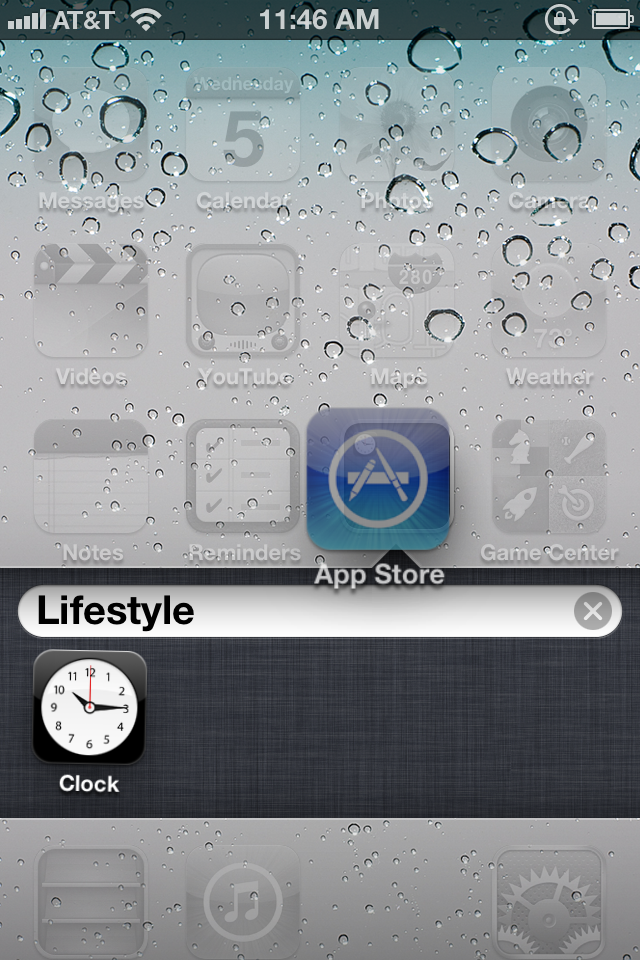
Use folders: Having a bunch of apps scattered on your Home screen is OK if you don’t have too many, but when you start amassing a collection, you can use app folders. A folder is a group of apps, represented by a single icon, on your Home screen. Each folder sports miniature icons representing the apps inside, along with an overall name. When you tap a folder, the Dock fades and slides down, making room for a view of the folder’s contents. Within, you’ll find the name and icon for each app. Tap any app to launch it, or tap anywhere outside the folder to return to the Home screen.


Drag an app icon on top of another app icon to create a folder.

To create a folder, start by tapping and holding any app icon to enter edit mode; after the icons begin to wiggle, drag an app on top of another app. When you release the app, you’ll create a folder, which will open and display both apps. By default the folder is named based on the App Store category for one of the first two apps in the folder. If you want to customize this name, just tap inside the field (while still in edit mode) and enter something new. When you’re done, press the Home button to exit edit mode.
To add another app to the folder, reenter edit mode and drag the desired app onto the folder icon. Repeat until you’ve added all the apps you want (up to 12 per folder on the iPhone or iPod touch; 20 on the iPad), and then press the Home button to exit edit mode.
To edit the folder itself, its name, contents, or the layout of the apps inside, you can either enter edit mode and then tap the folder, or, while the folder is open, tap and hold any icon inside. You can then tap the folder’s name to change it, drag apps within the folder to rearrange them, drag an app out of the folder to return it to the Home screen, or tap an app’s Delete button to completely delete it from your device. Unlike apps, folders don’t have a Delete button; to delete a folder, you must remove all the apps from it.


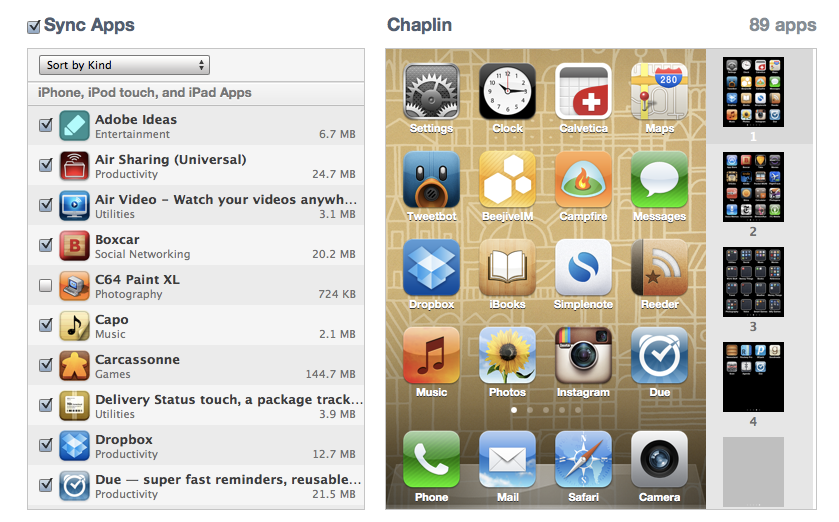
You can rearrange your apps, add folders, and remove programs through iTunes.

Manage folders from iTunes: iTunes has long allowed users to manage installed apps when syncing, and you can edit your folders too, using your mouse and keyboard. When your device is connected to your computer, the Apps tab in iTunes lets you choose which apps to sync, as well as decide how to organize these apps. Drag an app onto another app and, after a slight delay, a folder is created—just as if you’d performed the same action on your device. You get the same editable folder name, and you can rearrange icons within the folder. Since you’re using a computer, you don’t need to click and hold to enter the jiggling-icon edit mode; you can click and drag anytime. Similarly, to edit an existing folder, just double-click it.

Multitask on your iOS device

Opening and closing an app is easy: Tap the app to open it, and then press the Home button to close it. But when you exit, you’re not actually shutting down the app: You’re freezing it in place, or sending it to run in the background. This means you can have multiple active apps running at any one time, and you can even switch between active apps without returning to the Home screen.


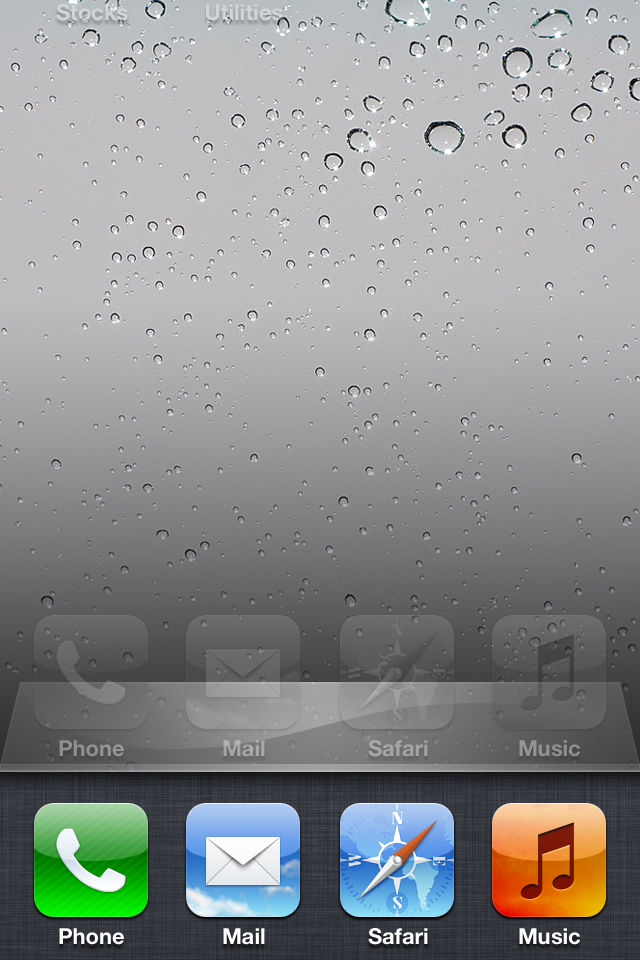
Double press the Home button to pull up your device's multitasking bar.

Frozen apps versus background apps: Sometimes you need an app to keep doing something when it’s not in the foreground. For that reason, Apple allows apps to perform tasks in the background using several tools. One of these tools is the push-notification system; another allows music apps to keep playing while the user switches to another app; yet another allows tasks, such as photo uploads, to continue running in the background even if you switch out of the program performing the upload. If your third-party app doesn’t incorporate one of these background features, it will “freeze”, which is to say it will remember whatever you were just doing when you re-open it, but will not process any data in the background.

The multitasking bar: You can quickly switch between apps by bringing up the multitasking bar. To do so, quickly double-press the Home button; a bar below the Dock will rise up from the bottom of the screen, showing off the apps most recently run. To switch to a different app, tap its icon.
Multitasking shortcuts: In addition to holding a list of your most recently used apps, the multitasking bar has a couple of other neat shortcuts for your device. 
If you swipe up from the bottom with one finger, you’ll bring up a secondary set of controls. On the iPhone or iPad, you can control the music currently playing on your device,  (it defaults to the Music app, but you can also control music from third-party apps). 
device's brightness, slider for controlling volume.  Airplane mode, wi-Fi, bluetooth, do not disturb, AirDrop, flashlight, Calculator, camera, lock.

Posted by Unknown at 11:12 AM No comments:
Email ThisBlogThis!Share to XShare to FacebookShare to Pinterest
Labels: Accessibility, Apple, Apple Vis, CarriersUpgrading to the iPhone, help, iPad, iPhone, iphone1g, iphone6, iPod touch, mac, Mail, Medical ID

Sunday, February 8, 2015

TV Guide Mobile By TV Guide View More by This Developer

Like watching television ,but have a hard time reading the channel listing on your tv? Now you can see what time your favorite shows are on and you can even customize you're channel listings according to your preferences . 
https://itunes.apple.com/us/app/tv-guide-mobile/id333647776?mt=8

Posted by Unknown at 1:30 PM No comments:
Email ThisBlogThis!Share to XShare to FacebookShare to Pinterest
Labels: Apple, Apps, bigclock, Color ID, Free, FreeApp, iphone1g, Visually Impaired

Tuesday, December 9, 2014

How to share a contact card via iMessage using the iOS Contacts app


How to share a contact card via iMessage using the iOS Contacts app


  1. Launch the Contacts app on your iPhone or iPad and find the contact you'd like to share. On the iPhone you can alternately use the Phone app if you'd prefer.
  2. Now tap on Share Contact towards the bottom.
  3. Tap on Message.
  4. Type the name of the person you'd like to share it with and select them.
  5. Now tap Send.

How to Add a contact card via after receiving it in A iMessage 

1.Tap on the contact card.

2. The contact card will pop up. Scroll down

3. If you want to create a new contact with that card choose crate new contact.

Or to  add it to a existing contact. Choose add to existing contact. And find the contact you want to add it to.
Posted by Unknown at 12:56 PM No comments:
Email ThisBlogThis!Share to XShare to FacebookShare to Pinterest
Labels: Apple, Apps, bigclock, Blind, Color ID, Free, FreeApp, iphone1g, video, Visually Impaired

Wednesday, November 19, 2014

How to manually trigger an iCloud backup on iPhone and iPad

How to manually trigger an iCloud backup on iPhone and iPad
While iCloud will automatically back up all the data on your iPhone or iPad every 24 hours, as long as it's plugged in and connected to Wi-Fi, you can also trigger a backup manually at any time. It's especially handy when you're upgrading to a new device, or getting a replacement for a defective device. Best of all, making sure your backups are up-to-date is easy to do!
Note: Because of the amount of data that can potentially be transferred, and the power consumption that comes with it, manual iCloud backups also require your iPhone or iPad be plugged in and connected to Wi-Fi. Make sure you do that first, or the option for manual backup will be grayed out.

How to manually back up your data to iCloud

  1. Launch the Settings app from the Home screen. 
  2. Tap on iCloud. 
  3. Tap on Backup. 
  4. Tap on Back Up Now. 
How to manually trigger an iCloud backup on iPhone and iPad
Posted by Unknown at 8:42 AM No comments:
Email ThisBlogThis!Share to XShare to FacebookShare to Pinterest
Labels: backup, Blind, iCloud, iOS, ios8, iPad, iPhone, iphone1g, Visually Impaired

Thursday, November 13, 2014

How to Stop Other Devices Ringing When iPhone Gets a Phone Call

If you have multiple devices running iOS 8 and using the same Apple ID, you’ve probably noticed that an incoming phone call rings on every one of the devices at the same time. In other words, an inbound phone call will ring not only your iPhone, but also any other iPad, iOS device, or Mac too if it’s running OS X Yosemite. While this feature can be convenient and make it much less likely that you’ll ever miss a phone call, it can also be a nuisance if you have a desk full of hardware that is all buzzing simultaneously.
To stop the iPhone from ringing your other devices with an incoming phone call, you need to visit the Settings of the iPhone which has the cellular connection that originally receives the phone call. You can also choose to selectively disable the ringing feature on other devices if you’d like to just opt a single device out. Here’s what you’ll want to do:
  1. Open the Settings app on the iPhone and go to “FaceTime”
  2. Toggle the switch for “iPhone Cellular Calls” and flip it to the OFF position
  3. Exit out of Settings as usual

This puts an end to the multiple device ringing feature. 
It’s worth mentioning that if you turn this feature off you can’t make phone calls from your Mac or other iOS device by way of your iPhone cellular connection. Despite being in the FaceTime settings, it has no effect on standard FaceTime audio calls made from a Mac or FaceTime VOIP from iOS, and FaceTime video chat still works as usual too.
Separately, you can choose to disable the iPhone calling feature on the Mac as well. 
Keep in mind there is a physical proximity limit with this feature, so if you’re many miles away from your other devices, your iPhone isn’t going to ring the hardware left at your office or home. Apple hints at this in the settings with the toggle switch, describing the feature as follows: “Use your iPhone cellular connection to make and receive calls on devices signed into your iCloud account when they are nearby and on Wi-Fi.”
Posted by Unknown at 9:24 AM No comments:
Email ThisBlogThis!Share to XShare to FacebookShare to Pinterest
Labels: Blind, help, iOS, ios8, iPad, iPhone, iphone1g, iphone6, ipod, Visually Impaired

Friday, November 7, 2014

How to use VoiceOver for visual accessibility on iPhone and iPad


The iPhone and iPad have some great accessibility features for people with hearing and sight impairments that makes using iOS more enjoyable, and less frustrating. For visually impaired individuals, the VoiceOver feature allows your iPhone or iPad to speak selections and add custom gestures so you know exactly what you're tapping on before selecting it. You just need to enabled it first.

How to activate VoiceOver on iPhone and iPad
  1. Launch the Settings app from the Home screen of your iPhone or iPad.
  2. Tap on General.
  3. Tap on Accessibility.
  4. Under Vision at the very top, tap on VoiceOver.
  5. Turn On VoiceOver by tapping on the On/Off toggle.
  6. You can scroll down with three fingers to view VoiceOver options and customize your experience.

How to use VoiceOver on iPhone and iPad

VoiceOver changes the gestures in iOS in order to make it easier for visually impaired individuals to know what they're tapping on before they actually select it. Here are some tips to using VoiceOver:
  • Single tap anywhere on the screen and your iPhone or iPad will speak aloud the item that you're tapping on.
  • Double tap on an item to select it.
  • To scroll through a page, use three fingers. With VoiceOver off you typically use only one finger to scroll, in VoiceOver, you'll need to use three so your iPhone or iPad doesn't misread a tap as a scroll.
  • To toggle speech commands on and off from the Lock Screen, double tap withthree fingers.
  • A two finger double tap while performing an action will start or stop that action. For example, if you're on a phone call, double tapping the screen with two fingers will end the call. If you're in the Camera app, double tap with two fingers to take a photo.
  • In VoiceOver options you can customize and fine tune options such as whether or not you'd like the device to speak notifications.
For more tips and tricks regarding VoiceOver, we recommend using the VoiceOver Practice option within the VoiceOver Settings menu. This allows you to tap the screen as you'd like and the iPhone or iPad will speak aloud what that action does system wide. This will help get someone used to how VoiceOver works and what commands trigger what actions.
If you've come across any interesting VoiceOver options, feel free to share them in the comments below!


Posted by Unknown at 7:13 AM No comments:
Email ThisBlogThis!Share to XShare to FacebookShare to Pinterest
Labels: Blind, CarriersUpgrading to the iPhone, iOS, iPad, iPhone, iphone1g, ipod, iPod touch, voiceover

Monday, September 8, 2014

The History of Apple iPhones: It's like Christmas Eve for Apple fans:

The History of Apple iPhones: It's like Christmas Eve for Apple fans::  Tomorrow, the company is expected to unleash its biggest product launch of the year.


It's like Christmas Eve for Apple fans: Tomorrow, the company is expected to unleash its biggest product launch of the year. What will we see at the big event? Apple hasn’t been shy about stoking the fires for its Tuesday event in Cupertino, which will likely see the introduction of the iWatch and the iPhone 6. In many ways, it’s a new chapter for Apple.

Despite the hype that always accompanies the staging of an Apple event, only a handful of them over the past decade have truly mattered. It seems pretty clear that next Tuesday’s event is going to fall into that category, based on the way Apple has handled the run-up to it and the fact that we’re about to enter a new era for the storied company.

You can count those ground-breaking events from the last ten years on one hand: the 2005 iPod nano event, the 2007 Macworld that introduced the iPhone, the 2008 event that revealed how the App Store would work, and the 2010 iPad event. Sure, there were other notable moments during that period (and plenty before then) but those were the events that truly made people realize how Apple was defining the current generation of personal computing.

Something to talk about

It looks as if the new product category that Apple watchers have been clamoring for since Tim Cook became CEO in 2011 is here, in the form of what we’ll call the iWatch. We don’t know what it looks like or exactly how it will work, but we know that it will pair with the iPhone and we know that it will serve as a landmark product for those who have wondered if Apple could sustain its amazing run of innovation as we approach the third anniversary of Jobs’ death.

Apple Watch,  

At the event. Most of the chatter on the web reveals that the iWatch won’t be only about health and fitness, but also about good looks, aesthetics and luxury. In fact, Apple is believed to invited top fashion editors and bloggers in unprecedented numbers to its launch gala. 
Apple's first wearable gadget could beam messages, Facebook updates, simplified apps and Siri to our wrists, eliminating the all-too-common need to take out our devices to constantly check notifications.
It's going to become especially convenient to pocket the all-but-confirmed 4.7-inch and even bigger 5.5-inch iPhone 6 in your jeans, and always stow the next 9.7-inch iPad Air 2 in a bag later this year. At the same time, iWatch leaks have pointed to Nike FuelBand SE-inspired fitness tracking and biometric sensors. Apple could possibly take more cues from the sneaker maker instead of its smartwatches rivals.


iPhone 
Though Apple is planning to unveil two iPhones tomorrow, in 4.7 and 5.5-inch varieties, there's been surprisingly little information on what the two devices might be called. According to a new report from Mac Otakara [Google Translate], Apple will refer to the smaller 4.7-inch iPhone as the "iPhone 6," while the larger 5.5-inch version will be called the "iPhone 6 Plus." 

It is unknown what source Mac Otakara derived its information from, but the site has provided accurate predictions in the past. MacRumors has also heard the iPhone 6 and iPhone 6 Plus monikers from a second source, but it remains unclear if that is indeed Apple's naming plan. 
Tuesday’s event will be one of those crossroads events: one that we’ll remember either as a day Apple articulated a new vision for computing that we’ve been waiting for someone to advance — or as a sign it has overreached.

Here is a great articles to read.

The post-Steve Jobs era of Apple will officially begin on Tuesday. Here’s why.

Apple iWatch launch tomorrow: Everything we know so far.

Apple's Larger Phones May Be Called iPhone 6, iPhone 6 Plus
Posted by Unknown at 10:57 AM No comments:
Email ThisBlogThis!Share to XShare to FacebookShare to Pinterest
Labels: Apple, Apps, Blind, iPad, iphone1g, ipod, iPod touch, Live special event, Live video event

Thursday, August 28, 2014

iWatch Rumor Roundup: Everything We Think We Know

The History of Apple iPhones: iWatch Rumor Roundup: Everything We Think We Know: iWatch Rumor Roundup: Everything We Think We Know This information was provided by  GIZMODO and  Brian Barrett Profile Brian Barrett Filed t...

iWatch Rumor Roundup: Everything We Think We Know

This information was provided by  GIZMODO 
barrett

Brian Barrett


Brian Barrett
Filed to: IPHONE EVENT 
  • APPLE
Today 12:03pm


  • Share to Kinja
  • Share to Facebook
  • Share to Twitter
  • Go to permalink


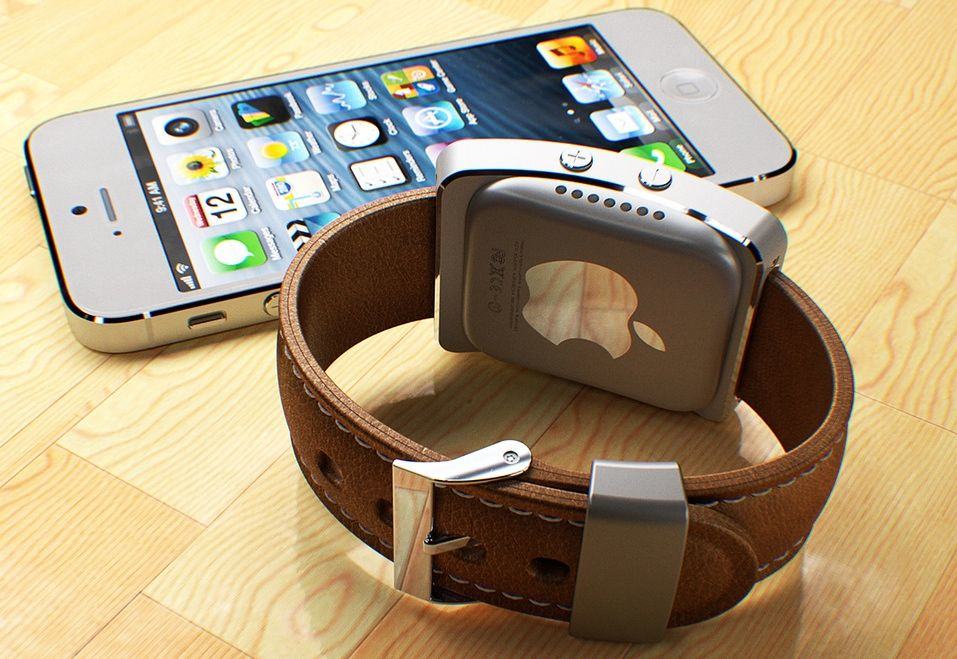
iPhone 6 and iWatch. Perfect companions. iPhoto: Martin Hajek
iPhone 6 and iWatch. Perfect companions. iPhoto: Martin Hajek
Apple will unveil its first foray into wearables at a special event in September, reports Recode’s John Paczkowski who previously reported that Apple had an October event scheduled for the iWatch, but the plans have changed.
Rumors of production delays have hounded the iWatch over the last few months, suggesting Apple might not even reveal the device until early 2015, but according to Recode’s report, the iWatch will actually debut alongside the two new iPhone 6 models during an event on September 9th.
Read more at http://www.cultofmac.com/292911/apple-reveal-iwatch-alongside-iphone-6-september-event/#umRKjPSjs3kHkMeK.99iWatch Rumor Roundup: Everything We Think We Know
If it feels like the promise of an Apple smartwatch has been looming forever, that's because it has. And its shadow helped birth the army of other smartwatches that we have today. But now, finally, the near mythical iWatch is rumored to arrive very soon. Here's what we think we know.

What's it called?

Colloquially, Apple's upcoming watch has been referred to as an iWatch, though there's not evidence that this might be its name outside of it following Apple naming conventions. Information about the size of its screen and the bevy of health features it will include suggest it might be actually be more of a "health bangle" anyway. Apple has acquired the trademark to "iWatch" in a number of countries, though that's pretty soft evidence.
Apple has filed patents for a wearable device with swappable screen modules that makes a reference to something called iTime, so that's a possibility as well, though Apple would probably be wiser than to blow the real name in a patent.

iTime: Smartwatch Patent Shows Apple's Broad Ambitions
This morning the folks over at AppleInsider discovered that Apple was granted a patent today for…Read more
For our purposes, we're going to keep calling it the iWatch and hope that Apple has something more clever up its, er, sleeve.

Design

One of the big (rumored) differentiators for the iWatch is design. That is to say, the iWatch is supposed to look good, unlike most of the other, grosser-looking options that are available right now. (Excluding the Pebble Steel and the Moto 360, of course.)
Evidence of this is backed up by a number of hires that Apple has made in the past few years. Hires like former CEO of Yves Saint Laurent Paul Deneve and Senior VP of Retail Angela Ahrendts, who helped revitalize Burberry as CEO without abandoning its heritage. We're talking legit fashion people, as opposed to tech people with an eye for pretty things.
What will all those expensive salaries come up with though? That's a much bigger question. We've seen concepts left and right, and although some of them look nice, none of them quite has that Apple flair. Unfortunately, there hasn't been a lot of information on what the iWatch will look like. No physical leaks of any sort. In a broader sense that iTime might offer some clues, as it shows a watch-type band with modules that can snap in and out. It's similar to the WIMM One from WIMM Labs, a recent Google acquisition.
iWatch Rumor Roundup: Everything We Think We Know
These sketches are broad, though, as patent sketches are, and it's meant to cover functionality not design, so it's of little help. Not to mention that patents aren't necessarily indicative of actual products; companies patent things all the time with no intention of ever actually making them. A slightly more substantial and interesting pair of reports came from Reuters and the Wall Street Journal, suggesting respectively that the iWatch could have a 2.5-inch screen, and that it might come in different sizes.
A 2.5-inch screen for a traditionally-shaped watch is nuts. The clunky Galaxy Gear clocked in at a mere 1.63-inches. So if the 2.5 inch screen rumor is true, it suggests something either more like a curved bracelet, or a giant hunk of Apple on your wrist. What does seem like a sure thing is that the iWatch will have an unscratchable sapphire glass watchface, due to recent evidence that Apple is producing "jewelry-grade" slices of the stuff. But other than that, the options are still pretty excitingly open.
iWatch Rumor Roundup: Everything We Think We Know


Posted by Unknown at 1:04 PM No comments:
Email ThisBlogThis!Share to XShare to FacebookShare to Pinterest
Labels: Apple, Apps, Blind, Color ID, FreeApp, I watch, iCloud, iPad, iPhone, iphone1g, iPod touch, PC, Siri, Visually Impaired
Older Posts Home
Subscribe to: Posts (Atom)

Total Pageviews

Contact Form

Name

Email *

Message *

Followers

Subscribe To

Posts
Atom
Posts
All Comments
Atom
All Comments

Popular Posts

  • How to label your pictures in the camera roll or Photo stream
    Have you ever wanted to know how to label your pictures in the camera roll or Photo stream? Now you can. This tip was discovered by  Ezekie...
  • Use Continuity to connect your Mac, iPhone, iPad, iPod touch, andAppleWatch
    All your devices. One seamless experience. Start an email on your iPhone and finish it on iPad. Or copy images, video, and text from ...
  • How to improve iOS 10 Battery Life
    f you’ve upgraded your iPhone, iPad or iPod touch to iOS 10, and are facing battery  life problems then check out the tips after the break...
  • The History of Apple iPhones: How to fix iPhone battery life in the age of Snapc...
    How to fix iPhone battery life in the age of Snapchat and Pokémon Go As more users spend their days in battery-demanding a...
  • iPad & iOS9 Accessibility Features Part3
    VoiceOver VoiceOver is the built in screenreader that comes with all Apple products. VoiceOver was updated for iOS9 with multiple voices ...
  • Navigating your iOS Device
    Navigation Basics Now that you’ve taken your first step into the iOS world with multitouch gestures, it’s time to learn how to navigate...
  • iPad & iOS9 Accessibility Features Part1
    The iPad and other Apple devices that use the new iOS9 operating system (like the iPod Touch and iPhone) received another round of updates ...
  • iCloud Backup and Restore
    Restore from an iCloud backup If you have a new iOS device, or if you need to restore your iOS device to resolve an issue, follow th...
  • Voiceover for iOS let voiceover be your guide
    Braille Displays iOS devices are fully compatible with many refreshable braille displays. You can connect a Bluetooth wireless braille ...
  • Apple IOS Excess ability for the disabled.
    Apple just keeps making it better for those with special needs. iOS7 and IOS8 comes with more features to make it easier for people...

What Apple Devices do you have

Search This Blog

Blog Archive

  • ▼  2017 (10)
    • ▼  October (1)
      • Set up Apple Watch using VoiceOver
    • ►  September (1)
    • ►  August (6)
    • ►  May (1)
    • ►  March (1)
  • ►  2016 (19)
    • ►  December (3)
    • ►  November (2)
    • ►  October (1)
    • ►  September (2)
    • ►  July (2)
    • ►  June (1)
    • ►  May (2)
    • ►  April (3)
    • ►  March (2)
    • ►  February (1)
  • ►  2015 (15)
    • ►  December (2)
    • ►  July (2)
    • ►  June (2)
    • ►  April (1)
    • ►  March (2)
    • ►  February (4)
    • ►  January (2)
  • ►  2014 (88)
    • ►  December (3)
    • ►  November (3)
    • ►  October (9)
    • ►  September (12)
    • ►  August (11)
    • ►  July (8)
    • ►  June (7)
    • ►  May (13)
    • ►  April (8)
    • ►  March (4)
    • ►  February (4)
    • ►  January (6)
  • ►  2013 (11)
    • ►  December (5)
    • ►  November (6)

Apps For Blind And Visually Impaired

  • pps For Blind And Visually Impaired
  • iPhone and iPad Apps For Blind And Visually Impaired
  • facebook Blind Iphone ipad Users

Translate

Other Pages for iPhone and iPad Apps For Blind And Visually Impaired

  • The White Crocus
  • Pinterest pin bored iPhone and iPad Apps For Blind And Visually Impaired
  • Google+page iPhone & iPad Apps for the Blind &VisuallyImpaired
  • Facebook groups iPhone iPad Apps for the Blind and VisuallyImpaired

My Blog List

  • Best of Blind Photographers
    Moving to a New Home
    17 years ago
  • Blind Photography? | Social Apertures
  • Blind Spot
    New Book: Discours et représentations du handicap. Perspectives culturelles
    6 years ago
  • Chelsea Stark Black & White Photography
    Hello everybody please check out my latest blog title Chelsea Ann Stark blog.
    11 years ago
  • Chelsea Stark Nature Photography
    Chelsea Stark Photography.com: "Haeley Dogs the best friends weekend" Yosemite Na...
    11 years ago
  • Chelsea Stark Photography.com
    Beautiful day for a road trip. VW Beetle
    9 years ago
  • iPhone and iPad Apps for the Blind And Visually Impaired
    How do I clean my AirPods?
    9 years ago
  • Robert Park Photography
    Here is Daniel finishing up a Robert B Park limited edition 40x53 Lumachrome print.
    10 years ago

And from a broader standpoint, how important to you is privacy through encryption as a factor

Should Apple break into the San Bernardino iPhone

Follow this blog

How important is privacy to you?

Labels

  • Accessibility (18)
  • AI (1)
  • airpads (1)
  • amp (1)
  • Android (1)
  • announce calls (1)
  • Apple (109)
  • Apple earbuds (1)
  • Apple ID (5)
  • Apple Store (3)
  • Apple Vis (8)
  • Apple Watch (3)
  • Apps (85)
  • AT&T (3)
  • audio (1)
  • backup (2)
  • battery usage (3)
  • Be My Eyes (1)
  • bigclock (13)
  • Blind (91)
  • blind people (3)
  • bumpkase (1)
  • can't look down (3)
  • CarriersUpgrading to the iPhone (10)
  • case (2)
  • Chelsea Stark (3)
  • Color ID (13)
  • Computer (1)
  • cracked screen (1)
  • Craigslist (1)
  • Cursor Size (1)
  • demise (1)
  • did battery (1)
  • eBay (2)
  • email problems (1)
  • eyeless 10 (1)
  • Facebook (2)
  • Facebook app (1)
  • Free (37)
  • FreeApp (40)
  • gestures (1)
  • grup (1)
  • handoff (1)
  • help (9)
  • horrible case (1)
  • Hotmail (1)
  • Hotmail email (1)
  • hotos (1)
  • I Clod (4)
  • I watch (1)
  • iCloud (20)
  • ID (1)
  • iOS (33)
  • iOS blind (1)
  • iOS 10 (5)
  • IOS 8 (4)
  • iOS 9 (2)
  • ios8 (11)
  • iPad (88)
  • iPad Air (6)
  • IPAD AIR 2 (3)
  • iPad case (3)
  • iPad mini (2)
  • iPad mini 4 (1)
  • iPad Pro 9 inch (1)
  • iPhon (12)
  • iPhone (107)
  • iPhone 4s (3)
  • iPhone 6 (6)
  • iPhone battery (3)
  • iphone1g (19)
  • iphone6 (12)
  • ipod (16)
  • iPod touch (19)
  • Jack (1)
  • Las Vegas Nevada (1)
  • Live special event (2)
  • Live video event (3)
  • Low vision (6)
  • Low vision aids (5)
  • mac (10)
  • Mail (2)
  • Medical ID (2)
  • Messages (3)
  • messges (3)
  • My phone (1)
  • New ipad (1)
  • notes (1)
  • NutKase.com (1)
  • NutKase.com ipad (1)
  • on off (1)
  • OS X (3)
  • osemite (1)
  • PC (6)
  • people (4)
  • phone calls (2)
  • phono labeling (1)
  • photo (1)
  • review (1)
  • search (1)
  • Siri (19)
  • Sprint (3)
  • T-Mobile (3)
  • text (5)
  • Townsquare Las Vegas Nevada (1)
  • unlock iphone (1)
  • Verizon (3)
  • video (28)
  • Visually Impaired (92)
  • voiceover (8)
  • wind (1)
  • zoom (4)

Contributors

  • Unknown
  • Unknown
Awesome Inc. theme. Powered by Blogger.