Before you sell or give away your iOS device, make sure that you've removed all of your personal information. Follow these steps to protect your data and get your device to its factory default state for the new owner:
iCloud Backup provides an easy and reliable backup solution for customers who want to back up their iOS devices wirelessly and automatically.
Back up to iCloud
If you're using iCloud, it can automatically back up your data if you've chosen this option. You can verify your iCloud backup and make sure that it's up to date by following these steps:
All Access: SCAN LOGOS & QR CODES to Access Menus/Deals/Coupons by AllAccess.US
SCAN LOGOS TO ACCESS TALKING MENUS, DISCOUNTS, COUPONS, TICKETS, DIRECTIONS & MORE! You can scan QR Codes or ACTUAL LOGOS! Or browse for local businesses by name or category! The app has access to over one million menus & 2,000+ logos! Add your brand's logo & info by contacting us at AllAccess.US!
If you have a new iOS device, or if you need to restore your iOS device to resolve an issue, follow these steps.
Follow the initial steps in the iOS Setup Assistant (select your language, and so on).
Select Restore from iCloud Backup when the assistant asks you to set up your iPhone (or other iOS device).
Select the backup you created earlier.
You can restore a backup only by using the iOS Setup Assistant.
If you've already set up your device, you can erase all current content to go through the iOS Setup Assistant again. Tap Settings > General > Reset > Erase All Content and Settings. Do this only if you already have a backup, because this step will remove all current content from your device.
Apple has hectic schedule ahead of them as the Cupertino-headquarters tech titan plans to release a number of handsets later this year, as well as the iPad Air 2. In fact, the iPad Air 2 is scheduled to be released in November - possibly in the first week of the month.
Most tech enthusiasts think that a release will most likely happen in November because Apple had released the previous version of the tablet in the same month last year. However, prior to the iPad Air 2 release, Apple is set for the release of the iPad Mini 3 in October.
Although the iPad Air 2 is the second tablet in the iPad Air series, it will actually be the seventh release in the company's full size iPad series. The current version - iPad Air, is currently considered to be the best in the tablet market at the moment.
Over the years several manufacturers have tried to dethrone the iPad, but they have failed in doing so. As the iPad has such a revered reputation, even Apple may find it difficult to release a tablet that will exceed its own creation.
The iPad Air 2 will come with the new A8 processor chips, and will also feature an upgraded camera. As per the rumors circulating on the Internet, the new iPad Air may also come with a slimmer design compared to the earlier release on account of the display being incorporated into the front panel of the device itself.
It is believed that the iPad Air 2 will have a 2 GB RAM, which will facilitate the device to have split-screen multitasking capability. The handset is rumored have already gone into mass production already.
Now that you’ve taken your first step into the iOS world with multitouch gestures, it’s time to learn how to navigate your device. We’ll go over where your apps are stored, how to organize them, search for them, and delete them.
The Home screen: When you first turn on your device, you’re brought to the Home screen. Here, you’ll see an assortment of icons grouped into rows, and several more icons grouped in the silver Dock along the bottom of the screen. The Home screen is where your apps live, and where you can launch them. Because only 16 apps will fit on one Home screen (20 on the iPad), you can have multiple app pages or screens for organizing your apps (up to 11). Above the Dock, you’ll see a series of dots, with one highlighted in white; these dots signify the number of app pages you have. Swipe left or right to go from page to page.
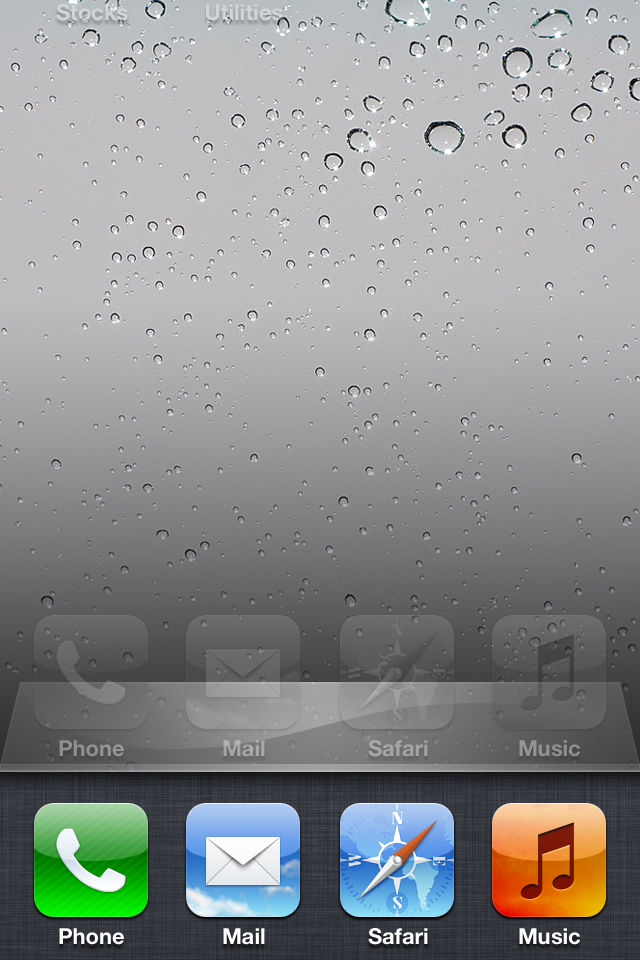
The Dock: The silver translucent bar along the bottom of your Home screen is called the Dock. If you’ve tried swiping between app pages, you’ll notice the icons in the Dock don’t change. That’s because the Dock is for apps you most frequently use; instead of having to swipe from page to page to find an app, you can drop it directly into the Dock for easy access. You can store up to four apps in the Dock.
Search in Spotlight: You can search for every email message, webpage, and app on your device, or search through Google or Wikipedia, by swiping right on your Home screen until you reach Spotlight. (If you're on the first Home screen page, pressing your Home button also summons the Spotlight screen.) To search, just type your query in the text box at the top.
Open and close an app: Want to launch an app? To open it, all you have to do is tap its icon. Once it’s open, you can return to the Home screen at any time by pressing the Home button.
Rearrange and delete apps: To rearrange the order of your icons, tap and hold any icon on the Home screen. After a few seconds, all your app icons, including the one you’re holding, will start to wiggle, and a small black X will pop up in each icon’s top left corner. Once they do this, you can rearrange any apps on the Home screen, or even drag them into or out of the Dock. If you’ve installed a third-party app you don’t want anymore, you can tap the X to delete it (you cannot delete the apps that came preinstalled on your device). When you’re finished, press the Home button, and your icons will stop wiggling and stay in their new location. You can also rearrange your icons and Home screen pages through iTunes when you connect your device to your computer.
Note that you’re not able to delete the built-in apps that come with your iOS device. These include Camera, Photos, YouTube, Clock, Weather, and the all-new Newsstand folder, among others. You’ll be able to tell which apps you can’t delete—they don’t sport the black X. You are able to move around these built-in apps to your liking, however.
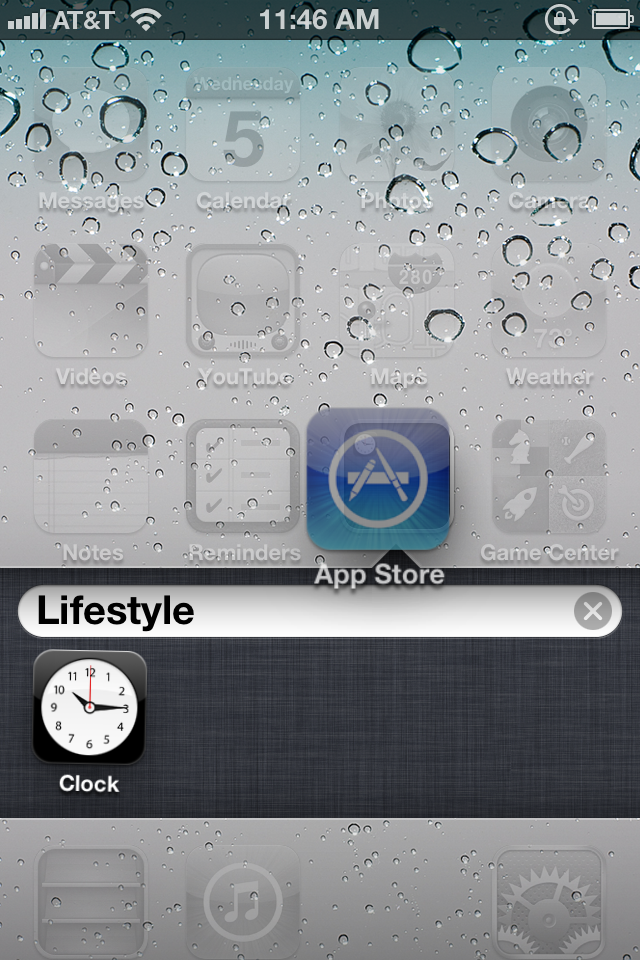
Use folders: Having a bunch of apps scattered on your Home screen is OK if you don’t have too many, but when you start amassing a collection, you can use app folders. A folder is a group of apps, represented by a single icon, on your Home screen. Each folder sports miniature icons representing the apps inside, along with an overall name. When you tap a folder, the Dock fades and slides down, making room for a view of the folder’s contents. Within, you’ll find the name and icon for each app. Tap any app to launch it, or tap anywhere outside the folder to return to the Home screen.
To create a folder, start by tapping and holding any app icon to enter edit mode; after the icons begin to wiggle, drag an app on top of another app. When you release the app, you’ll create a folder, which will open and display both apps. By default the folder is named based on the App Store category for one of the first two apps in the folder. If you want to customize this name, just tap inside the field (while still in edit mode) and enter something new. When you’re done, press the Home button to exit edit mode.
To add another app to the folder, reenter edit mode and drag the desired app onto the folder icon. Repeat until you’ve added all the apps you want (up to 12 per folder on the iPhone or iPod touch; 20 on the iPad), and then press the Home button to exit edit mode.
To edit the folder itself, its name, contents, or the layout of the apps inside, you can either enter edit mode and then tap the folder, or, while the folder is open, tap and hold any icon inside. You can then tap the folder’s name to change it, drag apps within the folder to rearrange them, drag an app out of the folder to return it to the Home screen, or tap an app’s Delete button to completely delete it from your device. Unlike apps, folders don’t have a Delete button; to delete a folder, you must remove all the apps from it.
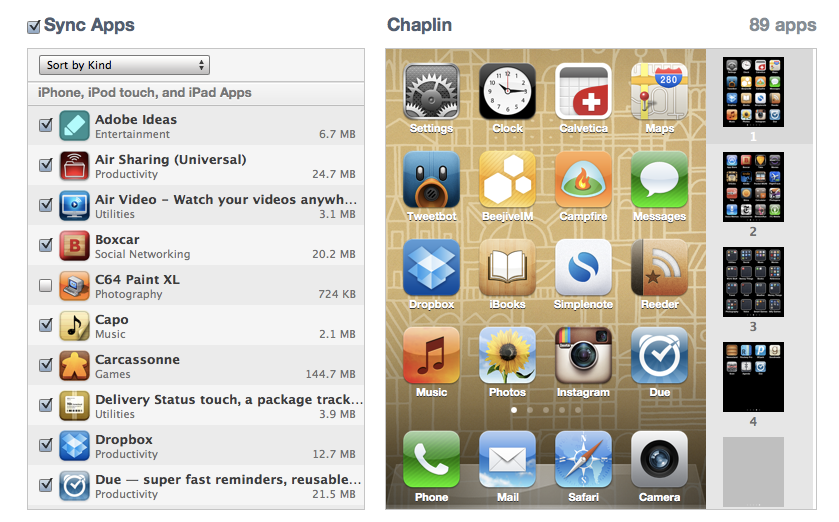
Manage folders from iTunes: iTunes has long allowed users to manage installed apps when syncing, and you can edit your folders too, using your mouse and keyboard. When your device is connected to your computer, the Apps tab in iTunes lets you choose which apps to sync, as well as decide how to organize these apps. Drag an app onto another app and, after a slight delay, a folder is created—just as if you’d performed the same action on your device. You get the same editable folder name, and you can rearrange icons within the folder. Since you’re using a computer, you don’t need to click and hold to enter the jiggling-icon edit mode; you can click and drag anytime. Similarly, to edit an existing folder, just double-click it.
Multitask on your iOS device
Opening and closing an app is easy: Tap the app to open it, and then press the Home button to close it. But when you exit, you’re not actually shutting down the app: You’re freezing it in place, or sending it to run in the background. This means you can have multiple active apps running at any one time, and you can even switch between active apps without returning to the Home screen.
Frozen apps versus background apps: Sometimes you need an app to keep doing something when it’s not in the foreground. For that reason, Apple allows apps to perform tasks in the background using several tools. One of these tools is the push-notification system; another allows music apps to keep playing while the user switches to another app; yet another allows tasks, such as photo uploads, to continue running in the background even if you switch out of the program performing the upload. If your third-party app doesn’t incorporate one of these background features, it will “freeze”, which is to say it will remember whatever you were just doing when you re-open it, but will not process any data in the background.
The multitasking bar: You can quickly switch between apps by bringing up the multitasking bar. To do so, quickly double-press the Home button; a bar below the Dock will rise up from the bottom of the screen, showing off the apps most recently run. To switch to a different app, tap its icon.
Multitasking shortcuts: In addition to holding a list of your most recently used apps, the multitasking bar has a couple of other neat shortcuts for your device.
If you swipe up from the bottom with one finger, you’ll bring up a secondary set of controls. On the iPhone or iPad, you can control the music currently playing on your device, (it defaults to the Music app, but you can also control music from third-party apps).
device's brightness, slider for controlling volume. Airplane mode, wi-Fi, bluetooth, do not disturb, AirDrop, flashlight, Calculator, camera, lock.
Attractive, very full-featured and completely free with no ads! Contains awesome wake-up alarms, magical sleep timers, an eye-catching clock display and plenty of configurable options. Wake up to a built-in melody (over 70 high quality sounds, from practical to fun to whacky).• Wake up to a custom playlist from your iTunes library.
Full support for fade-out, snooze, vibrate, volume control, backup alarm, and much more. Power Nap mode allows you to instantly set a custom alarm for 5 minutes to 1 hour from the current time.
Sleep Timers
Built-in soundscapes (looping sounds) get you to dreamland in no time flat. Create a custom playlist from your iTunes library. External Audio Mode. Use other apps to play audio (such as internet radio) and Yocto Clock will fade-out and stop the audio when the sleep timer expires. Sleep Timers feature a unique audio book / podcast mode. Listen to audio for a specified time, then gently switch to sleepy-time music.
Other Features
Sophisticated clock display, fully configurable. Weather forecast and current conditions. A fun selection of fonts for the time display. Make the text any color you wish. Choose from built-in wallpaper or select from your own photo library. A full range of gestures to control the app from the clock display. An easy-to-use flashlight mode.
- Screen dimming. Many configurable options.
Plus...
A built-in Mini User's Guide to help you get the most from Yocto Clock. Full support for devices with Retina displays. Full VoiceOver Accessibility support. A Universal App with full native support for the iPad. Yocto Clock is designed for Apple iPhone, iPod touch and iPad devices. Get your copy today from the iTunes App Store.
The reception to our recently announced iPhone application, ZoomReader, was overwhelmingly positive and exciting at this year’s ATIA conference in Orlando.We had so many attendees run over to ask us, “I want to see that new iPhone app you guys have!” As you might have heard by now, it’s a combination video magnifier and OCR app. It uses the built-in camera on an iPhone or iPod Touch to zoom in on printed materials, apply color filters, and to take a picture of something and have the text in that image read out loud! One woman even cried when she saw what ZoomReader could do; one of her family members has Down’s Syndrome and ZoomReader will open up a brand new world for him – one where he will be able to read street signs, restaurant menus, and any printed material that he would otherwise need help reading.People were blown away by the price ($19.99). It’s a very competitive and affordable price point for a mobile application that does real time screen magnification, OCR reading of images, plus voice recognition. The reaction all of you gave us was exactly what we hoped ZoomReader would accomplish in the mobile market.In fact, we’ve also got an audio clip from a presentation we attended there called, “AT Showdown” where individuals presented an assistive technology tip or product. At the end, you’ll hear some applause and even a few WOW’s and WHOA’s. Simply press the play button below:
AT Showdown audio
We look forward to providing more information once the product is officially ready for sale in the App Store. For now, you can watch the video below that explains the functionality of ZoomReader or you cango onto YouTube to watch it there: