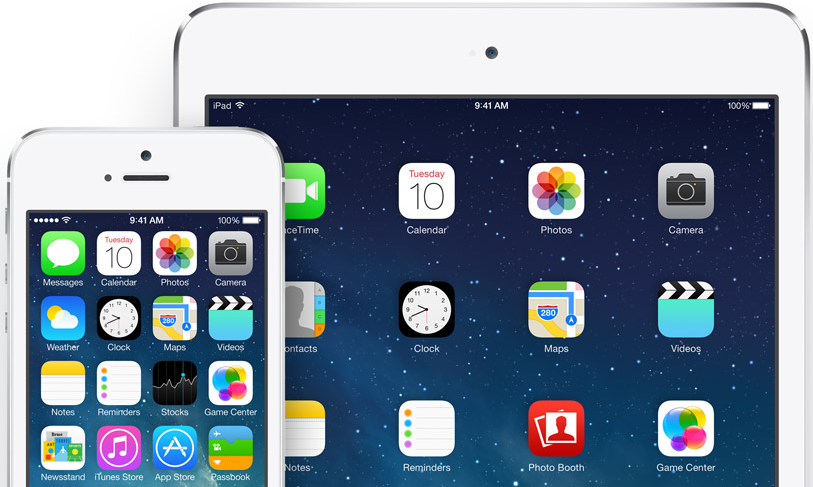
Apple just keeps making it better for those with special needs. iOS7 and IOS8 comes with more features to make it easier for people with vision, hearing, learning, and mobility disabilities to get the most from their iOS devices.
Assistive technology is any kind of technology and/or tool that can be used to enhance the functional independence of a person with a disability. Often, for people with disabilities, accomplishing daily tasks such as communicating with others, going to school or work, or participating in activities can be a challenge. Assistive Technology devices are tools to help overcome those challenges and enable people living with disabilities to enhance and have access to a quality of life, that may otherwise not be known, and lead more independent lives.
Apps and Specific Accesshibility Options
APPS
Special Education has its own app category in the iTunes store. If you go to the App Store, go to Education and you will see a category for Special Education Apps, which is then broken down into categories. It is always good to do a little research on an app before purchasing it. Do a search and see if you can find some reviews or talk to others to see if they have tried it. This could save you a lot of money as some apps are just not appropriate or what you might be hoping for. Watching YouTube videos of the app in action i always worth while.
Options
Guided Access helps students with disabilities such as autism remain on task and focused on content. It allows a parent, teacher, or administrator to limit an iOS device to one app by disabling the Home button, as well as restrict touch input on certain areas of the screen.
VoiceOver, the screen reader for blind and low-vision users, is now integrated with Maps, AssistiveTouch, and Zoom. And Apple is working with top manufacturers to introduce Made for iPhone hearing aids that will deliver a power-efficient, high-quality digital audio experience. (For more on iOS7 and iOS 8 and accessibility.) In iOS 7 and iOS 8 you can also set it up so that it speaks selection - text is read back as it is highlighted. You can find the setting in accessibility.
The Following you will find misc. information about using the iDevices as assistive technology. I hope you find this guide helpful as you take this journey into the iWorld. Please note: There are new apps coming out every day. This is not a complete guide but more of a jumping off point.
Apps for Visually Impaired:
iDevices are becoming increasingly accessible to blind and visually impaired users through screen-access technology (VoiceOver) and a magnification program (Zoom) built into the iOS operating system and a growing number of accessible apps. I explored and found, what I feel to be, a couple of great resources for apps for the Visually Impaired:
Apps for the Blind and Visually Impaired - highlights some of the most innovative apps available.
Gradients of Sight has provided a listing and review of each.
Indiana AT Act has a nice listing of low vision apps.
Join Me provides a a quick, easy way for instant screen sharing allowing a student the ability to see what is on the whiteboard by manipulating and enlarging the screen as needed on their iPad. (For more information, see iPads and Visually Impaired Students.)
Magnification and Vision Support listing by Spectronics is also a good guide.
Optomatry Students has a listing of their top 8.
Spectronics has a listing of apps for people who have low vision, and teachers of students who have a vision impairment.
Eric Jerman has provided a nice document to support students with visual impairments.
Apps for the Visually Impaired highlights some of the most innovative and entertaining apps available to the vision impaired.
Not assistive technology but may be worth exploring is: Apps that can aid in Visual Skills
Voice Dream Reader app provides text-to-speech that lets you listen to any articles, blog posts, reports, papers, and books. It reads the text using the best available text-to-speech technology. You can add it to your Bookshare account easily. VDR allows for many color options, the Text-To-Speech can be set for wpm, and I think you will like the reading screen feature.
For more apps for Visually Impaired check out: appadvice.com/applists/show/apps-for-the-visually-impaired
ViA is a new app from Braille Institute that fills a real need for families with children with visual impairments... it helps you find apps that are accessible and appropriate for blind users!
Apps for Deaf and Hard of Hearing:
To better facilitate communication and make it possible to place and receive audio and/or video calls, the iPhone has provided extra support. Many apps are available for signing programs. There are not a lot of listings for apps specifically for this population other than the signing programs. Here are the few that I felt were worth mentioning:
Accessibility Features for DHH users
ATLA - concentrating mostly on iPhones but many of the apps mentioned can also be used on the iPad.
iHelp for Special Needs has provided a listing of their top recommended sign language apps.
IP-Relay: - enables people with hearing challenges to use an iPhone to quickly and easily call people who are hearing. Like an instant message, you type your side conversation. A certified operator receives it and voices everything you type to the hearing person. When the hearing person responds, the operator types their words. You watch the entire conversation live, right on your iPhone.
Sign Language - There are literally dozens and dozens of Sign Language Translators, Dictionaries and Tutorials for learning to Sign.Explore the various ones to choose the one that best suits your needs and learning style. I like iSign.
SpeakIt - Text to Speech - with this app the user can type their message and then have the app speak it for them. Great possibilities with those who struggle with speech.
TapTap - is designed specifically to help bridge the gap to the audio world. Loud noises trigger TapTap to notify you with vibration and a flashing screen. Alone at night in your quiet home? Turn TapTap's sensitivity all the way up and it will respond to the slightest sounds.
For more, visit Apps for the Deaf and Hard of Hearing.
Apps to Support Literacy:
(Please note that many of the apps in this section would not be considered AT but more instructional.) The availability and range of Apps for the iDevices that support the literacy needs of people who struggle with reading and writing is growing. When it comes to literacy, the use of these supports allow for the implementation of differentiated learning materials and instructional practices into a learning environment, ensuring that all learners are able to access the same content within a truly inclusive environment.
Apps for Reading Support - is provided by Spectronics.
The Family Center on Technology and Disability has a listing of Apps for Literacy Support.
Pacer has a PDF listing covering 5 areas of literacy: Phonemic Awareness, Phonics, Vocabulary, Fluency and Comprehension.
Spectronics listing of Apps for Literacy Support is a wonderful listing that is always being updated. With this guide, no other is really needed.
App Writer US is an app which is a text editor for the iPad with word prediction, text-to-speech, OCR, and a special font for people who are Dyslexic.
PaperPort allows you to import pictures, documents, items from dropbox, etc. and then either type, write or use speech recognition into text boxes. A digital note taking tool, allowing the user to combine documents, web content, audio, typed text, and handwritten notes into a single document that can be shared.
SoundNote is an iPad alternative to smart pens like LiveScribe, but without the need to purchase a special pen. (It is specific to the iPad and is not available on the iPhone.) It allows you to record audio while you hand write notes with your finger, stylus, or keyboard to take notes during classes, conferences, meetings, etc. When you are finished, simply go to the section of your notes that you want to review and you are immediately taken to that section of the audio as well.
Voice Dream Reader app provides text-to-speech that lets you listen to any articles, blog posts, reports, papers, and books. It reads the text using the best available text-to-speech technology.
Reading Supports to research:
There's a lot reading supports available from resources such as-
iBooks (come with iDevices)
Audible.com
Bookshare
iBooks for Textbooks (This will be BIG!)
Learning Ally
Talking Books from the National Library Service
Apps that offer highlighting while speaking the text: Speak It and Claro Speak
A great reading app called VoiceDream Reader can be used with Pocket (or Instapaper). With a webpage, save it to pocket then open Voice Dream Reader which imports all webpages saved in Pocket. Voice Dream Reader highlights the line which is being read aloud. Voice Dream Reader uses Acapela voices.
Voice Dream Reader app provides text-to-speech that lets you listen to any articles, blog posts, reports, papers, and books. It reads the text using the best available text-to-speech technology.
Apps for Organization and Productivity:
This is a huge category and there are many, many apps to provide support in these areas. This is one of the main supports I (and many others) use my iPad and iPhone for. I often wonder how I ever stayed organized before my iDevices became part of my life.
The built in calendar with reminders is probably the most important tool you can use. You can set it to remind you of your appointments in various time increments. It will beep, give you a visual cue...remind you more than once!! It is crucial to use this wonderful tool if you are someone who has any type of life with things you need to remember!
Evernote is perfect for taking quick voice, text, and image notes to use later. The app can also sync with Evernote’s desktop and web versions. Evernote gives whole new meaning to the word “synchronized.” This software uses technology to help organize various types of information from several different sources into one, central, web-based location. The product also allows you to clip web pages and archive them for later reference, store screen shots, photos and text notes, all within a customizable storage system. Evernote will organize things for you by the date a note or other document was created. A must have! (Be sure to download this comprehensive guide on using Evernote.)
Remember the Milk – users can download for full-featured task management on the go. Bonus features include the ability to swipe to complete tasks quickly, and sort task by priority, due date, or task name.
Time Timer - this is a popular tool used with kids in special education classes but I have had friends who are easily distracted use this too. Time Timer delivers an innovative and practical way to address the universal question of, “How much longer?” It's disappearing red-disk allows individuals to actually see time, making the passage of time obvious and tangible. Simply set the Time Timer to the length of your activity. And as time elapses, the red-disk gradually gets smaller.
Remember, apps change daily. This is my list for today.
Notetaking Apps:
(That sync audio and notes at the individual note level- clicking within text or a drawing, jumps to that place in recording so that the listener does not need to listen to the whole recording playback.)
Audiolio
AudioNote
Audiotorium Notes
Notability
NoteBook for iPad
PaperDesk
PaperPortNotes
SoundNote
Remember, apps change daily. This is my list for today.
Traumatic Brain Injury (TBI) Supports:
Because of the war and all of the veterans who have come back with brain injury, there has become quite a focus in this area. Here are a few to explore-
Brainline.Org has a listing of 27 Life Changing Apps for People with Brain Injury.
No Limits to Learning blog has a section that focuses just on TBI supports.
Apps for organization, reminders, reading supports... whatever the specific needs are should be explored with that focus. TBI affects people differently so try exploring the problem, not the label.
For more, visit: Indiana's AT Act.
Apps that can be Accessed through the use of a Switch:
A list of Switch Accessible Apps compiled by Jane Farrall with Alex Dunn from Inclusioneersavailable through this link...
Accesshibility Options
Built-in Accessibility/Functions to explore:
Built-in accessibility features and the development of thousands of specialized apps have made Apple’s iPhone extremely popular among persons with disabilities. Assignable ringtones create an audible caller ID for the blind; TTY and closed caption support benefit deaf and hard of hearing users; voice dialing and a hands-free speakerphone aid the mobility impaired. This section explores the iPhone’s accessibility features, including VoiceOver and Zoom, and reviews disability-specific apps.
There are many built-in features on iDevices that accommodate learning disabilities and help improve productivity. The iPhone and the iPad have some differences here so it is important that you get the tools that best fits your needs. Apple provides a section just on accessibility option worth exploring but also check out the details of many of those built-in accessibility options in the iOS Technology.
Just to name a few:
Guided Access
VoiceOver
VoiceOver with Zoom
Zoom
VoiceOver with Maps
Text Completion
Siri
Siri’s ability to launch apps
White-on-Black
Hands Free
Alternate alerts
Custom vibration patterns for alerts
FaceTime over 3G (for signing)
New Made for iPhone hearing aids
Word highlights in speak selection
Are you considering a tablet for your students to use. Jim Nuttall provided this great food for thought - Just a little comparison to consider:
"The Following you will find misc. information about using the iDevices as assistive technology. I hope you find this guide helpful as you take this journey into the iWorld. Please note: There are new apps coming out every day. This is not a complete guide but more of a jumping off point."
Apps for Visually Impaired:
iDevices are becoming increasingly accessible to blind and visually impaired users through screen-access technology (VoiceOver) and a magnification program (Zoom) built into the iOS operating system and a growing number of accessible apps. I explored and found, what I feel to be, a couple of great resources for apps for the Visually Impaired:
Apps for the Blind and Visually Impaired - highlights some of the most innovative apps available.
Gradients of Sight has provided a listing and review of each.
Indiana AT Act has a nice listing of low vision apps.
Join Me provides a a quick, easy way for instant screen sharing allowing a student the ability to see what is on the whiteboard by manipulating and enlarging the screen as needed on their iPad. (For more information, see iPads and Visually Impaired Students.)
Magnification and Vision Support listing by Spectronics is also a good guide.
Optomatry Students has a listing of their top 8.
Spectronics has a listing of apps for people who have low vision, and teachers of students who have a vision impairment.
Eric Jerman has provided a nice document to support students with visual impairments.
Apps for the Visually Impaired highlights some of the most innovative and entertaining apps available to the vision impaired.
Not assistive technology but may be worth exploring is: Apps that can aid in Visual Skills
Voice Dream Reader app provides text-to-speech that lets you listen to any articles, blog posts, reports, papers, and books. It reads the text using the best available text-to-speech technology. You can add it to your Bookshare account easily. VDR allows for many color options, the Text-To-Speech can be set for wpm, and I think you will like the reading screen feature.
For more apps for Visually Impaired check out: appadvice.com/applists/show/apps-for-the-visually-impaired
ViA is a new app from Braille Institute that fills a real need for families with children with visual impairments... it helps you find apps that are accessible and appropriate for blind users!
Apps for Deaf and Hard of Hearing:
To better facilitate communication and make it possible to place and receive audio and/or video calls, the iPhone has provided extra support. Many apps are available for signing programs. There are not a lot of listings for apps specifically for this population other than the signing programs. Here are the few that I felt were worth mentioning:
Accessibility Features for DHH users
ATLA - concentrating mostly on iPhones but many of the apps mentioned can also be used on the iPad.
iHelp for Special Needs has provided a listing of their top recommended sign language apps.
IP-Relay: - enables people with hearing challenges to use an iPhone to quickly and easily call people who are hearing. Like an instant message, you type your side conversation. A certified operator receives it and voices everything you type to the hearing person. When the hearing person responds, the operator types their words. You watch the entire conversation live, right on your iPhone.
Sign Language - There are literally dozens and dozens of Sign Language Translators, Dictionaries and Tutorials for learning to Sign.Explore the various ones to choose the one that best suits your needs and learning style. I like iSign.
SpeakIt - Text to Speech - with this app the user can type their message and then have the app speak it for them. Great possibilities with those who struggle with speech.
TapTap - is designed specifically to help bridge the gap to the audio world. Loud noises trigger TapTap to notify you with vibration and a flashing screen. Alone at night in your quiet home? Turn TapTap's sensitivity all the way up and it will respond to the slightest sounds.
For more, visit Apps for the Deaf and Hard of Hearing.
Apps to Support Literacy:
(Please note that many of the apps in this section would not be considered AT but more instructional.) The availability and range of Apps for the iDevices that support the literacy needs of people who struggle with reading and writing is growing. When it comes to literacy, the use of these supports allow for the implementation of differentiated learning materials and instructional practices into a learning environment, ensuring that all learners are able to access the same content within a truly inclusive environment.
Apps for Reading Support - is provided by Spectronics.
The Family Center on Technology and Disability has a listing of Apps for Literacy Support.
Pacer has a PDF listing covering 5 areas of literacy: Phonemic Awareness, Phonics, Vocabulary, Fluency and Comprehension.
Spectronics listing of Apps for Literacy Support is a wonderful listing that is always being updated. With this guide, no other is really needed.
App Writer US is an app which is a text editor for the iPad with word prediction, text-to-speech, OCR, and a special font for people who are Dyslexic.
PaperPort allows you to import pictures, documents, items from dropbox, etc. and then either type, write or use speech recognition into text boxes. A digital note taking tool, allowing the user to combine documents, web content, audio, typed text, and handwritten notes into a single document that can be shared.
SoundNote is an iPad alternative to smart pens like LiveScribe, but without the need to purchase a special pen. (It is specific to the iPad and is not available on the iPhone.) It allows you to record audio while you hand write notes with your finger, stylus, or keyboard to take notes during classes, conferences, meetings, etc. When you are finished, simply go to the section of your notes that you want to review and you are immediately taken to that section of the audio as well.
Voice Dream Reader app provides text-to-speech that lets you listen to any articles, blog posts, reports, papers, and books. It reads the text using the best available text-to-speech technology.
Reading Supports to research:
There's a lot reading supports available from resources such as-
iBooks (come with iDevices)
Audible.com
Bookshare
iBooks for Textbooks (This will be BIG!)
Learning Ally
Talking Books from the National Library Service
Apps that offer highlighting while speaking the text: Speak It and Claro Speak
A great reading app called VoiceDream Reader can be used with Pocket (or Instapaper). With a webpage, save it to pocket then open Voice Dream Reader which imports all webpages saved in Pocket. Voice Dream Reader highlights the line which is being read aloud. Voice Dream Reader uses Acapela voices.
Voice Dream Reader app provides text-to-speech that lets you listen to any articles, blog posts, reports, papers, and books. It reads the text using the best available text-to-speech technology.
Apps for Organization and Productivity:
This is a huge category and there are many, many apps to provide support in these areas. This is one of the main supports I (and many others) use my iPad and iPhone for. I often wonder how I ever stayed organized before my iDevices became part of my life.
The built in calendar with reminders is probably the most important tool you can use. You can set it to remind you of your appointments in various time increments. It will beep, give you a visual cue...remind you more than once!! It is crucial to use this wonderful tool if you are someone who has any type of life with things you need to remember!
Evernote is perfect for taking quick voice, text, and image notes to use later. The app can also sync with Evernote’s desktop and web versions. Evernote gives whole new meaning to the word “synchronized.” This software uses technology to help organize various types of information from several different sources into one, central, web-based location. The product also allows you to clip web pages and archive them for later reference, store screen shots, photos and text notes, all within a customizable storage system. Evernote will organize things for you by the date a note or other document was created. A must have! (Be sure to download this comprehensive guide on using Evernote.)
Remember the Milk – users can download for full-featured task management on the go. Bonus features include the ability to swipe to complete tasks quickly, and sort task by priority, due date, or task name.
Time Timer - this is a popular tool used with kids in special education classes but I have had friends who are easily distracted use this too. Time Timer delivers an innovative and practical way to address the universal question of, “How much longer?” It's disappearing red-disk allows individuals to actually see time, making the passage of time obvious and tangible. Simply set the Time Timer to the length of your activity. And as time elapses, the red-disk gradually gets smaller.
Remember, apps change daily. This is my list for today.
Notetaking Apps:
(That sync audio and notes at the individual note level- clicking within text or a drawing, jumps to that place in recording so that the listener does not need to listen to the whole recording playback.)
Audiolio
AudioNote
Audiotorium Notes
Notability
NoteBook for iPad
PaperDesk
PaperPortNotes
SoundNote
Remember, apps change daily. This is my list for today.
Traumatic Brain Injury (TBI) Supports:
Because of the war and all of the veterans who have come back with brain injury, there has become quite a focus in this area. Here are a few to explore-
Brainline.Org has a listing of 27 Life Changing Apps for People with Brain Injury.
No Limits to Learning blog has a section that focuses just on TBI supports.
Apps for organization, reminders, reading supports... whatever the specific needs are should be explored with that focus. TBI affects people differently so try exploring the problem, not the label.
For more, visit: Indiana's AT Act.
Apps that can be Accessed through the use of a Switch:
A list of Switch Accessible Apps compiled by Jane Farrall with Alex Dunn from Inclusioneersavailable through this link...
Built-in Accessibility/Functions to explore:
Built-in accessibility features and the development of thousands of specialized apps have made Apple’s iPhone extremely popular among persons with disabilities. Assignable ringtones create an audible caller ID for the blind; TTY and closed caption support benefit deaf and hard of hearing users; voice dialing and a hands-free speakerphone aid the mobility impaired. This section explores the iPhone’s accessibility features, including VoiceOver and Zoom, and reviews disability-specific apps.
There are many built-in features on iDevices that accommodate learning disabilities and help improve productivity. The iPhone and the iPad have some differences here so it is important that you get the tools that best fits your needs. Apple provides a section just on accessibility option worth exploring but also check out the details of many of those built-in accessibility options in the iOS Technology.
Just to name a few:
Guided Access
VoiceOver
VoiceOver with Zoom
Zoom
VoiceOver with Maps
Text Completion
Siri
Siri’s ability to launch apps
White-on-Black
Hands Free
Alternate alerts
Custom vibration patterns for alerts
FaceTime over 3G (for signing)
New Made for iPhone hearing aids
Word highlights in speak selection
Are you considering a tablet for your students to use. Jim Nuttall provided this great food for thought - Just a little comparison to consider:
iPad vs. Nexus 7 Android Tablet.
This comparison and differences is not hardware but operating systems, Apple iOS vs. Android Jelly Bean.
Much of the difference is in the ability to have things read aloud to students.
Remember most Special Education students have difficulty with reading and reading aloud to them levels the playing field.
Screen Reader— VoiceOver on iPad is much more comprehensive than an Android Talks.
VoiceOver will read webpages while Android Talks will not.
VoiceOver will read books to students. Books can be purchased from iBooks, Amazon.com, or Google Play Store. On iPad over 4 million books can be read aloud. None of these books can be read aloud on Android. The exception for Android is that it can read public domain books, that's all.
VoiceOver can read email. Talks cannot.
Bookshare: Both devices can read Bookshare books. Apple iOS uses Read2Go app Android uses Go Read app. The Read2Go app offers a better control over speech rate and color of text and background.
The one place where Android shines is in the Swype Keyboard. It has word prediction. This means word prediction in any text field. Apple iOS does not have word prediction. One must buy specific apps on iOS like Co:Writter to get word prediction.
Pinch and Zoom is much better on iOS than Android. When pinch and zoom does not work iOS offer a Zoom feature that magnifies the whole screen. Android offers the Zoom feature but it only magnifies part of the screen and is less effective.
Apple iOS now has switch control build in. Android requires purchase of additional hardware for switch control e.g. Tecla Shield.
Apple iOS has Braille keyboard support. Android does not.
There are a number of apps that are the same for iOS and Android. However, over all, the apps work much better on iOS than Android. Need an App? Ever wondered if there's an app for that? Use Quixey to search for apps for Android systems by describing what you want to do.
Developing Access Skills
Just a few Apps to mention when learning to access an iDevice (Again, this is my list for today. As you know, new apps arrive daily.):
Angry Birds - works on sliding finger, controlling movement.
BubbleFree (also known as Bubble Wrap) - for working on finger isolation and a pointer finger.
Drawing programs (just a few listed here) are great for learning to point, isolate a finger, drag, etc.
Fish Fingers! 3D Interactive Aquarium - Touch the screen and watch the sharks hunt for your finger.
Oceanhouse media books - also works on sliding finger to turn page and scrolling.
Paper Toss and Skeeball - helps to develop the scroll movement.
Photos - works on sliding finger to change pictures (scroll) "Tap, pinch, and flick through your photos."
Pictello by AssistiveWare is an application for developing a viewing visual stories. Once a story has been developed, what a great way to learn some basic skills while turning pages. (Better yet, Picle is free and everyone can access it without an iDevice!! It works well for putting images and audio together to create digital stories or multimedia projects. It’s hard to imagine an app that’s easier to use.)
Shake it, Slide it, Tap it is a game that includes all these wonderful actions.
Slide 2 Unlock - simple yet and fun game which tests your speed and unlocking prowess.
Spin Art - helps to develop the tap, hold down movements along with a quick spinning motion.
Tap it, Slide it, Pinch it is a classic follow the leader game using classic iPhone gestures.
YouTube has a little video demonstration that will take you through a glimpse of 10 good cause and effect apps. For more Cause and Effect apps, check this Pinterest listing.
Customizing the iPad to accommodate the needs of diverse learners:
For students with diverse learning needs including students with special education needs, students with learning and literacy difficulties and students for whom English is not their first language technology can play a key role in removing barriers, differentiating instruction and providing tools to accommodate their learning needs and access to the school curriculum. During this workshop we explored the range of options using an iPad to assist teachers to optimize and differentiate student learning, and to support student engagement.
Home Button:
iOS 6 offers Home button lock!!! This is the Guided Access. But on the other side...
Many people have found the home button at the bottom center to be a distraction for their students. There are a couple of trains of thoughts on this. If you want the student to be locked out of all but one program, maybe you are using the wrong device? One of the main characteristics of this device is the ease of going in and out of programs. With that in mind, you may first want to try to work with switching from one program to another, appropriateness, etc. That is really the power of working with this device- having everything at your fingertips. Maybe there is a reason for your student exploring other apps. Maybe not. Something to watch and consider before just automatically locking them into one program.
For more, visit my Pinterest page for a gathering of misc. Apps for Special Needs which will always be changing..
Here is more links.were you can find more apps and videos blind and visually impaired.
http://iphoneandipadappsfortheblind.blogspot.com/search/label/iPad
https://www.pinterest.com/chelseaastark/iphone-and-ipad-apps-for-blind-and-visually-impair
Also check out The History of Apple i Phone's blog.
http://thehistoryofappleiphones.blogspot.com/
https://www.facebook.com/groups/iPhoneiPadAppsfortheBlindVisuallyImpaired/

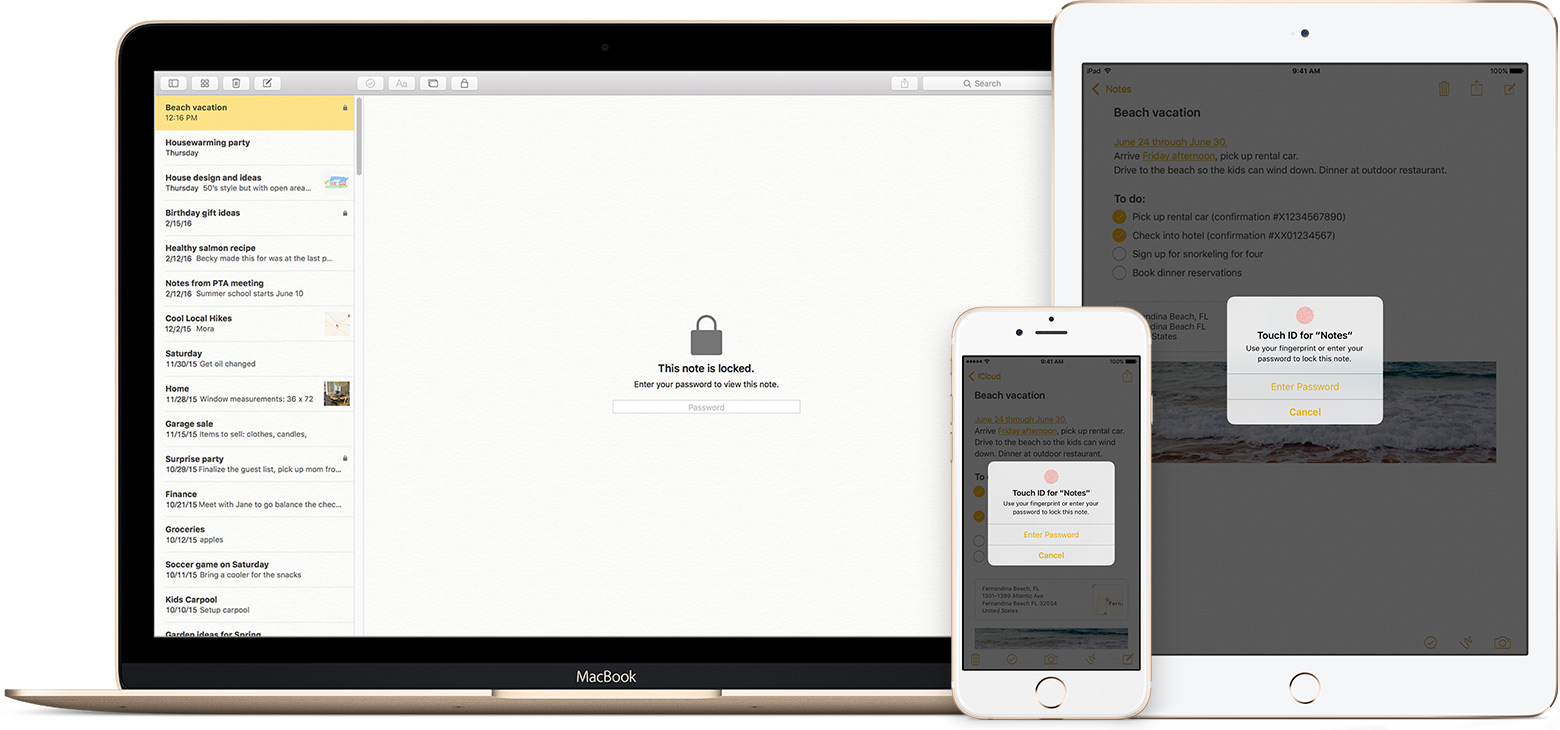

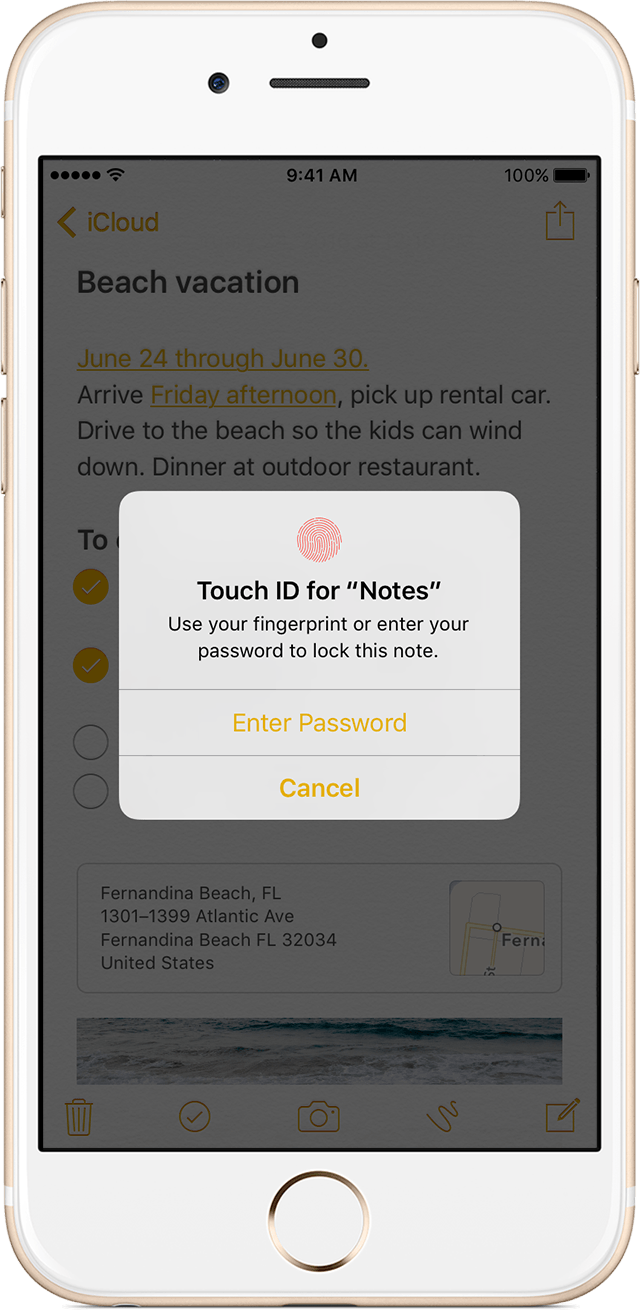
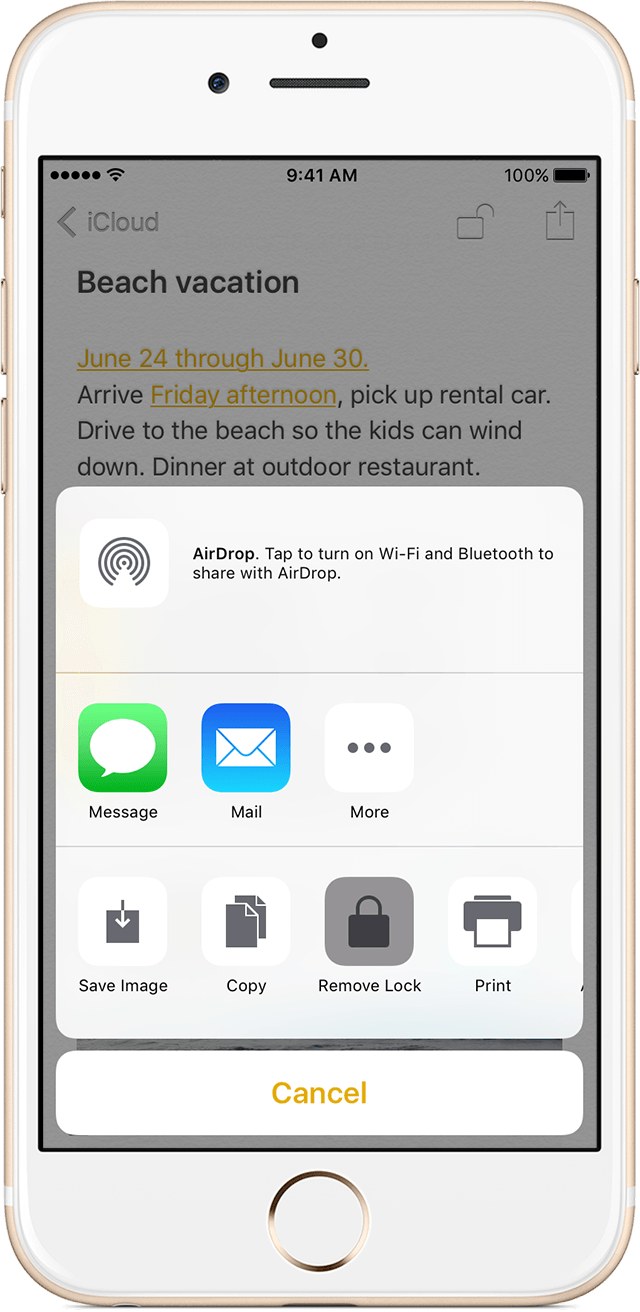
 > Lock Note.
 next to the note. Until you enter your password or use Touch ID, you only see the title and the last date that it was edited.
 , then tap or click Stop Sharing.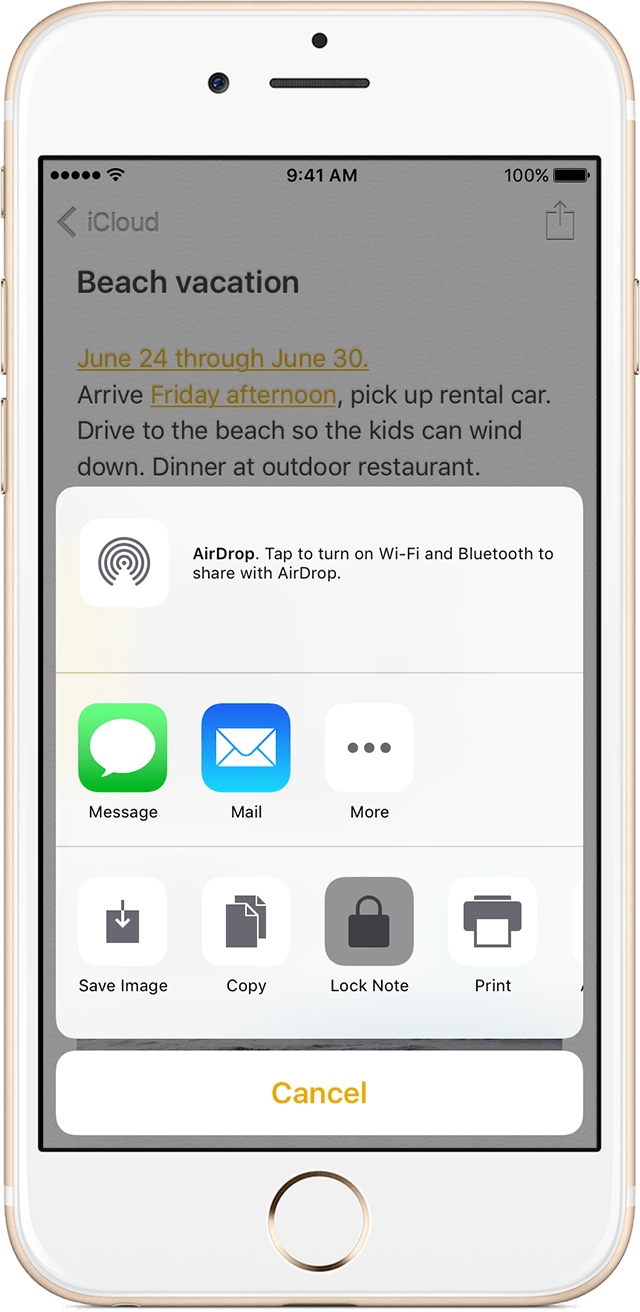
 at the top of the screen. You can hide the note's contents when you tap
  .
.