iPhone & iPad Apps for the Blind &VisuallyImpaired

Showing posts with label video. Show all posts

Tuesday, May 10, 2016

iPad & iOS9 Accessibility Features Part3

VoiceOver

VoiceOver is the built in screenreader that comes with all Apple products. VoiceOver was updated for iOS9 with multiple voices and dialects, as well as more options, like configuring how you want VoiceOver to handle describing images on your screen. Customizable gestures are possible so you can control VoiceOver through the touch screen. You can also access a Speak Screen that lets you toggle VoiceOver on by a simple two-finger swipe from the top of the screen (to set this up you need to go intoSettings > General > Accessibility > Speech > Speak Screen). iOS9 updates also allow you to speed up the rate of speech for VoiceOver more than before. Even though you may not be able to understand the speech at a very quick speed, your child may and this can be a huge advantage for an auditory learner!
So this is all great for text, but what about video? You can still turn on Audio Descriptions for accessible videos in iOS9, too, with increased accessibility in iTunes Movies and TV. Just go to Settings > General > Accessibility > Audio Descriptions and now the accessible audio descriptions on videos will play automatically whenever available.
If you're not familiar with the built-in braille keyboard that was presented in the VoiceOver update of iOS8, be sure to check it out since it is still an active feature in iOS9! Yes, a built-in braille keyboard! That's right! If you're using VoiceOver, you have the option to turn on Braille Screen Input in the Rotor menu. You can enter text through an on-screen six-dot braille input. Just turn the iPad so that the screen is perpendicular to the floor and 6 dots appear on the screen which you can use to input text using a braille interface into any app! Check out the Assistive Technology Blog for more info on the Built-in Braille Keyboard for Six-Dot Input.
Learn more about VoiceOver for iOS.

Speak Selection

Speak Selection screenshotIf VoiceOver is too much for you and you just want the iPad to read a word or phrase here and there, you can activate Speak Selection. Go to Settings > General > Accessibility > Speech > Speak Selection and turn Speak Selection on. Now you can highlight any text in any app and you'll be given the option to hear it spoken (as seen to the right). Just tap on the "Speak" button to hear your selection.

Camera

The camera on iOS9 devices comes with VoiceOver compatibility, which means when you hold up your camera it will let you know how many faces are in frame and whether or not they are centered. Very cool!
The zoom feature in the camera can also be used as a magnifier. For example, you could place the camera over a menu, "pinch" the screen in order to zoom in, and voilà! The words appear in large text on your screen!

Hearing Impairments
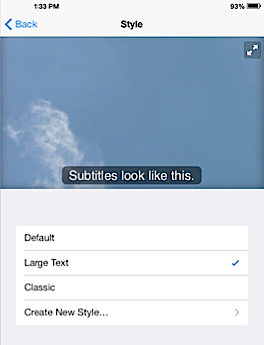
screenshot of iPad captions options in settingsFor children with hearing impairments, iOS9 offers some handy features. For example, you have complete control over how the audio is played back through speakers or headphones on your iPad. Many songs or videos split their audio so that the left and right ear jacks hear different sounds. But if you go to Settings > General > Accessibility > Hearing you can turn Mono Audio on so that both ear jacks receive the same sounds. You can also play with the left and right audio volumes separately, allowing you to leave one louder than the other if you wish.
Previously, in the iOS7 update they also added customization features to subtitles and captioning. Go to Settings > General > Accessibility > Subtitles & Captioning. Here you can choose to turn captioning on or off and also change the style of captions. You can choose large print captions (as seen to the right) or even completely customize them by changing the font, size, color etc.
The iPhone also allows you to set different (and fully customizable) vibration patterns for different alerts and phone calls. This way you can tell who's calling you just by the feel of your phone!

Braille Displays and Other Equipment

All iOS9 devices support Bluetooth wireless braille displays so you can read in braille everything that appears on your screen. Along with VoiceOver, this turns the iPad into a fully accessible piece of equipment. For a list of all the braille displays supported by Apple, click here.
Below is a video explaining how to use a refreshable braille display with an iPad:
You can also look at getting a stylus for your iPad if holding a pen or pencil is easier for you child than using their fingers. ThePogo Stylus is a nice choice.
And on a practical note, the iPad really does seem able to take quite a bit of abuse. Ours has survived slapping and even dropping (at least on our carpeted floor). But you still might want to invest in a nice sturdy case to protect it. We like the Gumdrop Tech Series Case both for it's durability and the nice red border it places around the screen which is great for kids with CVI.

There are many updates to iOS9 that were system wide and not just for users with visual impairments but are still very useful for many users, regardless of their unique needs. For independent travelers, iDevice users can now get public transit support via the Apple Maps app. This is a huge step for giving much needed access and information to independent blind travelers. Other advances include Siri's functions including activating her without having to have your iPad or iPhone plugged into a power source and increased speech recognition tailored to your voice. Siri can be a great motivator for kids working on speech goals, as well as just her overall usefulness in finding information and accessing apps using verbal prompts. You may also be interested in the 3D Touchfeatures introduced in the iPhone 6S and Plus with increased accessibility.
I hope these tips and reviews will help you create an iPad that works perfectly for your child. If you have any questions on how to adapt your iPad or if you have other tips that you'd like to share with others, please leave a comment below or contact me.

Monday, March 21, 2016

iPad & iOS9 Accessibility Features Part1

The iPad and other Apple devices that use the new iOS9 operating system (like the iPod Touch and iPhone) received another round of updates in accessibility after the major changes implemented in iOS8. There continue to be some really big changes with the advancement of iOS9 for blind users, however users with low vision have commented that little has changed. One major change has been in the layout of the Accessibility Settings menu and how to customize the available options. So, if you haven't updated your devices yet, now's the time to do it so you may take advantage of the newest features and apps available!
iOS8 built upon many accessibility features with an improved zoom function, a much easier to access text-to-talk feature, a system-wide virtual six-dot Braille keyboard and much more! Now, iOS9 gives you increased customization for your unique needs on your iPad. It's now more accessible than ever!
In this article I'll outline some of my favorite features and link to other articles where you can read about particular features in more detail. Every person has different needs, many of which can be tailored for your child to give her the greatest access possible. Find which features make the most sense for your child so you can create an iPad designed specifically for her!
(Although I'll be writing specifically about the iPad in this article, virtually everything I write here is also true for the iPhone and iPod Touch.)
To read more on Apple's commitment to accessibility, visit Apple's pages on Accessibility or Vision.
A note on commands: In this article I will use the > to denote a set of commands you'll need to use to access features in your iPad. For example, Settings > General > Accessibility means that you would tap the Settings app on your homescreen, then tap Generalfrom the list of options on the left, then scroll down until you find Accessibility.

Topics covered in this article:
  1. Simplify the iPad for Hands with Less Motor Control
  2. AssistiveTouch
  3. Guided Access
  4. Switch Control
  5. Head Gestures & Other Switch Options
  6. Low Vision Options
  7. VoiceOver
  8. Speak Selection
  9. Camera
  10. Hearing Impairments

Simplify the iPad for Hands with Less Motor Control

One of the great things about the iPad is that it can help develop fine motor skills. How? Well, if lightly tapping the screen creates a desired response (like a cow mooing in Peekaboo Barn), then your child will do their best to learn how to control their fingers and get that cow to moo!
Ivan touching his iPadHowever, some kids need assistance in getting to that point, and for them the iPad may seem like a frustrating device that is constantly turning off, changing apps or stalling for no good reason.
The problem is that the iPad comes preset with all sorts of fancy features that allow you to switch between apps or toggle things on and off simply by performing special hand swipes on the screen or by rotating the iPad itself. And these hand swipes or rotations can be performed unintentionally by a child who is just trying to get a cow to moo!
First, go into Settings > General > Gestures and turn these off. Now a tap is a tap and won't activate anything else.
While in General Settings, you can also set your Side Switch to Lock Rotation if you do not want to use it as the Mute switch. Now, when you slide the switch along the right-hand side of the iPad down, the screen will be locked in either a horizontal or vertical scape and won't move around. If you would rather keep this setting for the Mute sound control, you may also access the Lock Rotation setting in the Control Center at any time by swiping up from the bottom of the screen and tapping the Lock Rotation button (looks like a padlock circled with an arrow) in the menu.
Next, go to Settings > General > Accessibility > AssistiveTouch and turn Assistive Touch on. Now your child can use all their fingers or just one finger to do complicated moves on the screen. More on this below.
Finally, go to Settings > Notifications and turn notifications off for all of the apps or customize which apps do or do not allow notifications by going through each app and turning Allow Notifications on or off to your preference. Yes if you turn them all to off, this means you won't be receiving a notification when someone mentions you on Twitter or your friend comments on your Facebook status, but it also means your child won't be interrupted by these notifications when they are concentrating on an app and learning new skills.
Now your iPad is ready for some fun stuff!

AssistiveTouch

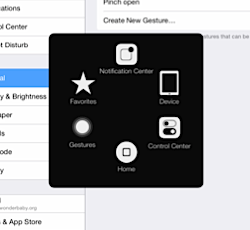
AssistiveTouch menu screenshotAssistiveTouch itself has not changed tremendously from iOS8 but the basics have been expanded upon through two additional settings found in the Interaction submenu of Accessibility: Switch Control and Touch Accommodations. For example, now in Touch Accommodations you can turn off Shake to Undo. AssistiveTouch is still one of my favorite features. Go to Settings > General > Accessibility > AssistiveTouch and turn AssistiveTouch on. You'll see a small square show up in the lower right hand corner of your screen which will remain there wherever you go on the iPad (you can move it into different corners, but it won't disappear). Tap this square to bring up the AssistiveTouch menu (as seen on the right).
The AssistiveTouch menu allows you to do some simple actions all from one place with a single tap, like rotate the screen or "shake" the iPad (a necessary movement for some apps). This menu has also been updated in iOS9 to include quick links to the Notification Center and Control Center. It also gives you access to the Gestures menu which allows you to tell the iPad to read two, three, four or five fingers on the screen no matter how many fingers you actually have on the screen. Why would you want to do this? Well, what if you have an app that requires your child to do a two-finger swipe, but they don't have the fine motor control to do this? You can set your Gestures to two fingers and now no matter how many fingers your child has on the iPad (one or all five, which is usually the case with my son), the iPad will read it as a two-finger swipe. How cool is that? You can now customize it even further by going to Customize Top Level Menu... to add additional icons from a special menu for tasks relating to Volume, Screen Rotation, Siri and many more.
You can also create custom gestures by going to Settings > General > Accessibility > AssistiveTouch > Create New Gesture. The screen allows you to do any movement you want and will record it, from pinching, sliding and swiping to circles, taps, or whatever you can think of. If you're working with an app that requires a very specific gesture, you can do that here and record it. Once it's been recorded, you simply name your gesture and it will now appear in your AssistiveTouch menu under Favorites. Choose the gesture, touch the screen and little blue finger points will flawlessly reenact the gesture you recorded.
To see AssistiveTouch in action along with a tutorial on how to make your own custom gestures, check out this video:
For more information about iPad features for users with motor disabilities, check out Apple's article on Physical and Motor Skills.

Saturday, March 7, 2015

ZoomReader

ZoomReader by Ai Squared
Picture of the ZoomReader iconThe reception to our recently announced iPhone application, ZoomReader, was overwhelmingly positive and exciting at this year’s ATIA conference in Orlando.We had so many attendees run over to ask us, “I want to see that new iPhone app you guys have!” As you might have heard by now, it’s a combination video magnifier and OCR app. It uses the built-in camera on an iPhone or iPod Touch to zoom in on printed materials, apply color filters, and to take a picture of something and have the text in that image read out loud! One woman even cried when she saw what ZoomReader could do; one of her family members has Down’s Syndrome and ZoomReader will open up a brand new world for him – one where he will be able to read street signs, restaurant menus, and any printed material that he would otherwise need help reading.People were blown away by the price ($19.99). It’s a very competitive and affordable price point for a mobile application that does real time screen magnification, OCR reading of images, plus voice recognition. The reaction all of you gave us was exactly what we hoped ZoomReader would accomplish in the mobile market.In fact, we’ve also got an audio clip from a presentation we attended there called, “AT Showdown” where individuals presented an assistive technology tip or product. At the end, you’ll hear some applause and even a few WOW’s and WHOA’s. Simply press the play button below:
AT Showdown audio
We look forward to providing more information once the product is officially ready for sale in the App Store. For now, you can watch the video below that explains the functionality of ZoomReader or you can go onto YouTube to watch it there:

Saturday, February 21, 2015

New in iOS 7,8: Ask Siri to Turn on VoiceOver and other Accessibility Settings


iOS 7,8 is Apple’s new operating system for iPhoneiPad, and iPod Touch. iOS 7includes a complete redesigned look and many new features. Siri in iOS 7 has learned some new tricks that can benefit users of VoiceOver and the other built in accessibility features that iOS offers. The feature allows you to ask Siri to turn on and off different accessibility settings using your voice. For example you can say, "turn on VoiceOver" and Siri will turn on VoiceOver in seconds. This feature will make iOS accessibility features easier to find and access. If a VoiceOver user is presented with an iOS device with VoiceOver turned off and triple click home disabled they could use this new feature to ask Siri to turn on VoiceOver. Besides accessibility settings Siri can also change other settings such as brightness, Bluetooth, and Wi-Fi. 

Tuesday, December 9, 2014

How to share a contact card via iMessage using the iOS Contacts app


How to share a contact card via iMessage using the iOS Contacts app


  1. Launch the Contacts app on your iPhone or iPad and find the contact you'd like to share. On the iPhone you can alternately use the Phone app if you'd prefer.
  2. Now tap on Share Contact towards the bottom.
  3. Tap on Message.
  4. Type the name of the person you'd like to share it with and select them.
  5. Now tap Send.

How to Add a contact card via after receiving it in A iMessage 

1.Tap on the contact card.

2. The contact card will pop up. Scroll down

3. If you want to create a new contact with that card choose crate new contact.

Or to  add it to a existing contact. Choose add to existing contact. And find the contact you want to add it to.

Sunday, October 12, 2014

Messages. Actually LOL. OL.

FI'm Messages.
Actually LOL. OL.

Look forward to doing amazing new things with the app you use most. In iOS 8, Messages has fun, useful, even surprising features that will change the way you think about messaging.

Add your voice to the conversation.

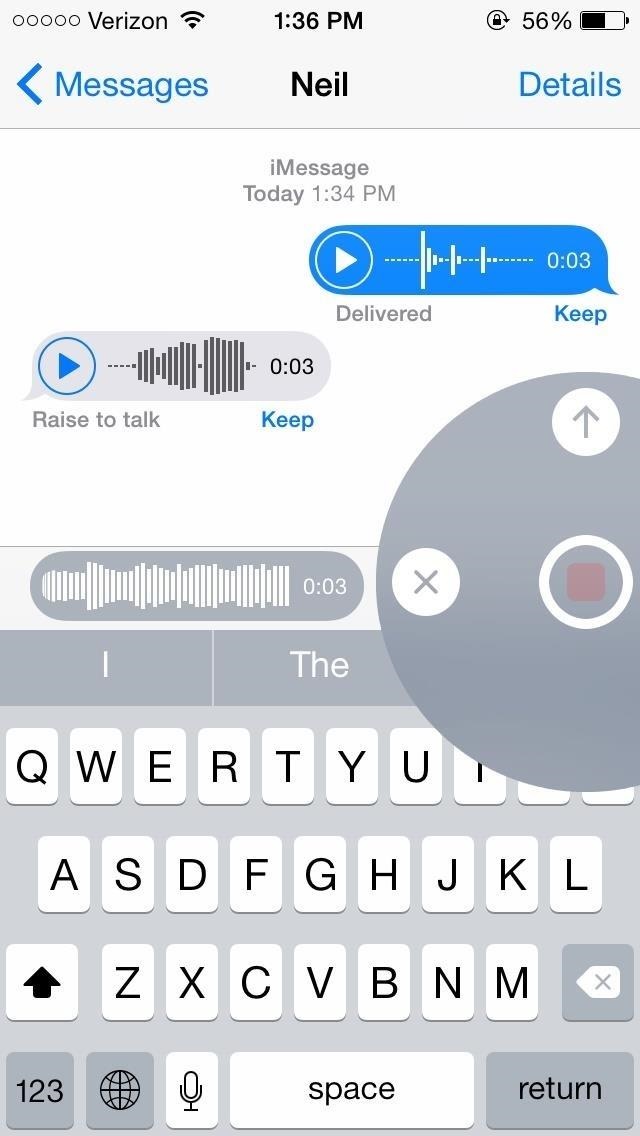
Messages in iOS 8 makes it easy to capture any sound — your voice, a song, or a big laugh — and make it part of the conversation. Simply touch and hold the new microphone button to record your message. Then swipe to send it.

Tap to Talk, then send instantly.

Touch and hold with your thumb to record your message, then swipe up to send it.

Lift to your ear to listen.

To hear a message, simply hold iPhone to your ear and listen like it’s a phone call. Or just tap the Play button.


Send a video quickly and easily.
The new Messages app lets you share what you’re seeing almost as you’re seeing it. Quickly send a video of your brother’s first time paddleboarding. Or your dad joining the fire dancers at the luau. When you do, you’ve said so much more than “Having fun on our vacation.” And you’ve said it in seconds.

Take charge of group messages.

Start a group conversation and give it a name like “Soccer Team” or “Road Trip.” Easily include who you want, drop who you don’t, and leave the conversation whenever you want. Or turn on Do Not Disturb and then read through the messages when you have time Give your conversation a name Tap Details to name a conversation so you can easily find it again later Control the conversation. Politely. In Details, you can add and remVove people from the conversation — or leave it yourself.

Share your location in the middle of the conversation.
“Where are you?” Answer that question more clearly than ever with a map showing your location. You can also share your whereabouts with people you choose for an hour, until the end of the day, or indefinitely. And you can see people in the message thread on a map if they’ve shared their locations.

Sharing is easy.
Tap to choose how long you’d like to share your location.
So that’s where everyone is.
When your friends choose to share their locations, you see them all on one map.


Tap to see every attachment from a conversation.
It’s simple to browse the photos and videos within a thread. You’ll see all the photos and videos going back to the very first exchange, without having to scroll through earlier messages.


Tuesday, September 16, 2014

The Coolest 21 Features IOS8 You Didn't Know About

Tomorrow September 17 iOS 8 is available for us all to download.
The Coolest 21 Features in iOS 8 You Didn't Know About or remember.
Some of these features may or may not be useful for those who are blind or visually impaired but we will add them all anyway just so you can learn more. This will be a brief overview. We will be covering each one of these features in the future one at a time.
Apple's newest mobile operating system, iOS 8, is almost out for the general public, and we've got a rundown on the best new features you can expect on your iPad, iPhone, and iPod touch. While there's not a huge visual change as there was from iOS 6 to iOS 7, there's still plenty of cool new features in iOS 8 to be excited about.


1. Find Out What Apps Are Killing Your Battery
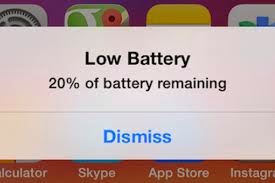
Don't you just hate it when you get the dreaded low battery screen on your eye device. Now monitoring battery usage has never been easier on iOS. Now you can easily view battery usage on a per-app basis to aid in tracking down battery-hogging apps.


2. Reply to Texts Faster with Interactive Notifications


Notification banners and alerts are interactive! From anywhere on your device, even your lock screen, pull down on the notification to quickly respond to text messages, trash emails (or mark them as read), snooze a reminder (or mark it as complete), and accept/decline calendar invites. Through Facebook and other third-party apps, you'll be able to perform similar functions from the banners, like commenting on or liking a post.


If you're afraid of your privacy being invaded—since friends and family could potentially do something destructive through these notifications on your lock screen—you can disable notifications for each app through the "Notifications" settings. Additionally, developers will require passcodes for certain lock screen notifications.


3. Use Siri with No Hands

With the addition of a voice-activation feature, you can now activate Siri by saying "Hey, Siri" out loud whenever the device is connected to a power source, although the iPhone will be able to utilize this feature without a power connection.Siri will then listen for your commands, which is especially useful when your hands are busy while you're driving, which makes calling someone or finding directions a completely hands-free experience.

4. Siri Makes Shazam Super Easy

Another new feature with Siri is the built-in Shazam integration. Just activate Siri and ask "What song is playing?" or "What song is this?" Siri will then listen and pull up a listing of the song and artist, with a link to purchase it directly from iTunes. 

5. There's Predictive Text in the Keyboard

With predictive text, called QuickType, you can type in a few letters and your keyboard will provide options for it thinks you might type next. Once you type a complete word, you'll see suggestions for common quotes or phrases, celebrities and musicians, movies and television shows, and more.
QuickType also intelligently analyzes the last text sent to you. When asked questions through text messaging, QuickType will usually offer options likeyesnosure thing, or I'll get back to you.
If you receive a message with two options and an "or" in-between them, QuickType intelligently pulls the two options from the message sent to you, as suggestions.

6. You Can Now Use Third-Party Keyboards

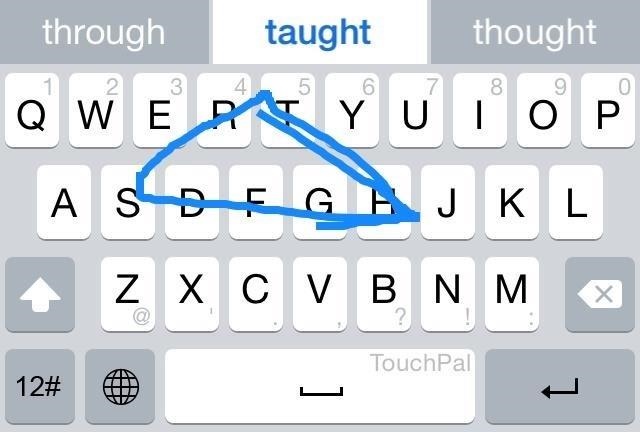
Another huge addition to the iOS keyboard is third-party keyboard integration, bringing the likes of Fleksy, SwiftKey, TouchPal, and more.
With a keyboard such as TouchPal, you can use swipe gestures to spell out words and phrases without lifting a finger, as well as the ability to enter numbers and punctuation without changing keyboards.
Image via wonderhowto.com
Other keyboards like TextExpander provide useful tools such as easy-to-use keyboard shortcuts, while QuickBoard for iOS 8 integrates copy and paste boards directly on the keyboard; all of which will make typing on iOS 8 something spectacular.

7. There's Snapchat-Like Self-Destructing Media

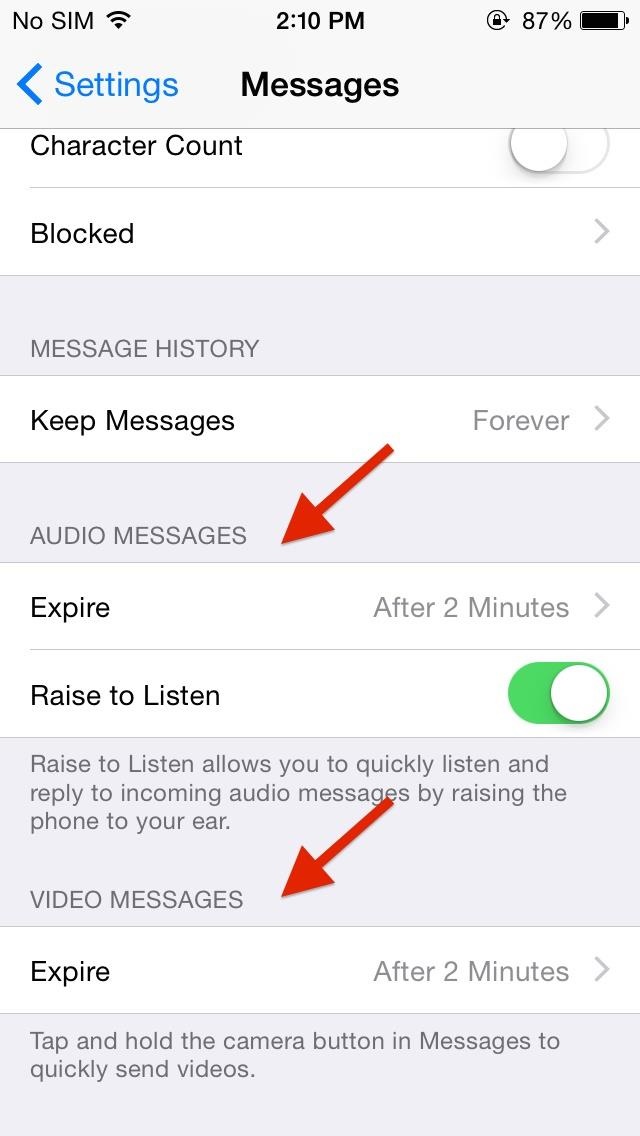
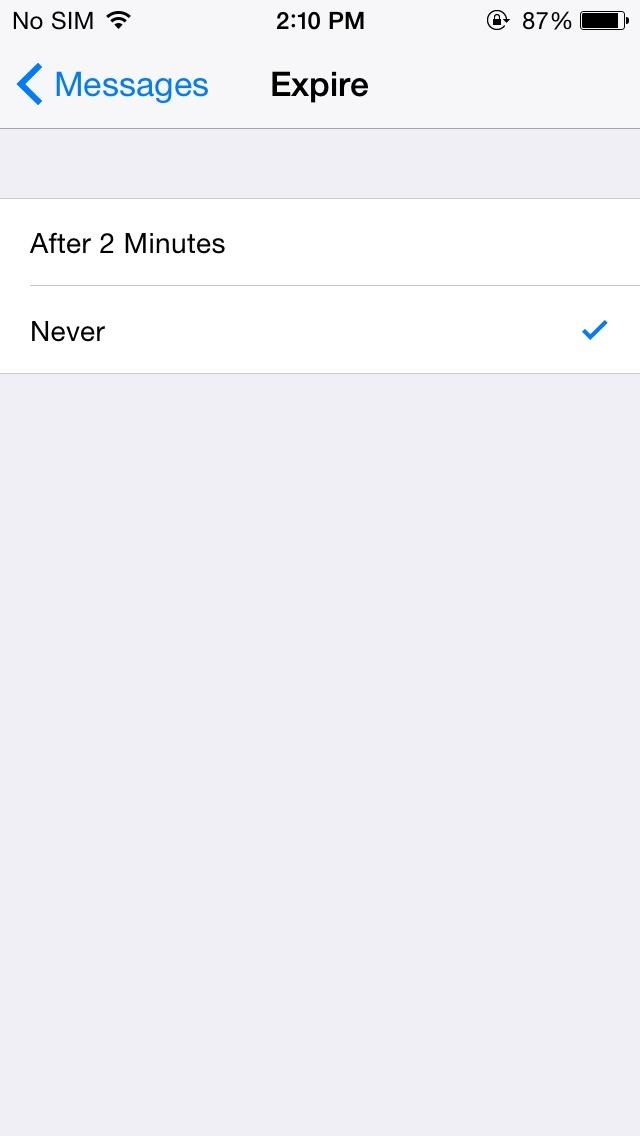
Inspired by Snapchat's ephemeral nature, iOS 8 now brings self-destructing audio, imagess, and videos to the stock Messages app. Hold down on the microphone or camera icon and quickly take a photo, record a video, or lay down some audio. When you release the icon, the files will send, but will then self-destruct after a set period of time.
Vice president of iOS product marketing Greg Joswiak says about this feature, "You don't want to have to clean these up. Audio and video messages can take up space, so they're set to self-destruct unless you choose to keep them."
However, you can save these files if you want by adjusting your settings.

8. Scan Payment Cards to Auto-Fill Data

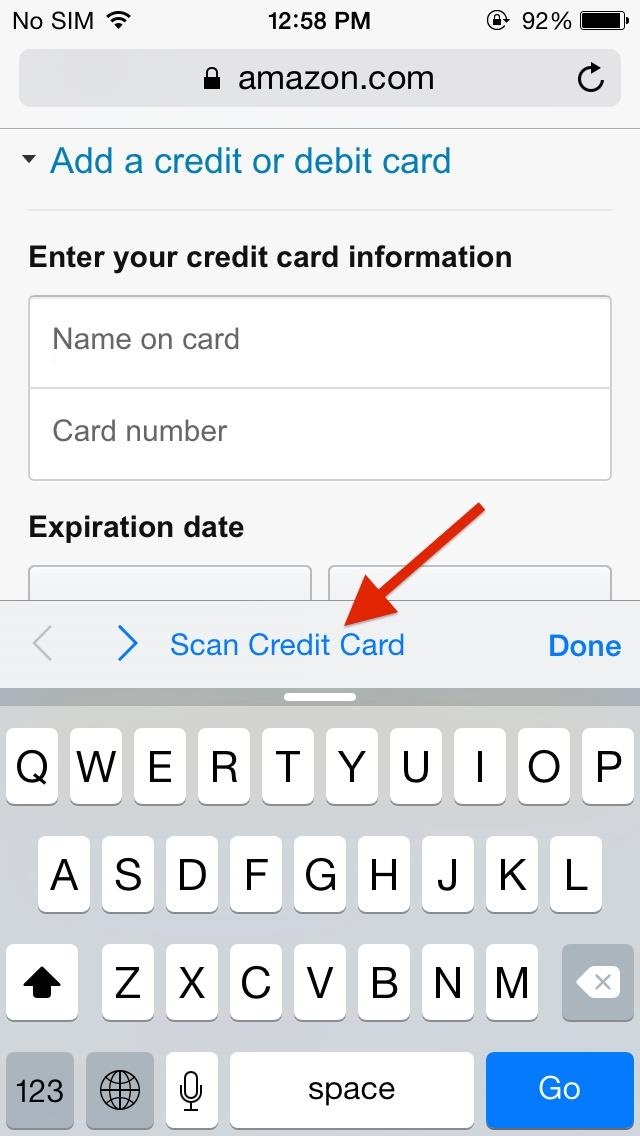
When making online purchases through Safari, you can now save yourself the hassle of manually inputting card information. Instead, just snap a picture of it and watch your relevant information automatically fill in the form. This worked extremely well on Amazon, but failed when using Midtowncomics, so while it's not universal, it should work with most major online retailers.

9. Battery-Saving Grayscale Mode

With the iPhone 6 stocked with a crisp, Sapphire AMOLED display, placing the device in grayscale mode will help extend battery life. By rendering pixels black and inactive, therefore not utilizing the backlight, grayscale reduces battery drain. 

Battery-Saving Grayscale Mode Will be useful for those who are completely blind. Turning on grayscale mode Will help you save some battery.


10. FaceTime Gets "Call Waiting"

By popular demand, FaceTime now has a "call waiting" function displayed when receiving a request during a current FaceTime session. Now it's easy to decline the incoming call, or end your current one while accepting the new one. Of course, accepting the new call ends the old one, so it's not exactly like the call waiting we all know and love.
[1] Oh cool. [2] You can FaceTime with yourself!

11. There's Wi-Fi Calling Now

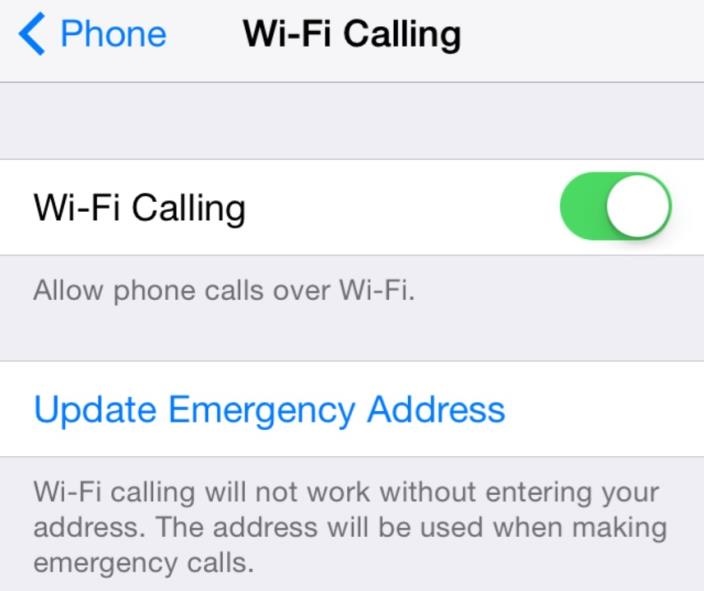
Wi-Fi calling won't just help save your data, but according to those who have used it, the calls sound clearer. As of now, this feature is only present on the T-Mobile variant. Expect this function to roll out to all carriers in the very near future.
To enable it, head into Settings -> Phone -> Wi-Fi Calling, then simply toggle it on. When enabling Wi-Fi calling, you must enter a physical address, presumably on the off-chance that you'll need to make an emergency call.

12. You Can Now Leave Annoying Group Chats

Leaving group chats is one feature that many have long asked for (including myself), simply because group messages can become an annoyance after a while, accumulating hundreds of texts and, subsequently, notifications.

13. Access All Attachments in a Message Thread

Accessing all attachments in Messages is a very useful feature, allowing you to easily find and save all of the pictures, videos, and audio files shared between you and another person, without having to scroll through the entire conversation.

14. Send Multiple (Recent) Pictures at Once

Sharing pictures is also now easier do, with a preview of recent photos showing up when you tap on the keyboard's camera icon.
Image via wonderhowto.com

15. There's Widgets in the Notification Center

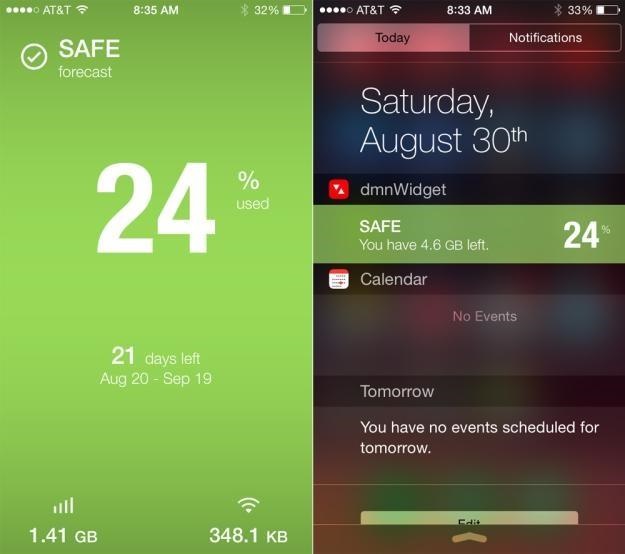
While not as good as they could be, widgets are finally available in iOS 8, accessible only through the Notification Center. Just scroll down from the top of the screen and you'll be able to access important information from your favorite apps, as well as perform truncated functions.
Image via BGR


16. Get Faster Access to Recent Contacts


By double-pressing the Home button in iOS 8, you not only get access to the app switcher, but you can now see "Phone Favorites" and "Recents" in theretoo. Just tap on a contact bubble to get options for phone calls, text messages, and FaceTime (or FaceTime audio) to keep in touch quicker with the people you contact the most.

17. Time-Lapse Videos!
Apple has now added a native time-lapse feature to their stock camera in iOS 8, shooting photos in dynamically selected intervals.  If you don't want this feature enabled, maybe to prevent others from knowing who you've recently contacted, you can disable it. Actually, you can disable "Phone Favorites" or just "Recents"—even both if you want. See how here.

18. New Photo-Editing Tools

In the stock photo-editing tools, you can now fine-tune every aspect of a photo, such as automatically straighten horizons, modify light and adjust exposure, brightness, contrast and more.

19. Set Timers & Control Exposure in the Camera

Set a three or ten second timer directly from the camera viewfinder, as well as manually change the exposure by swiping up and down on the screen.

20. Do More in Notes

In the new version of Notes for iOS 8, you'll be able to jot down your notes in rich text (bold, italics, and underline), as well as be able to include photos.

21. Recover Deleted iPhone Photos

In iOS 8, you'll no longer have to worry about recovery tools or performing backups to get back your deleted photos. Apple is taking a preemptive approach to accidental deletions by allowing you to easily recover pictures or videos directly from your iPad or iPhone. 

What do you think of the new iOS 8 for iPad, iPhone, and iPod touch. Share your thoughts below, or chat with us on Facebook.