iOS devices are fully compatible with many refreshable braille displays. You can connect a Bluetooth wireless braille display to read VoiceOver output, including contracted and uncontracted braille and equations using Nemeth Code. And braille displays with input keys can be used to control your iOS device when VoiceOver is turned on.
VoiceOver is a gesture-based screen reader that lets you enjoy the fun and simplicity of iOS even if you can’t see the screen. With VoiceOver enabled, just triple-click the Home button to access it wherever you are in iOS. Hear a description of everything happening on your screen, from battery level to who’s calling to which app your finger’s on. You can adjust the speaking rate and pitch to suit you.
Navigation
With VoiceOver, you’ll use a simple set of gestures to control your iOS device. For example, touch or drag your finger around the screen and VoiceOver tells you what’s there. Tap a button to hear a description; double-tap to activate. Swipe up or down to adjust a slider. Flick left and right to move from one app to the next. When you interact with an element on the screen, a black rectangle appears around it, so sighted users can follow along. When you prefer privacy, you can activate a screen curtain to turn off the display so no one can see it, even as you’re controlling it. And when VoiceOver is talking, the volume of any background audio from music or video automatically lowers, “ducking” under the voice, so you can hear VoiceOver clearly.
Text Input
Whether you’re composing an email or jotting a note, VoiceOver echoes each character on the keyboard as you touch it, and again when you enter it. Have VoiceOver speak each completed word. A flick up or down moves the cursor so you can edit precisely. To help you type more quickly and accurately, iOS supports multiple character inputmethods — includinghandwriting — and corrects misspelled words. Enable Speak Auto-text and you hear a sound effect and the suggested word spoken. Keep typing to ignore it, or tap the space bar to have your iOS device type it for you. Pair up an Apple Bluetooth keyboard, and VoiceOver talks you through inputting text in the same way.
The Rotor
VoiceOver features a virtual control called the rotor. Turning the rotor — by rotating two fingers on the screen as if you were turning an actual dial — changes the way VoiceOver moves through a web page or document based on the setting you choose. When you’re on a web page, turn the rotor to hear settings like “headings,” “links,” and “images.” Then flick to choose how you navigate the page — for example, you can skip from one heading to the next. Move through documents with similar ease. The rotor has settings like “word” or “character” that let you choose how to navigate your text, which comes in handy for checking spelling and grammar. You can customize the rotor elements from a variety of options, including language.
Apps
Because VoiceOver is integrated in iOS, it works with all the built-in apps, including Safari, Mail, App Store, iTunes, Music, Calendar, Reminders, and Notes. You can also create custom labels for buttons in any app — including third-party apps. So it’s even easier to get to your news, word games, or anything else you love on your iOS device. And Apple is working with the iOS developer community to make even more apps compatible with VoiceOver.
Before you sell or give away your iOS device, make sure that you've removed all of your personal information. Follow these steps to protect your data and get your device to its factory default state for the new owner:
iCloud Backup provides an easy and reliable backup solution for customers who want to back up their iOS devices wirelessly and automatically.
Back up to iCloud
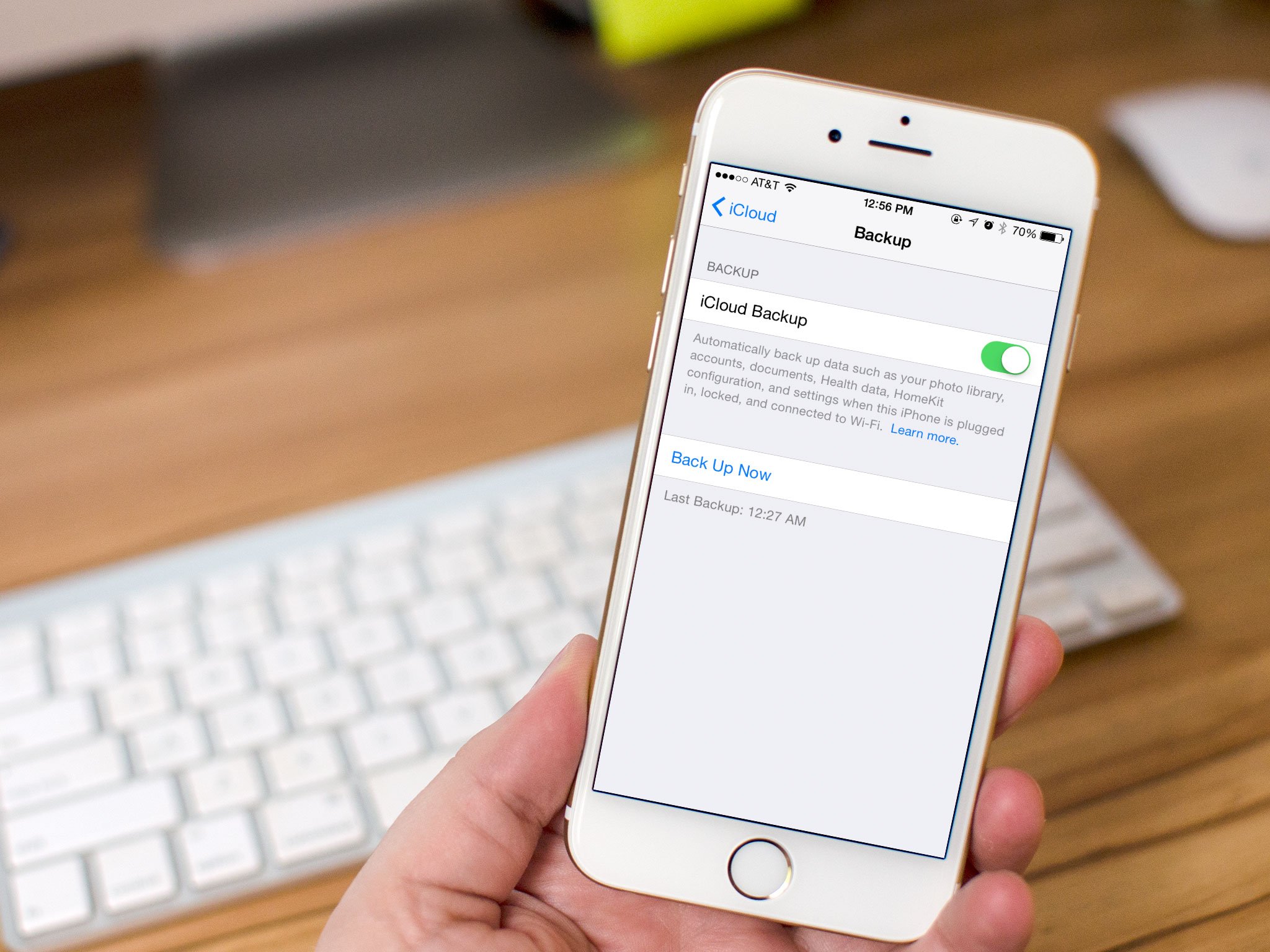
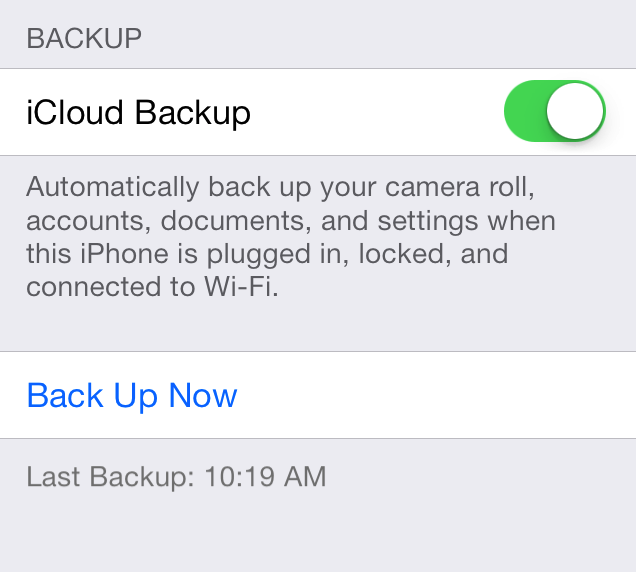
If you're using iCloud, it can automatically back up your data if you've chosen this option. You can verify your iCloud backup and make sure that it's up to date by following these steps:
Attractive, very full-featured and completely free with no ads! Contains awesome wake-up alarms, magical sleep timers, an eye-catching clock display and plenty of configurable options. Wake up to a built-in melody (over 70 high quality sounds, from practical to fun to whacky).• Wake up to a custom playlist from your iTunes library.
Full support for fade-out, snooze, vibrate, volume control, backup alarm, and much more. Power Nap mode allows you to instantly set a custom alarm for 5 minutes to 1 hour from the current time.
Sleep Timers
Built-in soundscapes (looping sounds) get you to dreamland in no time flat. Create a custom playlist from your iTunes library. External Audio Mode. Use other apps to play audio (such as internet radio) and Yocto Clock will fade-out and stop the audio when the sleep timer expires. Sleep Timers feature a unique audio book / podcast mode. Listen to audio for a specified time, then gently switch to sleepy-time music.
Other Features
Sophisticated clock display, fully configurable. Weather forecast and current conditions. A fun selection of fonts for the time display. Make the text any color you wish. Choose from built-in wallpaper or select from your own photo library. A full range of gestures to control the app from the clock display. An easy-to-use flashlight mode.
- Screen dimming. Many configurable options.
Plus...
A built-in Mini User's Guide to help you get the most from Yocto Clock. Full support for devices with Retina displays. Full VoiceOver Accessibility support. A Universal App with full native support for the iPad. Yocto Clock is designed for Apple iPhone, iPod touch and iPad devices. Get your copy today from the iTunes App Store.
iOS 7,8 is Apple’s new operating system for iPhone, iPad, and iPod Touch. iOS 7includes a complete redesigned look and many new features. Siri in iOS 7 has learned some new tricks that can benefit users of VoiceOver and the other built in accessibility features that iOS offers. The feature allows you to ask Siri to turn on and off different accessibility settings using your voice. For example you can say, "turn on VoiceOver" and Siri will turn on VoiceOver in seconds. This feature will make iOS accessibility features easier to find and access. If a VoiceOver user is presented with an iOS device with VoiceOver turned off and triple click home disabled they could use this new feature to ask Siri to turn on VoiceOver. Besides accessibility settings Siri can also change other settings such as brightness, Bluetooth, and Wi-Fi.
While iCloud will automatically back up all the data on your iPhone or iPad every 24 hours, as long as it's plugged in and connected to Wi-Fi, you can also trigger a backup manually at any time. It's especially handy when you're upgrading to a new device, or getting a replacement for a defective device. Best of all, making sure your backups are up-to-date is easy to do!
Note: Because of the amount of data that can potentially be transferred, and the power consumption that comes with it, manual iCloud backups also require your iPhone or iPad be plugged in and connected to Wi-Fi. Make sure you do that first, or the option for manual backup will be grayed out.
If you have multiple devices running iOS 8 and using the same Apple ID, you’ve probably noticed that an incoming phone call rings on every one of the devices at the same time. In other words, an inbound phone call will ring not only your iPhone, but also any other iPad, iOS device, or Mac too if it’s running OS X Yosemite. While this feature can be convenient and make it much less likely that you’ll ever miss a phone call, it can also be a nuisance if you have a desk full of hardware that is all buzzing simultaneously.
Tostop the iPhone from ringing your other devices with an incoming phone call, you need to visit the Settings of the iPhone which has the cellular connection that originally receives the phone call. You can also choose to selectively disable the ringing feature on other devices if you’d like to just opt a single device out. Here’s what you’ll want to do:
Open the Settings app on the iPhone and go to “FaceTime”
Toggle the switch for “iPhone Cellular Calls” and flip it to the OFF position
Exit out of Settings as usual
This puts an end to the multiple device ringing feature.
It’s worth mentioning that if you turn this feature off you can’t make phone calls from your Mac or other iOS device by way of your iPhone cellular connection. Despite being in the FaceTime settings, it has no effect on standard FaceTime audio calls made from a Mac or FaceTime VOIP from iOS, and FaceTime video chat still works as usual too.
Keep in mind there is a physical proximity limit with this feature, so if you’re many miles away from your other devices, your iPhone isn’t going to ring the hardware left at your office or home. Apple hints at this in the settings with the toggle switch, describing the feature as follows: “Use your iPhone cellular connection to make and receive calls on devices signed into your iCloud account when they are nearby and on Wi-Fi.”
Wen you updated to iOS 8, recent iPhones and iPads will play nicely with each other, allowing users to do new functions like answering a phone call or sending an SMS message via their iPhone without having to put down their iPad, or start an email on one device before finishing it on the other.
Please note that some devices are having issues using the Continuity feature.
Apple has dubbed this seamless integration "Continuity," and some of it works immediately once all of a user's devices are updated to iOS 8. For example, if a user has the same Apple ID and associated phone number enabled on their iPad, calls will show up on the tablet once the iPhone begins ringing.
Answering a call on an iPad automatically places the conversation in speakerphone, allowing the iPad's microphone and speakers to handle the call. Continuity requires an iPhone 5 or later, fourth-generation iPad or newer, iPad mini, or fifth-generation iPod touch.
iOS 8 also allows users to automatically enable Personal Hotspot from a nearby iPhone, in a feature Apple calls "Instant Hotspot." A Continuity-capable iPhone will appear under the Wi-Fi section of the Settings app on iPad, and selecting that device will switch Personal Hotspot on, allowing a user to access mobile data from their cellular provider when possible.
The iPad also gains the ability with iOS 8 to send traditional SMS text messages via a connected iPhone. Previously, users could only said iMessages to Apple devices. While SMS messaging was available to test in iOS 8 beta releases, it is not included in the final release, and Apple has said it will become active in October.
All of this same functionality will be coming to newer Bluetooth Low Energy capable Macs later this year with the launch of OS X Yosemite, which will also be a free update.
Additional Continuity features in iOS 8 are available by enabling the "Handoff" feature. Users can do this by opening the Settings application, choosing General, and then selecting "Handoff & Suggested Apps."
"Handoff lets you start something on one device and instantly pick it up on other devices using your iCloud account," Apple's description reads. "The app you need appears in the lock screen, app switcher, and the dock on a Mac."
For example, if a user is reading a website on their iPhone running iOS 8, they can quickly switch to their iPad by swiping up from the small Safari icon that is displayed in the lower right corner. Doing so will immediately open the same website on the iPad.
In addition to Safari, this functionality works immediately with Mail, Pages, Numbers, Keynote, Maps, Messages, Reminders, Calendar, and Contacts. Developers will be able to add Handoff into their own third-party apps as well.
The "Suggested Apps" function also utilizes a user's location to recommend applications. For example, if a user is at a Best Buy retail store, iOS 8 will display an App Store icon in the lower left corner of their iPhone lock screen. Swiping up will take the user to the App Store listing for the official Best Buy app.
If the Best Buy application is already installed, the icon for it will be displayed in the lower left corner, giving the user quick access to the app while they are in the store. This will help expand iBeacon functionality, which requires third-party applications to be installed to access unique functions.
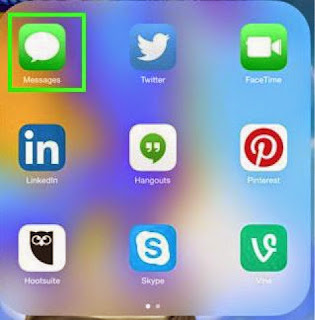
With iOS 8 Messages, you can easily control how the messages look and how you interact in the conversation. Here’s how to message multiple people, name a conversation and leave a conversation in iOS 8 Messages.
1. To send a group message in iOS 8 Messages, tap on the new messages icon and enter in the contacts you want to message.
2. Then to give the message a name, tap the Details link and fill in the Group Name. The Details area also will show you where the people are, if they are sharing their location.
3. You can mute notifications in the Details area by sliding on the Do Not Disturb bar. When you’re available to chat again, just slide it off.
4. If you need more people in the conversation tap the plus to add a contact.
5. If you want to remove someone, slide to the right on their name and tap delete.
6. If you want to leave the conversation, scroll to the bottom of the Details area and tap Leave this Conversation.
In previous versions of iOS, zoom was only a simple full screen magnification. WithiOS 8, Apple has vastly improved zoom with partial screen window zoom, filters, and smarter magnification options. Zoom is a vital feature for people with low vision and its new features in iOS 8 makes it even more useful.
One of the most noticeable enhancements is the ability to magnify certain areas of the screen while leaving the rest of the screen unmagnified. As opposed to full screen zoom, the zoom lens allows for more easy navigation while still allowing certain important areas to be magnified. Users can change the size of the magnified area and pan around the screen in order to magnify different areas. An option is available to add a zoom control to the screen which acts like a virtual joystick for controlling which areas of the screen are magnified.Within the magnified area, users can apply filters to make viewing easier. The filters available are inverse colors, greyscale, low light, and greyscale inverse.
As pictured above, iOS 8 allows users to choose not to magnify the keyboard. This can make typing on software keyboards much easier while still allowing the text being entered to be enlarged. When the keyboard is magnified some keys are cut off requiring panning to type, iOS 8 eliminates this problem. Zoom also includes the ability to follow the VoiceOver cursor focus. Meaning when the VoiceOver cursor is focused on an app or button, that app or button will be enlarged in the zoom window.
These new zoom options are just one of many exciting accessibility enhancements included in iOS 8. The improved zoom will benefit many users with visual impairments and is a huge improvement over zoom in iOS 7. To enable zoom go to Settings > General > Accessibility > Zoom. For more screenshots of zoom in action click read more below.
Sometime ago we did an article on 11 ways to conserve your battery with iOS 7 . Those who were running iOS 7 I hope red that existing article and followed some of those steps. This article expands on things that you can do with iOS 8. If you are new to IOS or did not read the article here are the key things we covered. Background App Refresh Location-Tracking Apps Parallax Automatic Updating Turn Off AirDrop Stop searching for Wi-Fi Turn Down the Brightness Spotlight Disable location services (for apps that don't need it) Go on a push notification diet Don't push; fetch
Want to know how to maximise the battery life on your iPhone or iPad? In this guide we'll share some advice to help keep your phone alive for as long as humanly possible.
It's written with iOS 8 in mind, which adds new features to assess your battery usage. And some new fancy features that will guzzle your battery fast if left unchecked.
First things first, you want to see what is killing your battery in the first place. iOS 8 lets you assess your battery drain on an app-by-app basis so you can easily detect energy hogs.
Simply go into the Settings app, choose 'General', tap 'Usage', and go into 'Battery Usage'. From here you can see the time since last full charge and battery usage in the last day and week.
If one app is taking up a lot of battery you may want to turn off that app's background refresh or notifications, or stop using it altogether.
Background App Refresh, which was added in iOS 7, is a way for apps to get new data when not in use, so they're up to date as soon as you load them.
It's a cool feature, but it can be a major battery drain. Either turn off individual apps that you don't need to update continually, or shut off the feature entirely. You can find it in 'General', 'Background App Refresh' in the Settings app.
Think about the way you use each app. It takes a couple seconds to grab your latest tweets when you load up a Twitter client - do you need to continuously update your timeline when you're not using it?
Location Services are another battery hog. Open Settings, go to 'Privacy', and find 'Location Services'.
Keep it on for apps where you want it to know your location. If you like to share your location when you Tweet, keep it on for Twitter. But if you never use IMDB's cinema show times feature, revoke its access to your location, here.
Push notifications can also hurt your battery life. And like background app refresh and location services, you've probably got some turned on that you don't need.
To tweak these settings open the Settings app and choose 'Notifications'. Now you'll see a list of every installed app that can send notifications. Go into apps that you don't care about and uncheck 'Allow Notifications'.
You have more options when dealing with the default Mail app. Find 'Mail, Contacts, Calendars' in Settings and tap on 'Fetch New Data'.
Push email will send emails from the mail server to your iOS device as soon as they arrive, which can hurt your battery. You may wish it to turn this setting off and use a fetch schedule.
This only looks for emails every 15 or 30 minutes, or every hour, or only when you go into the Mail app and refresh your inbox. Use whichever suits you best.
A couple tips from ex-Apple Genius Bar staffer Scotty Loveless, who has got a huge and exhaustive guide to battery drain if you want even more information.
First, stop manually closing all your apps. For starters, it's unnecessary: iOS is automatically juggling memory, putting apps in suspended animation, and killing unused memory hogs all by itself.
But more importantly for this article, constantly having to load and unload apps from your phone's random access memory is bad for battery. "All of that loading and unloading puts more stress on your device than just leaving it alone', says Loveless.
Another tip from Loveless: using your iPhone when you're in an area with crappy service can also kill the battery as the phone puts strain on its antenna to try to keep receiving phone calls and text messages.
If you're in the middle of nowhere (or inside a building that cuts off phone signal) and you don't need to use the phone right now, turn on airplane mode.
Plus, you can actually turn wi-fi back on after you enter airplane mode to continue using the web.
Changing your screen brightness can have a massive impact on your phone's battery life. Keeping it at the highest setting is a sure fire way to drain your battery (and destroy your corneas).
Set it to about 60 percent. You'll soon get used to it, and you can squeeze many minutes of battery out of your device.
When your iPhone or iPad battery is running low and you do not have a charger nearby, you could switch the device’s full-color screen to grayscale mode to extend its battery life. This feature is also great for those who are completely blind and do not need the color screen.
Go to the Settings app on your phone. Inside the app, scroll down, and choose the General setting. Among the numerous options available under the General option, we are only looking for theAccessibility option. This is the hub for many settings which improve the usability of the device. inally, turn on theGrayscaleoption which can be found under theVisionsection. As soon as you activate the feature, your device’s screen will turn to grayscale mode.
The results may not be obvious in the Settings screen since the background is white already. However, when you go back to the home screen, you will notice that all the icons are displayed in black and white.
Please note that the feature affects the screen only. If you take a screenshot, the results will be in full-color.
Tomorrow September 17 iOS 8 is available for us all to download.
The Coolest 21 Features in iOS 8 You Didn't Know About or remember.
Some of these features may or may not be useful for those who are blind or visually impaired but we will add them all anyway just so you can learn more. This will be a brief overview. We will be covering each one of these features in the future one at a time. Apple's newest mobile operating system, iOS 8, is almost out for the general public, and we've got a rundown on the best new features you can expect on your iPad, iPhone, and iPod touch. While there's not a huge visual change as there wasfrom iOS 6 to iOS 7, there's still plenty of cool new features in iOS 8 to be excited about. 1. Find Out What Apps Are Killing Your Battery
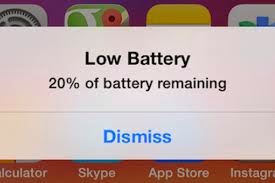
Don't you just hate it when you get the dreaded low battery screen on your eye device. Now monitoring battery usage has never been easier on iOS. Now you can easily view battery usage on a per-app basis to aid in tracking down battery-hogging apps.
2. Reply to Texts Faster with Interactive Notifications
Notification banners and alerts are interactive! From anywhere on your device, even your lock screen, pull down on the notification to quickly respond to text messages, trash emails (or mark them as read), snooze a reminder (or mark it as complete), and accept/decline calendar invites. Through Facebook and other third-party apps, you'll be able to perform similar functions from the banners, like commenting on or liking a post.
If you're afraid of your privacy being invaded—since friends and family could potentially do something destructive through these notifications on your lock screen—you can disable notifications for each app through the "Notifications" settings. Additionally, developers will require passcodes for certain lock screen notifications.
3. Use Siri with No Hands
With the addition of a voice-activation feature, you can now activate Siri by saying "Hey, Siri" out loud whenever the device is connected to a power source, although the iPhone will be able to utilize this feature without a power connection.Siri will then listen for your commands, which is especially useful when your hands are busy while you're driving, which makes calling someone or finding directions a completely hands-free experience.
4. Siri Makes Shazam Super Easy
Another new feature with Siri is the built-in Shazam integration. Just activate Siri and ask "What song is playing?" or "What song is this?" Siri will then listen and pull up a listing of the song and artist, with a link to purchase it directly from iTunes.
5. There's Predictive Text in the Keyboard
With predictive text, called QuickType, you can type in a few letters and your keyboard will provide options for it thinks you might type next. Once you type a complete word, you'll see suggestions for common quotes or phrases, celebrities and musicians, movies and television shows, and more.
QuickType also intelligently analyzes the last text sent to you. When asked questions through text messaging, QuickType will usually offer options likeyes, no, sure thing, or I'll get back to you.
If you receive a message with two options and an "or" in-between them, QuickType intelligently pulls the two options from the message sent to you, as suggestions.
6. You Can Now Use Third-Party Keyboards
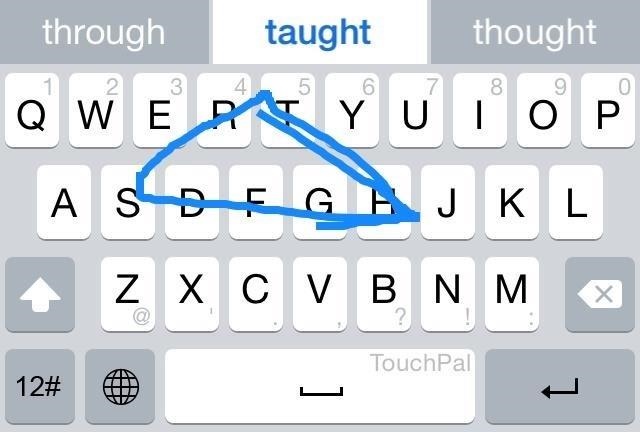
Another huge addition to the iOS keyboard is third-party keyboard integration, bringing the likes of Fleksy, SwiftKey, TouchPal, and more.
With a keyboard such as TouchPal, you can use swipe gestures to spell out words and phrases without lifting a finger, as well as the ability to enter numbers and punctuation without changing keyboards.
Image via wonderhowto.com
Other keyboards like TextExpander provide useful tools such as easy-to-use keyboard shortcuts, while QuickBoard for iOS 8 integrates copy and paste boards directly on the keyboard; all of which will make typing on iOS 8 something spectacular.
7. There's Snapchat-Like Self-Destructing Media
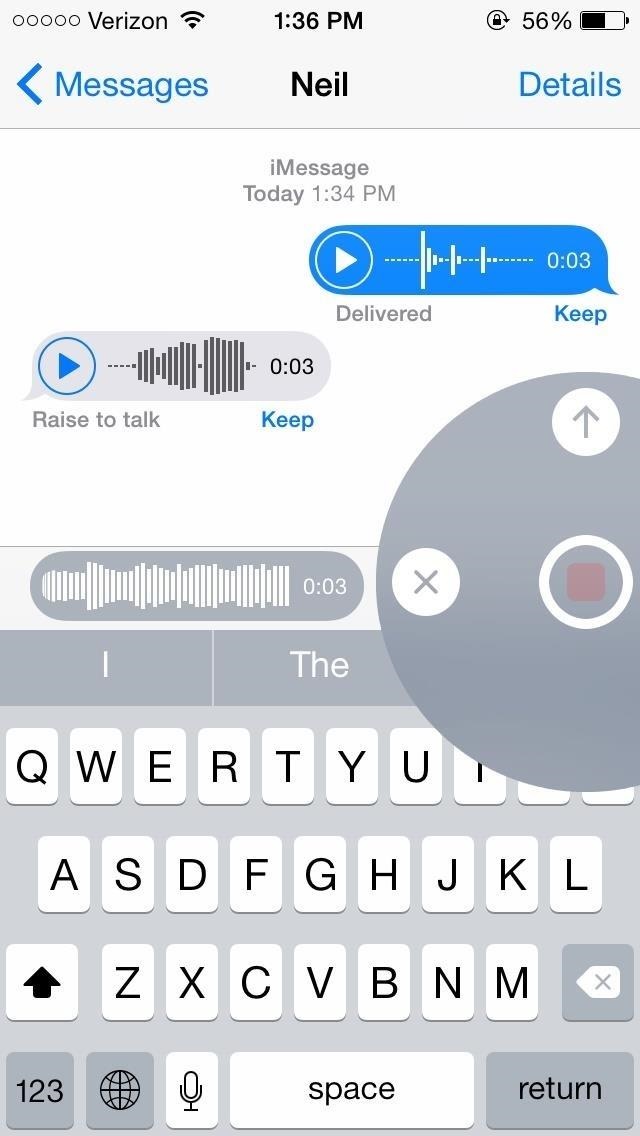
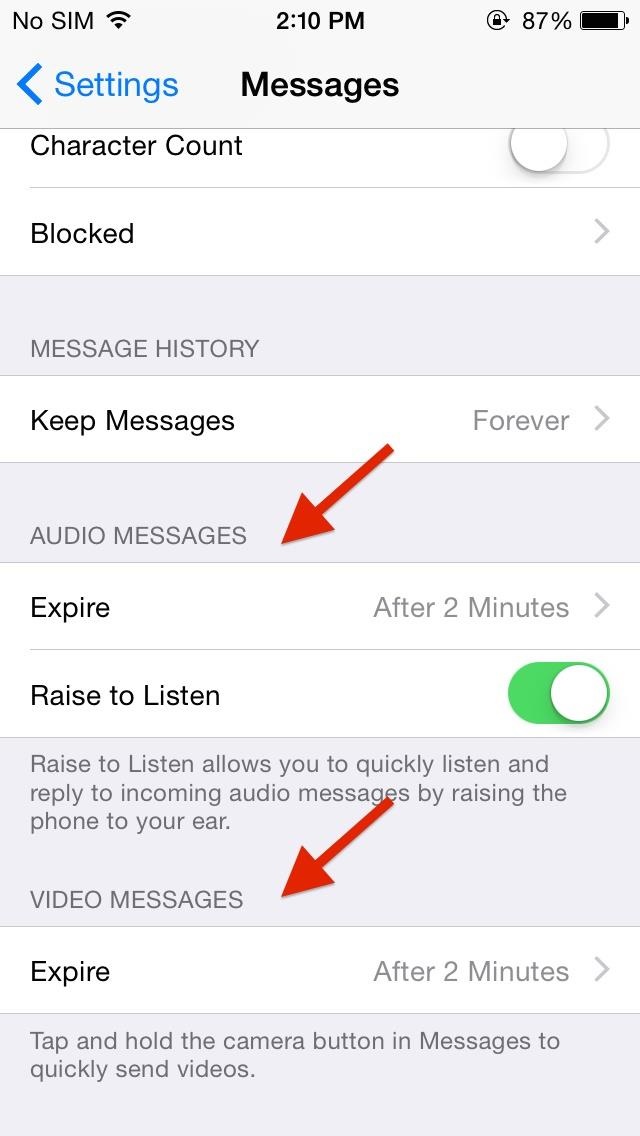
Inspired by Snapchat's ephemeral nature, iOS 8 now brings self-destructing audio, imagess, and videos to the stock Messages app. Hold down on the microphone or camera icon and quickly take a photo, record a video, or lay down some audio. When you release the icon, the files will send, but will then self-destruct after a set period of time.
Vice president of iOS product marketing Greg Joswiak says about this feature, "You don't want to have to clean these up. Audio and video messages can take up space, so they're set to self-destruct unless you choose to keep them."
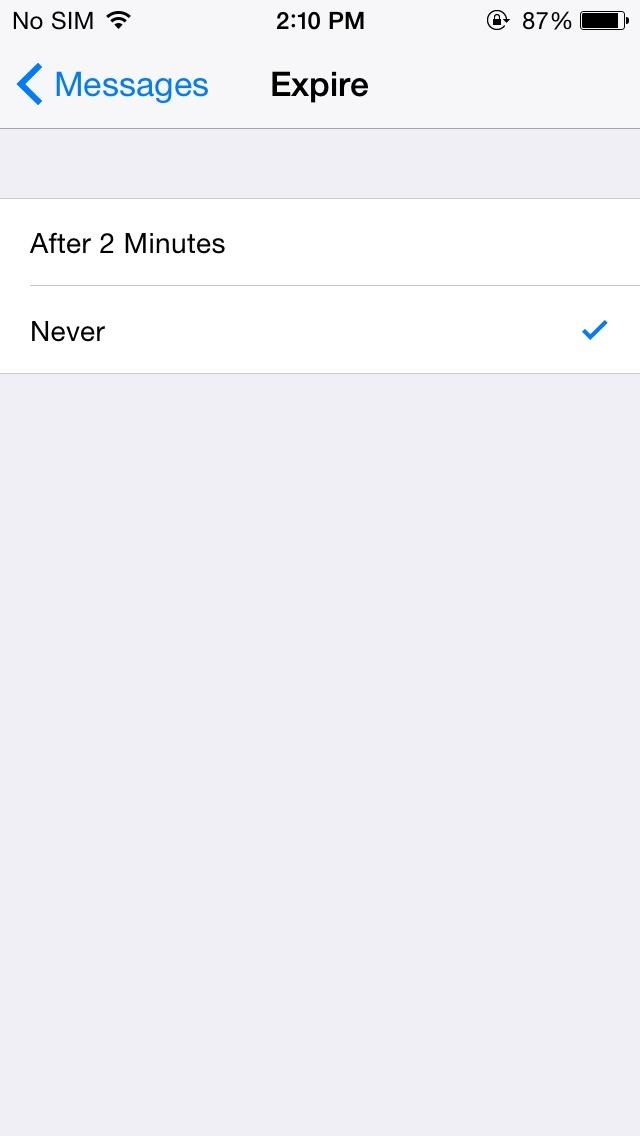
However, you can save these files if you want by adjusting your settings.
8. Scan Payment Cards to Auto-Fill Data
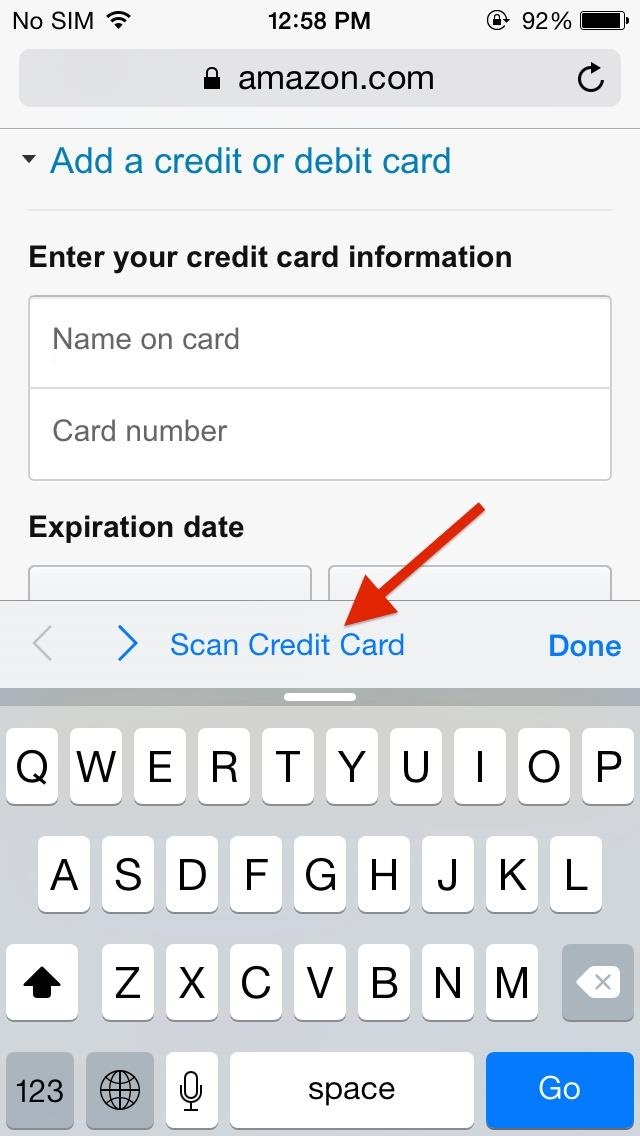
When making online purchases through Safari, you can now save yourself the hassle of manually inputting card information. Instead, just snap a picture of it and watch your relevant information automatically fill in the form. This worked extremely well on Amazon, but failed when using Midtowncomics, so while it's not universal, it should work with most major online retailers.
9. Battery-Saving Grayscale Mode
With the iPhone 6 stocked with a crisp, Sapphire AMOLED display, placing the device in grayscale mode will help extend battery life. By rendering pixels black and inactive, therefore not utilizing the backlight, grayscale reduces battery drain.
Battery-Saving Grayscale Mode Will be useful for those who are completely blind. Turning on grayscale mode Will help you save some battery.
10. FaceTime Gets "Call Waiting"
By popular demand, FaceTime now has a "call waiting" function displayed when receiving a request during a current FaceTime session. Now it's easy to decline the incoming call, or end your current one while accepting the new one. Of course, accepting the new call ends the old one, so it's not exactly like the call waiting we all know and love.
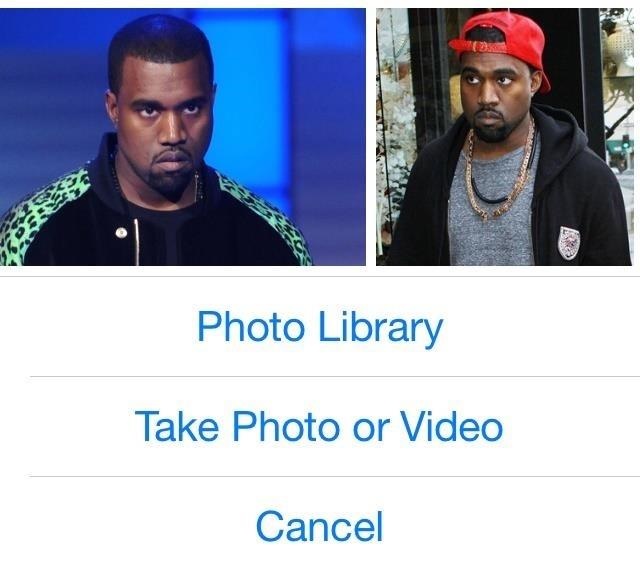
[1] Oh cool. [2] You can FaceTime with yourself!
11. There's Wi-Fi Calling Now
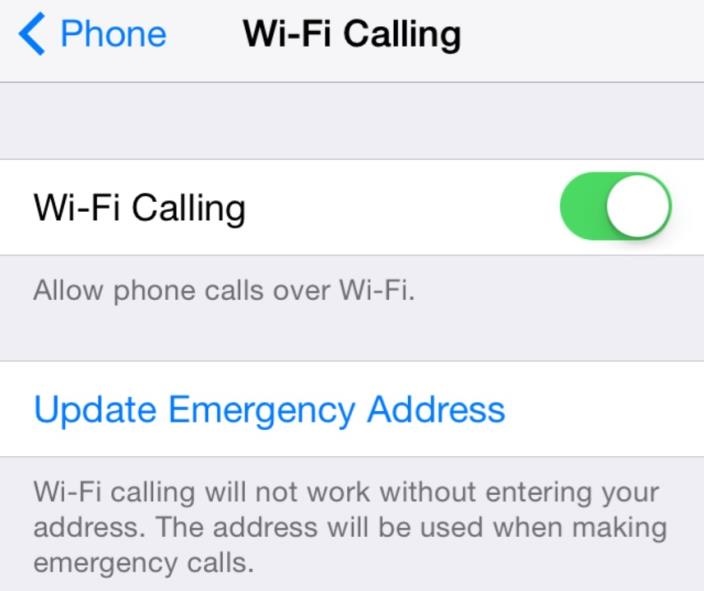
Wi-Fi calling won't just help save your data, but according to those who have used it, the calls sound clearer. As of now, this feature is only present on the T-Mobile variant. Expect this function to roll out to all carriers in the very near future.
To enable it, head into Settings -> Phone -> Wi-Fi Calling, then simply toggle it on. When enabling Wi-Fi calling, you must enter a physical address, presumably on the off-chance that you'll need to make an emergency call.
12. You Can Now Leave Annoying Group Chats
Leaving group chats is one feature that many have long asked for (including myself), simply because group messages can become an annoyance after a while, accumulating hundreds of texts and, subsequently, notifications.
13. Access All Attachments in a Message Thread
Accessing all attachments in Messages is a very useful feature, allowing you to easily find and save all of the pictures, videos, and audio files shared between you and another person, without having to scroll through the entire conversation.
14. Send Multiple (Recent) Pictures at Once
Sharing pictures is also now easier do, with a preview of recent photos showing up when you tap on the keyboard's camera icon.
Image via wonderhowto.com
15. There's Widgets in the Notification Center
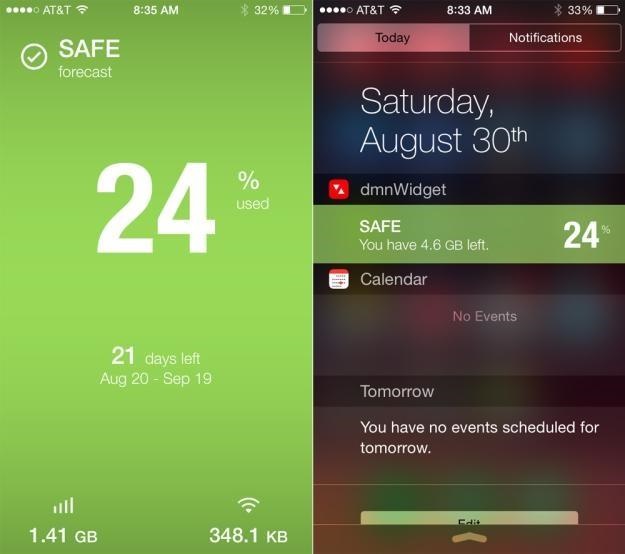
While not as good as they could be, widgets are finally available in iOS 8, accessible only through the Notification Center. Just scroll down from the top of the screen and you'll be able to access important information from your favorite apps, as well as perform truncated functions.
Image via BGR
16. Get Faster Access to Recent Contacts
By double-pressing the Home button in iOS 8, you not only get access to the app switcher, but you can now see "Phone Favorites" and "Recents" in theretoo. Just tap on a contact bubble to get options for phone calls, text messages, and FaceTime (or FaceTime audio) to keep in touch quicker with the people you contact the most.
17. Time-Lapse Videos!
Apple has now added a native time-lapse feature to their stock camera in iOS 8, shooting photos in dynamically selected intervals. If you don't want this feature enabled, maybe to prevent others from knowing who you've recently contacted, you can disable it. Actually, you can disable "Phone Favorites" or just "Recents"—even both if you want.See how here.
18. New Photo-Editing Tools
In the stock photo-editing tools, you can now fine-tune every aspect of a photo, such as automatically straighten horizons, modify light and adjust exposure, brightness, contrast and more.
19. Set Timers & Control Exposure in the Camera
Set a three or ten second timer directly from the camera viewfinder, as well as manually change the exposure by swiping up and down on the screen.
20. Do More in Notes
In the new version of Notes for iOS 8, you'll be able to jot down your notes in rich text (bold, italics, and underline), as well as be able to include photos.
21. Recover Deleted iPhone Photos
In iOS 8, you'll no longer have to worry about recovery tools or performing backups to get back your deleted photos. Apple is taking a preemptive approach to accidental deletions by allowing you to easily recover pictures or videos directly from your iPad or iPhone.
What do you think of the new iOS 8 for iPad, iPhone, and iPod touch. Share your thoughts below, or chat with us on Facebook.

 Braille Displays




.PNG "screen shot of Siri turning on VoiceOver")