iPhone & iPad Apps for the Blind &VisuallyImpaired

Showing posts with label backup. Show all posts

Tuesday, June 16, 2015

iCloud Backup and Restore


Restore from an iCloud backup

If you have a new iOS device, or if you need to restore your iOS device to resolve an issue, follow these steps.
  1. Follow the initial steps in the iOS Setup Assistant (select your language, and so on).
  2. Select Restore from iCloud Backup when the assistant asks you to set up your iPhone (or other iOS device).
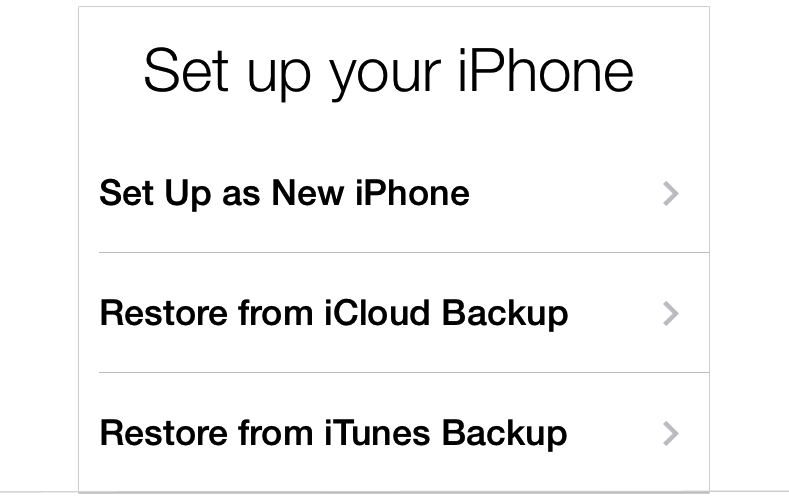
    Set up iPhone
  3. Select the backup you created earlier.
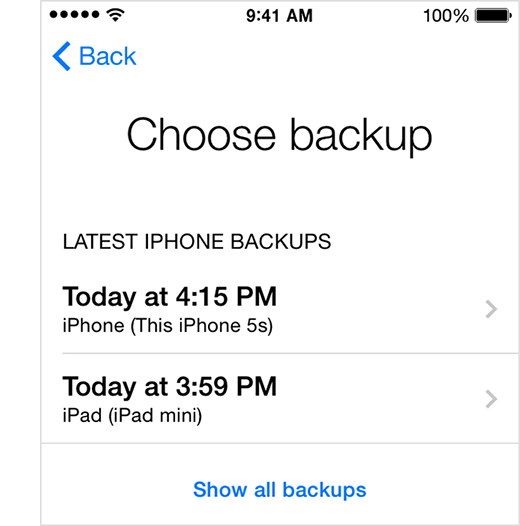
    Set up iPhone
You can restore a backup only by using the iOS Setup Assistant.
If you've already set up your device, you can erase all current content to go through the iOS Setup Assistant again. Tap Settings > General > Reset > Erase All Content and Settings. Do this only if you already have a backup, because this step will remove all current content from your device.

Wednesday, November 19, 2014

How to manually trigger an iCloud backup on iPhone and iPad

How to manually trigger an iCloud backup on iPhone and iPad
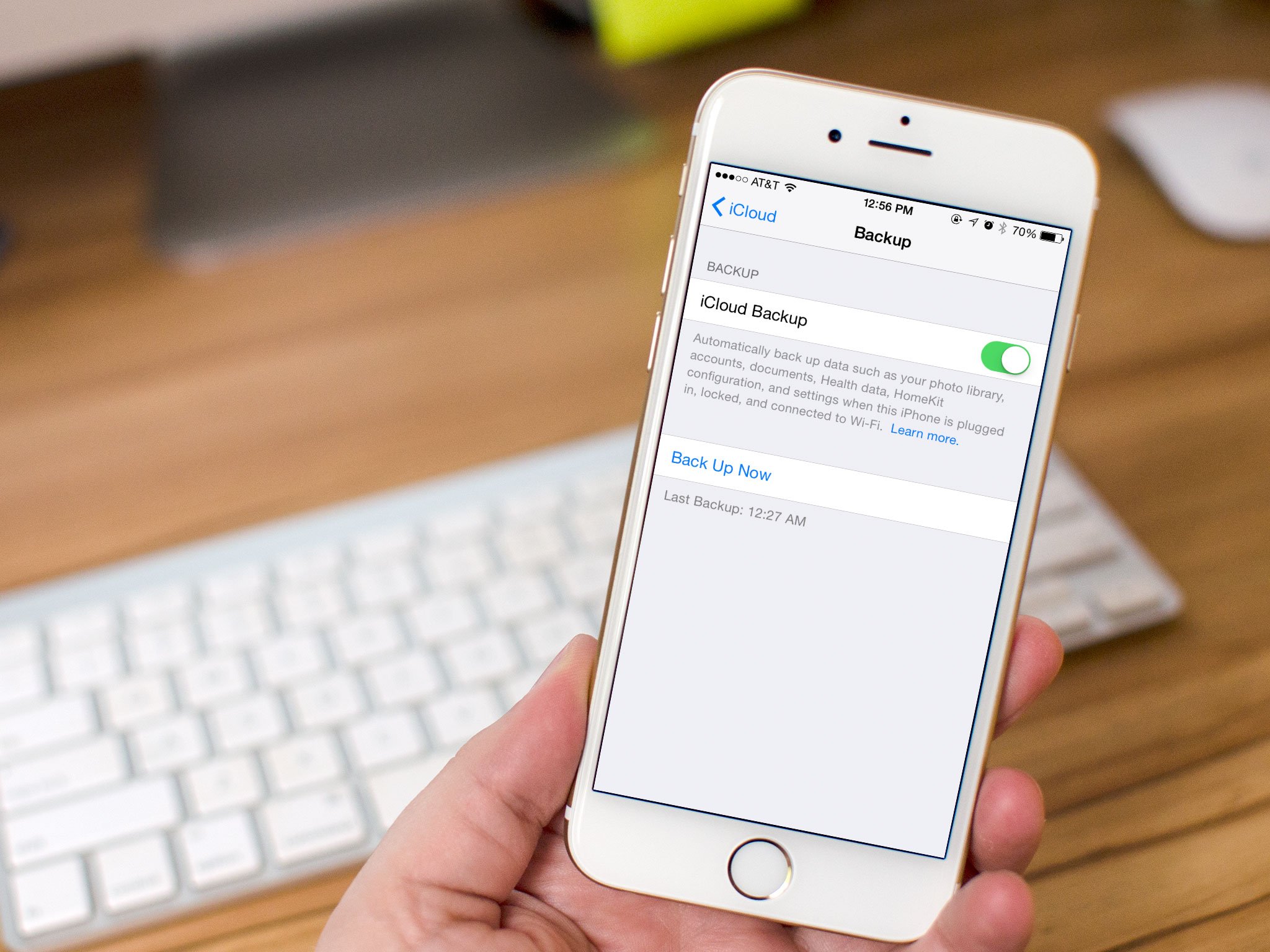
While iCloud will automatically back up all the data on your iPhone or iPad every 24 hours, as long as it's plugged in and connected to Wi-Fi, you can also trigger a backup manually at any time. It's especially handy when you're upgrading to a new device, or getting a replacement for a defective device. Best of all, making sure your backups are up-to-date is easy to do!
Note: Because of the amount of data that can potentially be transferred, and the power consumption that comes with it, manual iCloud backups also require your iPhone or iPad be plugged in and connected to Wi-Fi. Make sure you do that first, or the option for manual backup will be grayed out.

How to manually back up your data to iCloud

  1. Launch the Settings app from the Home screen. 
  2. Tap on iCloud
  3. Tap on Backup
  4. Tap on Back Up Now
How to manually trigger an iCloud backup on iPhone and iPad